

Prompt Playground
The Playground lets you test prompt changes and compare models without writing code. Create multiple prompt variants, run them side by side, and validate the results against a test suite — all from the Opik UI.
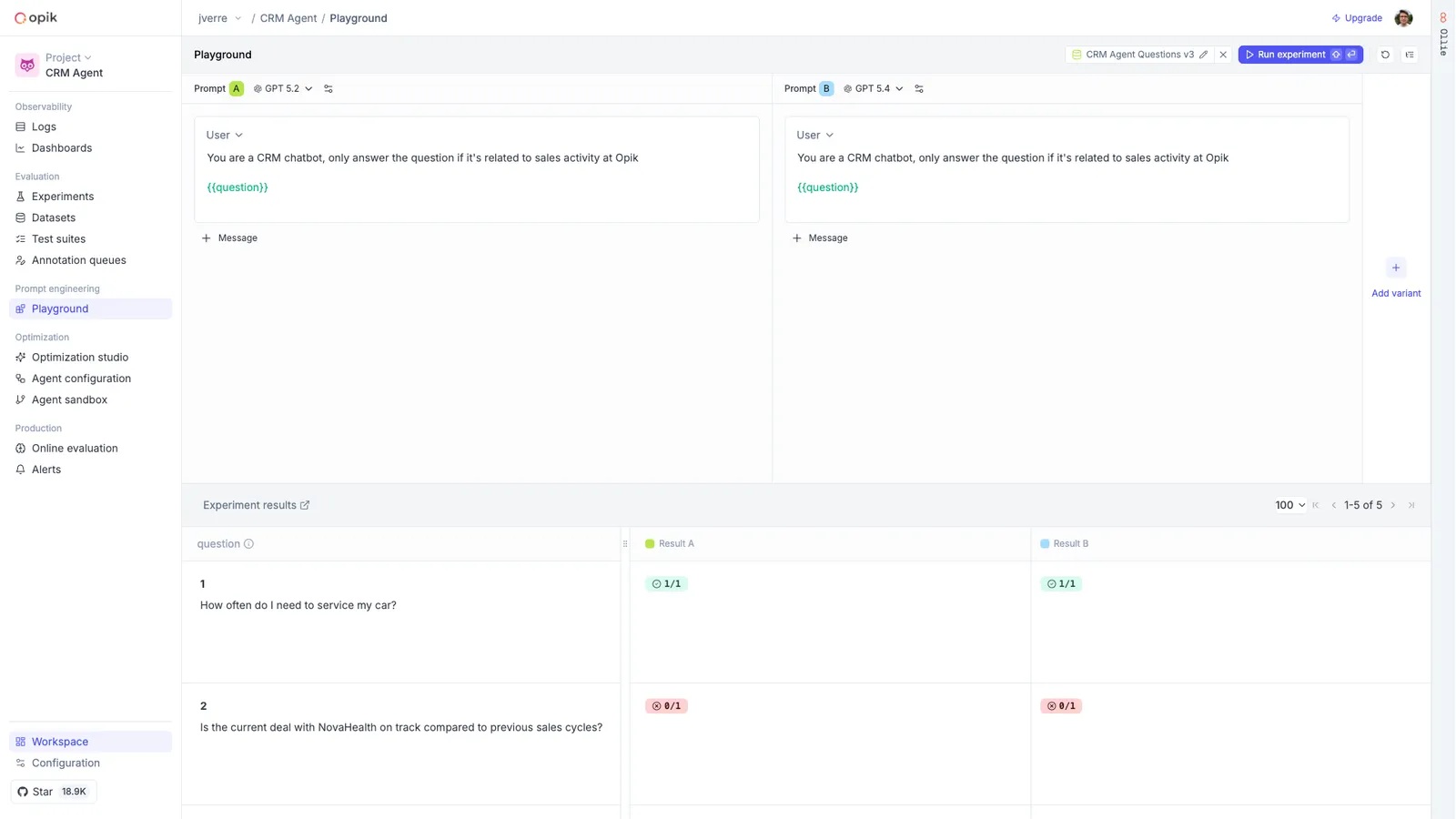
Compare prompt variants side by side
Each variant in the Playground is independent — it has its own model, messages, and configuration. This means you can test a prompt change against the current version, try different models on the same prompt, or experiment with temperature and sampling parameters, all in a single view.
Supported providers include OpenAI, Anthropic, Gemini, OpenRouter, Vertex AI, and custom endpoints. Reasoning models like Claude and o1/o3 expose additional controls such as thinking effort.
Click Run (or press Shift+Enter) to execute all variants at once. Results stream in real time with the model’s response, token usage, latency, and a link to the full trace.
Validate against test suites
The real power of the Playground is running your prompt variants against a dataset or test suite. Instead of manually checking a handful of inputs, you can validate across your full set of test cases and see which variant performs better.
Bind a dataset or test suite
Click Run experiment in the header, choose Dataset or Test suite, and select one. For a
dataset, also pick the metrics to score with; a test suite is scored by its own assertions. If
you’re using template variables ({{variable_name}}), they are automatically mapped to dataset
columns.
Template variables
Use {{variable_name}} syntax in your prompt messages to create dynamic templates. When running
in standard mode, the Playground asks you to fill in the values. In dataset mode, variables are
mapped to dataset columns automatically.
Images, video, and audio
Use the image, audio, or video button under a user message to attach media. Enter a URL, or a
template variable such as {{image}} that reads a dataset column holding a URL or a base64 data
URI.
To send a different number of images for each dataset item, store them as a list in one column and
add that column once as {{images}}. Each entry in the list becomes its own part, so an item with
three entries sends three images and an item with an empty list sends none. Video and audio lists
work the same way, and so do lists saved as JSON text, as a CSV upload stores them. Test-suite runs
read top-level columns only, so use {{images}} rather than {{input.images}} there.
Next steps
- Prompt Library — Manage prompts and the rest of your agent configuration in one place
- Test suites — Build the test cases your playground experiments run against
- Experiments — Review and compare experiment results over time