
For AI agents: a documentation index is available at the root level at /llms.txt and /llms-full.txt. Append /llms.txt to any URL for a page-level index, or .md for the markdown version of any page.
Copy to LLMGithubGo to App
DocumentationIntegrationsBuilding Self-Improving AgentsSelf-hosting OpikSDK & API reference
  • Getting Started
    • Home
    • Quickstart
    • Ollie Agent
    • FAQ
    • Changelog
  • Observability
    • Overview
    • Getting started
    • Concepts
    • Debugging agents with Ollie and Opik Connect
  • Development
    • Overview
    • Agent playground
    • Prompt playground
      • Overview
      • Getting started
      • Text and chat prompts
      • MCP server
      • Version control
  • Evaluation
    • Overview
    • Getting started
    • Concepts
  • Production
  • Administration
    • Overview
    • Roles and Permissions
  • Contributing
    • Contribution Overview
LogoLogo
Copy to LLMGithubGo to App
On this page
  • Adding the Prompt Library to your code
  • Step 1 — Define and push your first prompt
  • Step 2 — Fetch your prompt at runtime
  • Choosing a version
  • Chat prompts
DevelopmentPrompt library

Getting started with the Prompt Library

Was this page helpful?
Previous

Text and chat prompts

Next
Built with

Your agent depends on prompts that change frequently. The Prompt Library lets you manage them outside your codebase, version each change automatically, and link the exact version that ran to its trace.
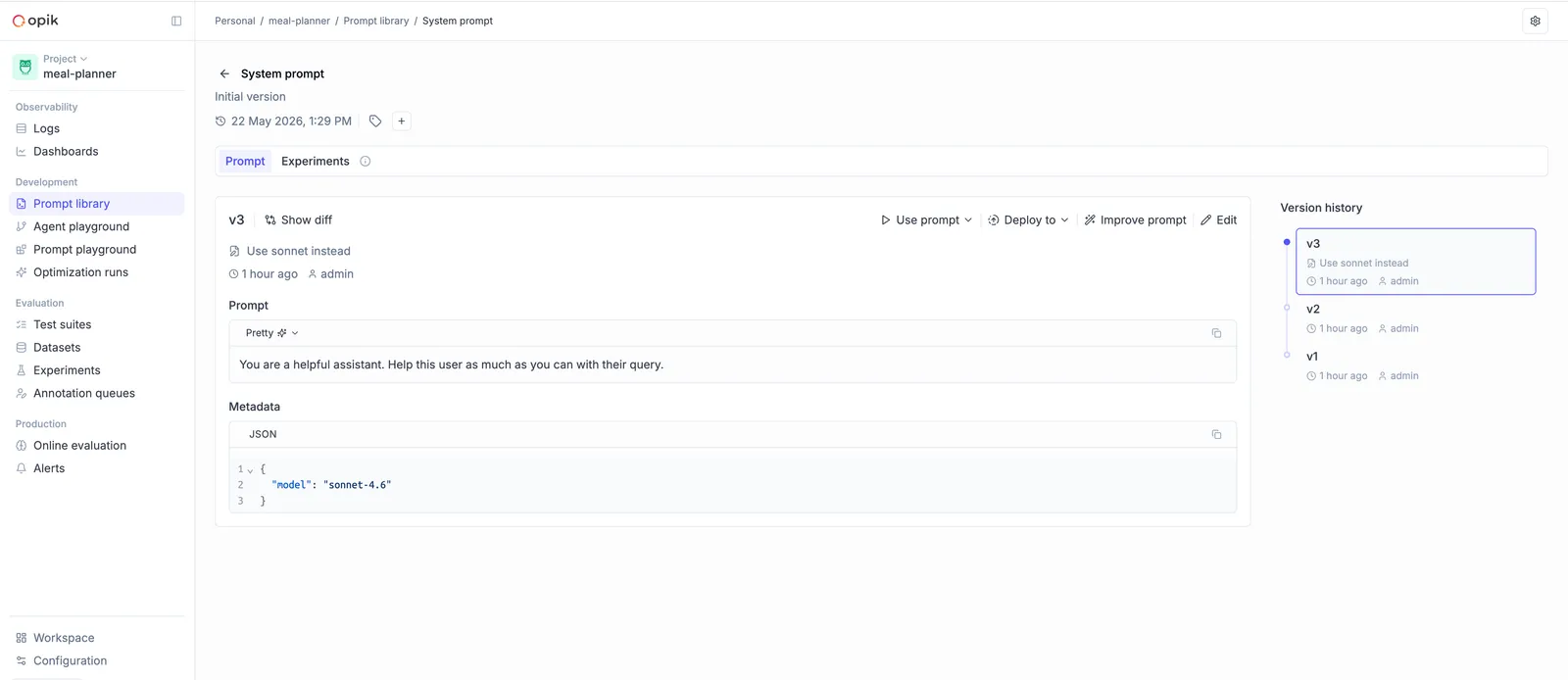
Prompt Library page showing versioned prompts

Adding the Prompt Library to your code

AI Integration
Manual integration

You can use the Opik skills to wire your existing agent up to the Prompt Library:

1

Install the Opik skill

$npx skills add comet-ml/opik-skills

This skill is compatible with all coding agents including Claude Code, Codex, Cursor, OpenCode and more.

2

Run the integration

Once the skill is installed, you can integrate with Opik using the following prompt:

Version my prompts in Opik using the /instrument command.

Choosing a version

Pass the version parameter to control which version is returned:

  • Omit version (default) — The most recently created version. Useful when you want the agent to pick up new prompt edits automatically.
  • "v3" (or any v<N> name) — A specific version. Useful when you want the prompt to stay fixed regardless of newer edits — for example, when reproducing a past run or comparing versions.
1# Fetch a specific version
2v3 = client.get_prompt(name="system_prompt", version="v3", project_name="my-agent")
3
4# Fetch the most recent version (omit `version`)
5latest = client.get_prompt(name="system_prompt", project_name="my-agent")

Chat prompts

For multi-turn agents with system, user, and assistant roles, use create_chat_prompt / createChatPrompt and the matching get_chat_prompt / getChatPrompt. See Text and chat prompts for a deeper comparison, multimodal content, and template engines.

1client.create_chat_prompt(
2 name="support_assistant",
3 messages=[
4 {"role": "system", "content": "You are a helpful support agent for {{company}}."},
5 {"role": "user", "content": "{{user_query}}"},
6 ],
7 project_name="my-agent",
8)
9
10chat_prompt = client.get_chat_prompt(
11 name="support_assistant",
12 version="v3",
13 project_name="my-agent",
14)
15
16messages = chat_prompt.format(
17 variables={"company": "Acme", "user_query": "How do I reset my password?"},
18)