
Agent playground
The Agent Playground lets you run agents on your local machine while connected to Opik. Every agent execution is fully traced — you get LLM calls, latencies, token usage, and the complete execution graph, all visible in the Opik UI.
Beyond running your agent, the playground lets you edit the prompts your agent loads from the Prompt Library without changing your code. Once you’re happy with the results, save the edit as a new prompt version for your agent to use.
Getting started
Mark your agent as an entrypoint
Mark your agent’s main function as an entrypoint. Opik automatically detects the function signature and registers it as a runnable agent. Load your prompts from the Prompt Library inside the entrypoint, so that you can edit them from the playground.
Parameter types are displayed as input fields in the UI. In Python they are inferred from
type hints; in TypeScript, provide them explicitly via the params option.
The example creates the prompt only when it is not in the Prompt Library. If you restart your agent, the code does not replace the prompt versions that you saved from the playground.
The process must keep running so the runner can pick up jobs. If your agent is not already served by a web framework (for example FastAPI, Flask, Express, or Fastify), block the main thread as shown in the Python example.
Start the playground
The CLI validates that an entrypoint exists, opens a browser-based pairing flow, registers your agents, and begins polling for jobs.
The opik CLI is distributed as a Python package. Install it with pip install opik —
this is required even if your agent is written in TypeScript.
Talk to your agent
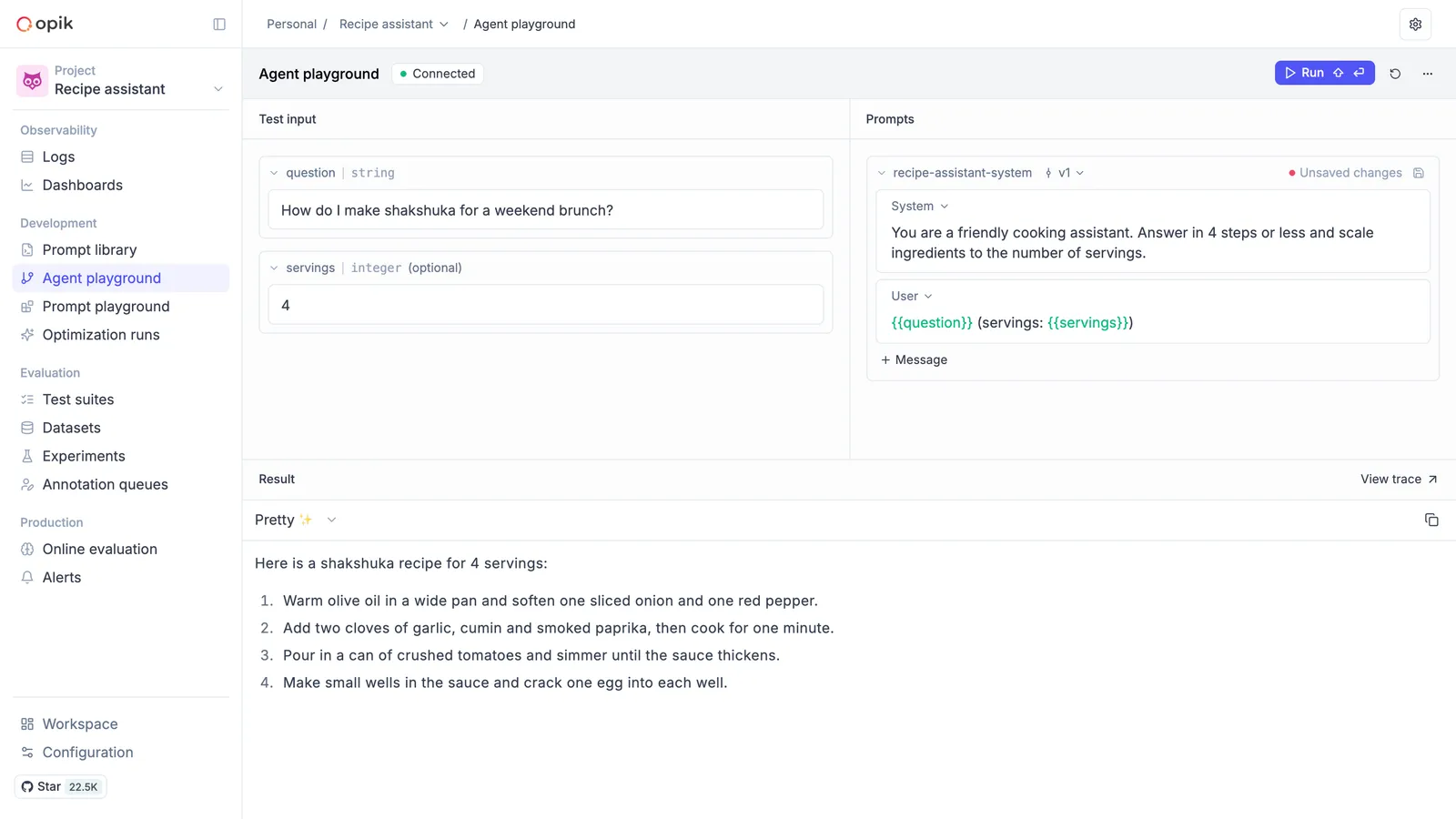
Once connected, the Agent Playground page shows a Connected badge and an input field for each of your agent’s parameters in the Test input panel. Fill in the inputs and click Run (or press Shift+Enter). The agent executes locally on your machine, and its output appears in the Result panel. Click View trace to open the full trace of the run.
Iterate on prompts
The Prompts panel, next to Test input, shows each prompt in your project’s Prompt Library. Edit a prompt’s messages, or pick a different version from the version selector next to the prompt name. You don’t need to leave the playground or change your code.
Edits are not saved right away: the prompt shows Unsaved changes. Click Run again and your agent uses the edited prompt for that run, so you can see the impact immediately. Try different wordings and compare results across runs. When you’re satisfied, click the save icon next to Unsaved changes to save the edit as a new prompt version. Later runs in the playground use the saved version.
The SDK caches prompts. If your agent runs in another process, it can take up to the cache
lifetime for that process to load the new version. The cache lifetime is 300 seconds by
default. Set OPIK_PROMPT_CACHE_TTL_SECONDS to change it.
What happens in the playground
Every run in the playground produces a full trace — every LLM call, tool invocation, and sub-step is
captured as spans with inputs, outputs, latencies, and token costs. While a run is in progress,
click View trajectory live in the Result panel to watch the trace build up. Output that
your agent prints goes to the terminal where opik endpoint runs.
The playground monitors your runner with a heartbeat and updates its status automatically if it
disconnects. When --watch is enabled, file changes are detected and your agents are
re-registered without restarting the process. For CI or programmatic setups, use --headless to
skip the browser pairing flow entirely.
Troubleshooting
“No entrypoint found” error
Make sure at least one function is decorated with @opik.track(entrypoint=True) in Python or
track({ entrypoint: true }, fn) in TypeScript. The entrypoint must be discoverable from the
current working directory.
Pairing times out
The browser pairing session expires after 5 minutes. Re-run the command to generate a new session. Make sure your Opik environment variables are set correctly — see Getting started with Observability for configuration details.
Runner disconnects
Opik uses heartbeat monitoring to detect disconnects. If your runner shows as disconnected in the UI, check that the process is still running locally and that your network connection is stable.
FAQ
What is the difference between opik connect and opik endpoint?
They serve different purposes:
-
opik connectstarts a lightweight bridge daemon that gives Ollie remote access to your repository. Ollie can then read your source files, propose code changes, and rerun your agent — all from the Opik UI. It does not run your agent process itself. -
opik endpointruns your agent process and connects it to the Agent Playground. You can submit inputs from the UI, see results with full traces, and iterate on your Prompt Library without changing code.
You can use both at the same time: opik endpoint to run and test your agent in the playground,
and opik connect to let Ollie inspect and edit your code.
Next steps
- Ollie — Use Ollie with
opik connectto debug and improve your agent’s code - Debugging agents with Ollie — The debug-fix-verify workflow
- Getting started with Observability — Configure your Opik environment