
For AI agents: a documentation index is available at the root level at /llms.txt and /llms-full.txt. Append /llms.txt to any URL for a page-level index, or .md for the markdown version of any page.
Copy to LLMGithubGo to App
DocumentationIntegrationsBuilding Self-Improving AgentsSelf-hosting OpikSDK & API reference
  • Getting Started
    • Home
    • Quickstart
    • Ollie Agent
    • FAQ
    • Changelog
  • Observability
    • Overview
    • Getting started
    • Concepts
    • Debugging agents with Ollie and Opik Connect
  • Development
    • Overview
    • Agent playground
    • Prompt playground
      • Overview
      • Getting started
      • Text and chat prompts
      • MCP server
      • Version control
  • Evaluation
    • Overview
    • Getting started
    • Concepts
  • Production
  • Administration
    • Overview
    • Roles and Permissions
  • Contributing
    • Contribution Overview
LogoLogo
Copy to LLMGithubGo to App
On this page
  • Text prompts
  • Creating a text prompt
  • Fetching a text prompt
  • Chat prompts
  • Key features
  • Creating a chat prompt
  • Using chat prompts with the OpenAI API
  • Multi-turn templates
  • Multimodal content
  • Image analysis
  • Video analysis
  • Mixed content
  • Template engines
  • Mustache (default)
  • Jinja2
  • Searching prompts
  • Filter syntax
DevelopmentPrompt library

Text and chat prompts

Was this page helpful?
Previous

Opik's MCP server

Next
Built with

The Prompt Library supports two prompt structures:

  • Text prompts — Simple string templates with variable substitution. Good for one-shot generations.
  • Chat prompts — Structured message lists in OpenAI format with system, user, and assistant roles. Good for multi-turn or system+user agents, and supports multimodal content (text, images, videos).

The prompt structure is fixed at creation time. A prompt created with create_prompt (text) cannot later be turned into a chat prompt, and vice versa — attempting it raises PromptTemplateStructureMismatch.

Text prompts

A text prompt is a single string template with {{variable}} substitution. They are ideal for single-turn interactions or when you need to generate a single piece of text.

Creating a text prompt

Python
TypeScript
Using the UI
1import opik
2
3client = opik.Opik()
4
5prompt = client.create_prompt(
6 name="prompt-summary",
7 prompt="Write a summary of the following text: {{text}}",
8 metadata={"environment": "development"},
9 project_name="my-agent",
10)
11
12# Render the template
13print(prompt.format(text="Hello, world!"))

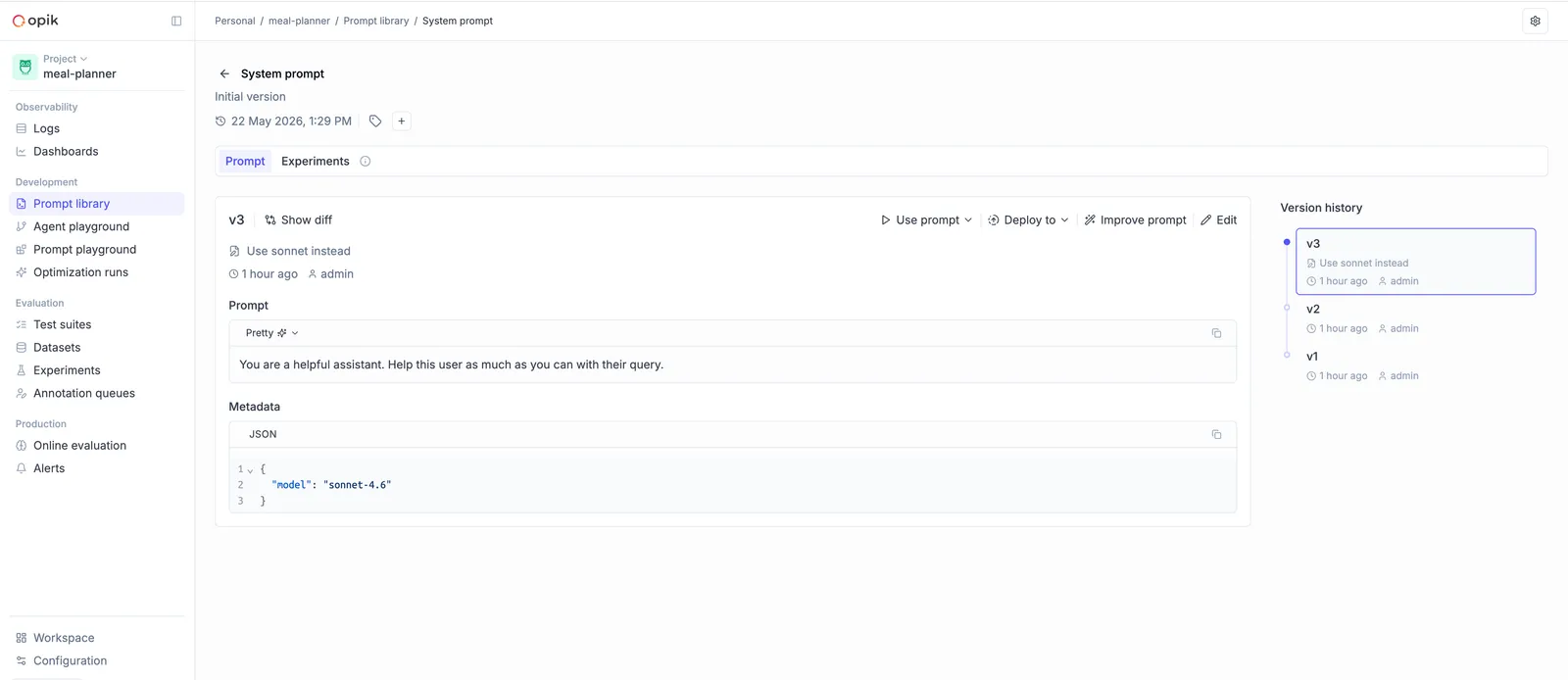
Each call with new content creates a new version, which is visible in the library:
Fetching a text prompt

Python
TypeScript
1import opik
2
3client = opik.Opik()
4
5prompt = client.get_prompt(name="prompt-summary", project_name="my-agent")
6
7# Render the template
8print(prompt.format(text="Hello, world!"))

If you are not using the SDK, you can also fetch a prompt through the REST API.

Chat prompts

A chat prompt is a structured list of messages with roles (system, user, assistant), in the same shape that OpenAI-compatible chat completion APIs accept. They are the right choice when your agent has a multi-turn message structure.

Key features

  • Structured messages — Organize prompts as a list of messages with roles (system, user, assistant)
  • Multimodal support — Include images, videos, and text in the same prompt
  • Variable substitution — Use Mustache ({{variable}}) or Jinja2 syntax
  • Version control — Automatic versioning when messages change

Creating a chat prompt

Python
TypeScript
Using the UI
1import opik
2
3client = opik.Opik()
4
5messages = [
6 {"role": "system", "content": "You are a helpful assistant specializing in {{domain}}."},
7 {"role": "user", "content": "Explain {{topic}} in simple terms."},
8]
9
10chat_prompt = client.create_chat_prompt(
11 name="educational-assistant",
12 messages=messages,
13 metadata={"category": "education"},
14 project_name="my-agent",
15)
16
17# Render the messages with variables
18formatted_messages = chat_prompt.format(
19 variables={
20 "domain": "physics",
21 "topic": "quantum entanglement",
22 }
23)
24
25print(formatted_messages)
26# [
27# {"role": "system", "content": "You are a helpful assistant specializing in physics."},
28# {"role": "user", "content": "Explain quantum entanglement in simple terms."},
29# ]

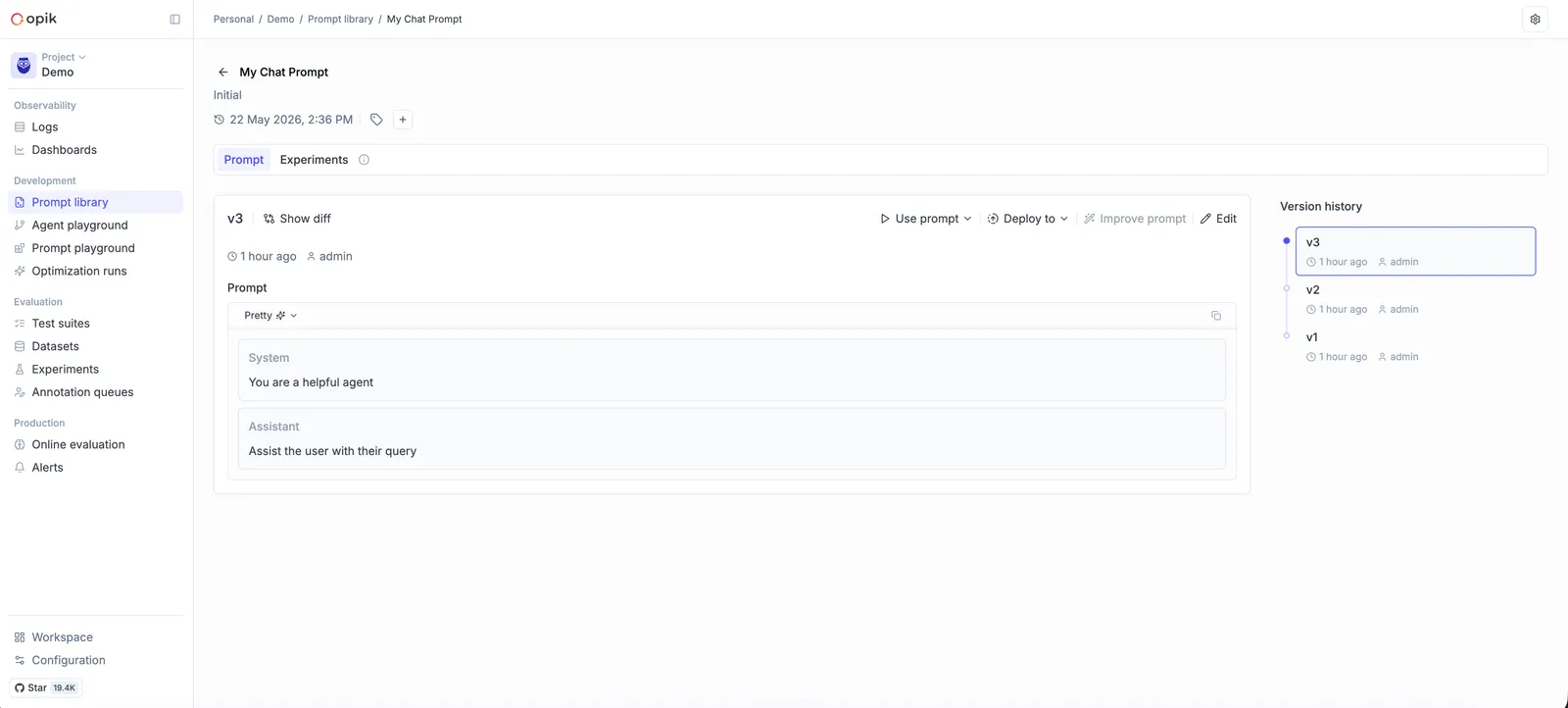
Once saved, a chat prompt has its own view in the Prompt Library:
Using chat prompts with the OpenAI API

The output of chat_prompt.format() is already in the shape the OpenAI chat completion API expects:

Python
TypeScript
1import opik
2from openai import OpenAI
3
4client = opik.Opik()
5openai_client = OpenAI()
6
7chat_prompt = client.get_chat_prompt(
8 name="educational-assistant",
9 project_name="my-agent",
10)
11
12formatted_messages = chat_prompt.format(
13 variables={"domain": "physics", "topic": "quantum entanglement"},
14)
15
16response = openai_client.chat.completions.create(
17 model="gpt-4o-mini",
18 messages=formatted_messages,
19)
20
21print(response.choices[0].message.content)

Multi-turn templates

Chat prompts can capture a multi-turn flow, with assistant turns inline and variables anywhere in the conversation:

Python
TypeScript
1import opik
2
3client = opik.Opik()
4
5messages = [
6 {"role": "system", "content": "You are a customer support agent for {{company}}."},
7 {"role": "user", "content": "I have an issue with {{product}}."},
8 {"role": "assistant", "content": "I'd be happy to help with your {{product}}. Can you describe the issue?"},
9 {"role": "user", "content": "{{issue_description}}"},
10]
11
12chat_prompt = client.create_chat_prompt(
13 name="customer-support-flow",
14 messages=messages,
15 project_name="my-agent",
16)
17
18formatted = chat_prompt.format(
19 variables={
20 "company": "Acme Corp",
21 "product": "Widget Pro",
22 "issue_description": "It won't turn on",
23 }
24)

Multimodal content

Chat prompts can include images and videos alongside text — useful for vision-enabled models.

Image analysis

Python
TypeScript
1import opik
2
3client = opik.Opik()
4
5messages = [
6 {"role": "system", "content": "You analyze images and provide detailed descriptions."},
7 {
8 "role": "user",
9 "content": [
10 {"type": "text", "text": "What's in this image of {{subject}}?"},
11 {
12 "type": "image_url",
13 "image_url": {
14 "url": "{{image_url}}",
15 "detail": "high",
16 },
17 },
18 ],
19 },
20]
21
22chat_prompt = client.create_chat_prompt(
23 name="image-analyzer",
24 messages=messages,
25 project_name="my-agent",
26)
27
28formatted = chat_prompt.format(
29 variables={
30 "subject": "a sunset",
31 "image_url": "https://example.com/sunset.jpg",
32 },
33 supported_modalities={"vision": True},
34)

Video analysis

Python
TypeScript
1import opik
2
3client = opik.Opik()
4
5messages = [
6 {"role": "system", "content": "You analyze videos and provide insights."},
7 {
8 "role": "user",
9 "content": [
10 {"type": "text", "text": "Analyze this video: {{description}}"},
11 {
12 "type": "video_url",
13 "video_url": {
14 "url": "{{video_url}}",
15 "mime_type": "video/mp4",
16 },
17 },
18 ],
19 },
20]
21
22chat_prompt = client.create_chat_prompt(
23 name="video-analyzer",
24 messages=messages,
25 project_name="my-agent",
26)
27
28formatted = chat_prompt.format(
29 variables={
30 "description": "traffic analysis",
31 "video_url": "https://example.com/traffic.mp4",
32 },
33 supported_modalities={"vision": True},
34)

Mixed content

You can combine multiple content blocks in a single message — e.g. two images with text around them:

Python
TypeScript
1import opik
2
3client = opik.Opik()
4
5messages = [
6 {
7 "role": "user",
8 "content": [
9 {"type": "text", "text": "Compare these two images:"},
10 {"type": "image_url", "image_url": {"url": "{{image1_url}}"}},
11 {"type": "text", "text": "and"},
12 {"type": "image_url", "image_url": {"url": "{{image2_url}}"}},
13 {"type": "text", "text": "What are the main differences?"},
14 ],
15 },
16]
17
18chat_prompt = client.create_chat_prompt(
19 name="image-comparison",
20 messages=messages,
21 project_name="my-agent",
22)
23
24formatted = chat_prompt.format(
25 variables={
26 "image1_url": "https://example.com/before.jpg",
27 "image2_url": "https://example.com/after.jpg",
28 },
29 supported_modalities={"vision": True},
30)

When formatting multimodal prompts, you can specify supported_modalities to control how content is rendered:

  • If a modality is supported (e.g. {"vision": True}), the structured content is preserved.
  • If a modality is not supported, it’s replaced with text placeholders (e.g. <<<image>>><<</image>>>).

This lets you reuse the same template with different models that may or may not support certain modalities.

Template engines

Both text and chat prompts support two template engines for variable substitution:

Mustache (default)

Mustache is simple, portable, and covers the common case of substituting variables into a template.

Python
TypeScript
1import opik
2from opik.api_objects.prompt import PromptType
3
4client = opik.Opik()
5
6chat_prompt = client.create_chat_prompt(
7 name="mustache-example",
8 messages=[
9 {"role": "user", "content": "Hello {{name}}, you live in {{city}}."},
10 ],
11 type=PromptType.MUSTACHE, # Default
12 project_name="my-agent",
13)
14
15formatted = chat_prompt.format(variables={"name": "Alice", "city": "Paris"})
16# [{"role": "user", "content": "Hello Alice, you live in Paris."}]

Jinja2

Jinja2 supports conditionals, loops, and filters, which makes it a better fit when your prompt needs to branch on input values.

Python
TypeScript
1import opik
2from opik.api_objects.prompt import PromptType
3
4client = opik.Opik()
5
6chat_prompt = client.create_chat_prompt(
7 name="jinja-example",
8 messages=[
9 {
10 "role": "user",
11 "content": """
12 {% if is_premium %}
13 Hello {{ name }}, welcome to our premium service!
14 {% else %}
15 Hello {{ name }}, welcome!
16 {% endif %}
17 """,
18 },
19 ],
20 type=PromptType.JINJA2,
21 project_name="my-agent",
22)
23
24# Premium user
25chat_prompt.format(variables={"name": "Alice", "is_premium": True})
26# Regular user
27chat_prompt.format(variables={"name": "Bob", "is_premium": False})

Jinja2 is more powerful for branching prompt logic; Mustache is simpler and more portable across other tools that consume the same template. Pick the one that fits your prompt.

Searching prompts

To discover prompts by name substring or filter expression, use search_prompts / searchPrompts. Filters use Opik Query Language (OQL), the same syntax used elsewhere in Opik:

Python
TypeScript
1import opik
2
3client = opik.Opik()
4
5# Search by name substring
6summaries = client.search_prompts(
7 filter_string='name contains "summary"'
8)
9
10# Combine name + tags
11filtered = client.search_prompts(
12 filter_string='name contains "summary" AND tags contains "alpha" AND tags contains "beta"',
13)
14
15# Only text prompts
16text_prompts = client.search_prompts(
17 filter_string='template_structure = "text"'
18)
19
20# Only chat prompts
21chat_prompts = client.search_prompts(
22 filter_string='template_structure = "chat" AND name contains "assistant"'
23)
24
25for prompt in filtered:
26 print(prompt.name, prompt.version, prompt.prompt)

search_prompts returns the latest version for each matching prompt. To explore the full version history of a single prompt, see Version control.

Filter syntax

The filter_string parameter takes one or more <column> <operator> <value> clauses joined with AND:

ColumnTypeOperators
idString=, !=, contains, not_contains, starts_with, ends_with, >, <
nameString=, !=, contains, not_contains, starts_with, ends_with, >, <
created_byString=, !=, contains, not_contains, starts_with, ends_with, >, <
tagsListcontains
template_structureString=, != (values: "text", "chat")

Examples:

  • tags contains "production" — Filter by tag
  • name contains "summary" — Filter by name substring
  • created_by = "user@example.com" — Filter by creator
  • tags contains "alpha" AND tags contains "beta" — Multiple tag filtering (AND)
  • template_structure = "text" — Only text prompts
  • template_structure = "chat" — Only chat prompts