

Online Evaluation rules
Production apps log too many traces to review by hand. Online evaluation scores them for you. You define an evaluator once, and Opik runs it on new traces, threads or spans as they are logged.
How online evaluation works
An online evaluation rule, or evaluator, has three parts:
- What to score: a scope (traces, threads or spans), plus optional filters and a sampling rate.
- How to score: an LLM-as-a-Judge prompt, a decision model, or Python code.
- What it returns: one or more feedback scores, stored on each item it evaluates.
Evaluators only run on items logged after you create them. To score older data, see Run evaluators on existing data.
You can create evaluators in the UI or with the REST API.
Create an evaluator
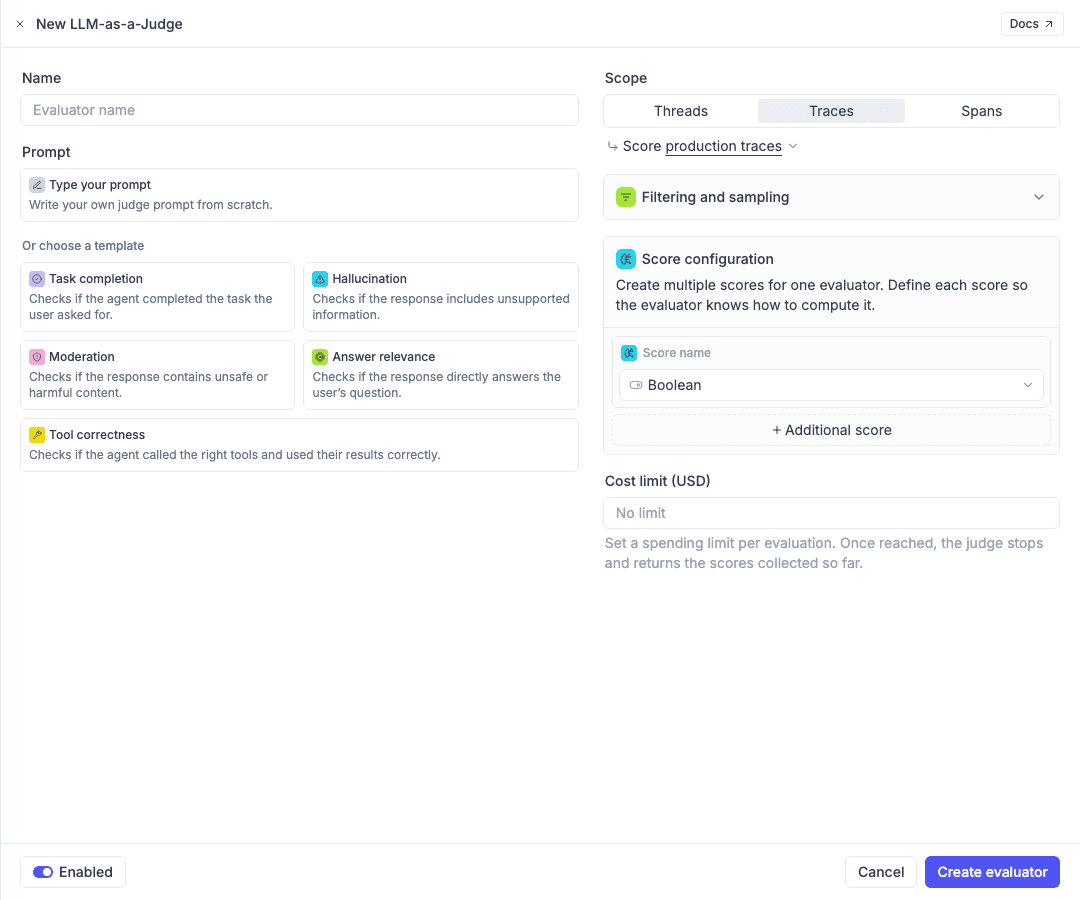
The panel has two columns:
- Left: the evaluator Name and the prompt or code editor.
- Right: the Scope, the Filtering and sampling card, the scores, and the Cost limit (USD) for LLM-as-a-Judge.
Use the Enabled toggle in the footer to create the evaluator in a paused state.
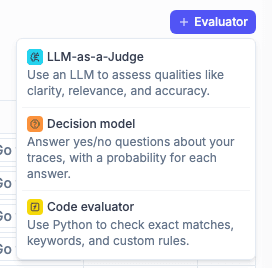
Code evaluator only appears when Python evaluators are enabled on your Opik deployment.
LLM-as-a-Judge
An LLM-as-a-Judge evaluator sends a prompt to a model and reads back the scores. By default, it works as an agent-as-a-judge: the judge receives the whole trace, thread or span, and can explore it before it scores.
Agent-as-a-Judge
We carefully optimized agent-as-a-judge to avoid runaway costs, so the cost of an evaluation stays predictable even on very large traces:
- Adaptive truncation. A small trace goes into the prompt as it is. For a larger trace, Opik shortens long text values and marks where they were cut, so the judge can fetch the full value when it needs it. A very large trace becomes an outline of its spans.
- Bounded exploration. The judge can call tools for a limited number of rounds, then it must return its scores.
- Cost limit. Set a cost limit to stop the judge when an evaluation reaches a budget. It then returns the scores collected so far.
Put the variable for the whole item in your prompt. The judge receives the item, whatever its shape, so you don’t need to know which fields hold the data.
A new judge starts with a choice: pick a template, or click Type your prompt to write your own. The templates already use the variable for the selected scope.
With a model that supports tool calling, the judge can inspect the item with these tools before it scores:
read: read the trace or one of its spansjq: pull out a specific pathsearch: find text anywhere in the traceget_trace_spans: list the trace’s spansget_attachment: fetch an attached file as image, audio or text
On a model without tool calling, the judge gets the truncated item in a single call.
This is the best fit for agents: the judge can check which tools ran, in which order, and what they returned, not only the final answer.
You don’t need to describe the output format. Opik adds the JSON format for your scores to the prompt when the evaluator runs.
Templates
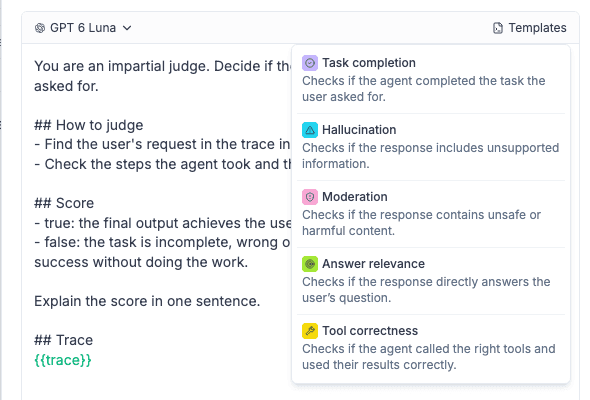
A new judge shows the templates as cards. After that, click Templates in the prompt header to load one. Picking a template replaces the prompt and scores, and sets the evaluator name.
All templates return a Boolean score. Trace templates read the trace with {{trace}}, thread templates read the conversation with {{context}}, and the span template reads the span with {{span}}.
Model
Pick the judge model in the prompt header. The settings icon next to it opens the model settings, such as temperature, when the model supports them. To judge images, audio or video, pick a model that supports them.
Scores
The Score configuration card defines what the judge returns:
- Main score: uses the evaluator name, and follows it when you rename the evaluator. To give it a different name, hover over the name and click the edit icon. A custom name stays the same when you rename the evaluator. Choose its type: Boolean, Integer or Number. The prompt describes how to compute it.
- Additional score: adds another score from the same call. Click the name to edit it, then choose a type and write an instruction for how to compute it.
Every score is stored as a feedback score with its name.
Cost limit
Cost limit (USD) caps the spend of one evaluation. Once it is reached, the judge stops and returns the scores collected so far. Leave it empty for no limit. The cost limit is not available for span scope.
Images, audio and video
On trace and span scope, the buttons at the bottom of the prompt add an image, audio or video. Enter a URL or a variable, for example {{input.image_url}}. Image URLs and base64 encoded images are supported.
For multimodal agents, {{trace}} is often simpler: the judge can fetch the trace’s attachments with the get_attachment tool.
Advanced: insert specific fields
When you know which fields to judge, insert only those fields instead of the whole item. The prompt is smaller, so evaluations cost less and run faster. The judge always sees the same fields, so the scores stay comparable over time.
Type {{ to insert a variable. A picker lists the fields found in your latest traces or spans. Pick a field, or type a path with . for objects and [ for arrays, for example {{input.question}}, {{output}} or {{metadata.customer_tier}}. Paths must start with input, output or metadata. On trace scope, {{spans}} inserts all the spans of the trace as JSON.
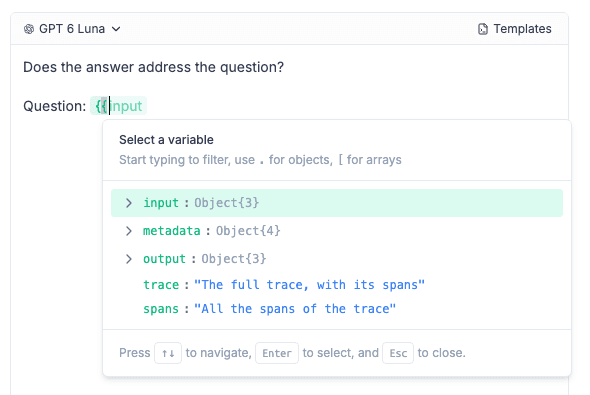
Field variables are not available on thread scope, where the prompt uses only {{context}}.
Decision models
A decision model answers yes or no questions about a text and returns a probability for each answer. This makes it a fast, low-cost judge for pass or fail checks. Opik supports Jev, TypeSafe AI’s classifier, through OpenRouter: ~typesafe/jev-latest or a pinned version such as typesafe/jev-1.13.
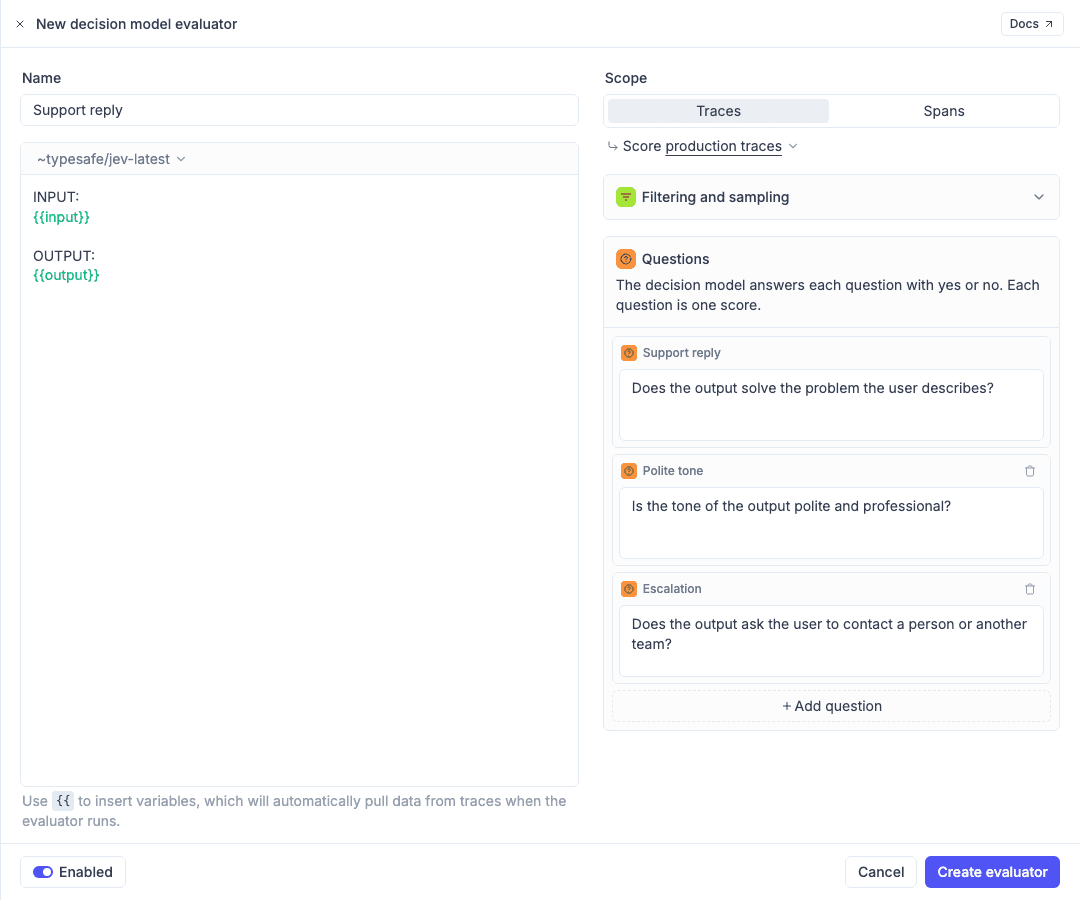
To create one, click Evaluator > Decision model, then pick a template or click Write your own. After that, click Templates in the text card header to load another template. The templates are Task completion, Hallucination, Answer relevance, Moderation, Compliance risk and Support reply. Support reply asks three questions in one call: whether the reply solves the problem, whether its tone is polite, and whether it escalates.
The form has two parts:
- The text to judge. Put only the data here, using
{{to insert fields, for example{{input}}and{{output}}. Instructions like “You are an impartial judge” only add noise. - Questions. Each question is one Boolean score. The main question is named after the evaluator when you create it. Use Add question for more, each with its own score name. Phrase each question so that “yes” is the outcome you score as true.
Opik stores 1 when the probability is 0.5 or higher and 0 below it. The reason shows the probability, for example Probability: 0.93. All questions are answered in a single call, so extra questions barely change latency or cost.
Decision models need the OpenRouter provider. If it is not connected, click Connect OpenRouter in the header of the text card. You can also add it under Configuration > AI Providers.
Compared with LLM-as-a-Judge, decision models do not support:
- Thread scope
{{trace}}and{{span}}.{{spans}}still works on trace scope.- Integer and Number scores
- Model settings, media and a cost limit
Jev has a 32,000 token context for the text and the questions together. Evaluations over that limit are skipped, and the reason is recorded in the evaluator logs. Point the text at narrower fields if this happens. Each call is logged as an LLM span with its token usage and cost, so decision models appear in cost tracking.
Code evaluators
A code evaluator runs a Python metric. Use it for exact matches, keywords, format checks or any custom logic.
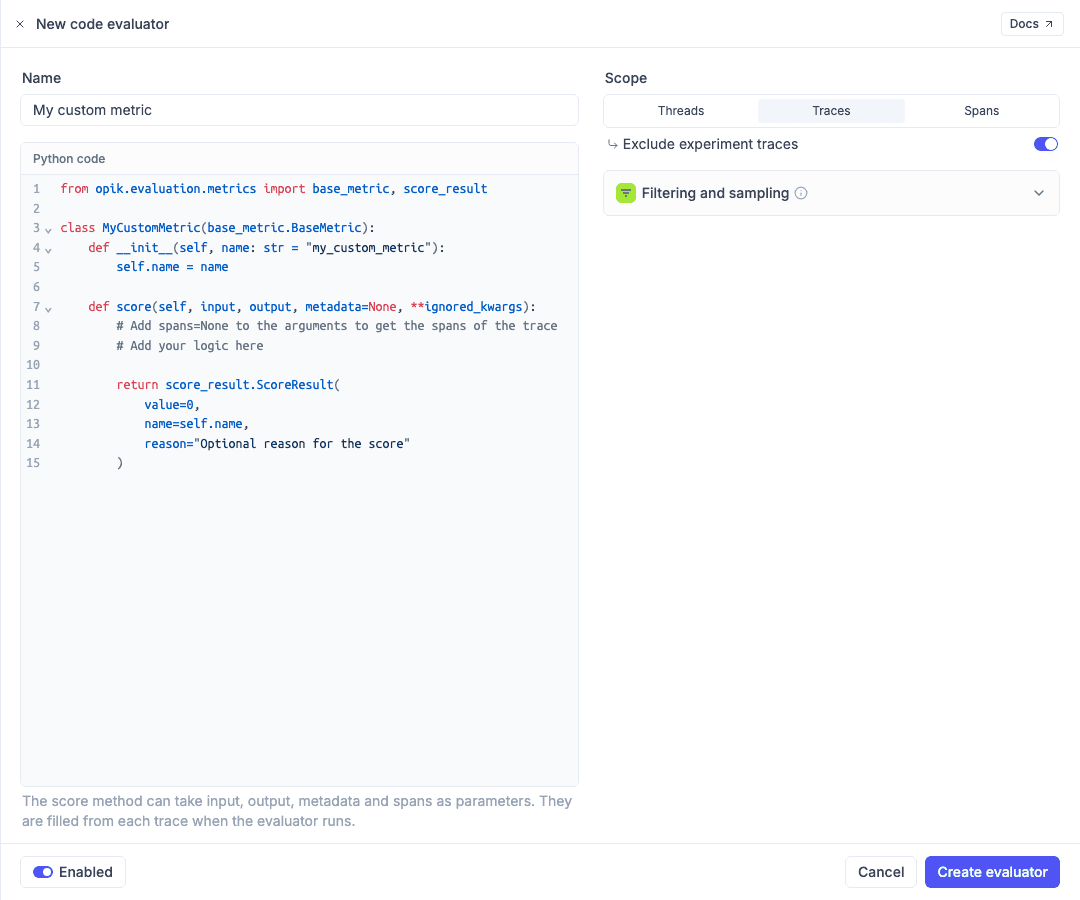
The score method takes fixed parameters that Opik fills from each item:
Declare only the parameters you need. Opik fetches the trace’s spans only when score declares spans, so add spans=None only when your metric reads them:
On thread scope, conversation is a list of messages:
Scopes
The Scope at the top of the right column sets what the evaluator scores. You can’t change the scope of an existing evaluator.
- Traces: scores each trace.
- Threads: scores a whole conversation.
- Spans: scores individual spans, for example each LLM call or tool call.
Experiment traces
On trace scope, the Score row under the scope sets which traces the evaluator scores: production traces (the default, traces logged with the SDK), experiment traces, or all traces. Filters and the sampling rate don’t apply to experiment traces, so every experiment trace is scored.
Traces from the playground and optimization runs are only evaluated when you select the evaluator for that run. Thread and span evaluators only run on production data.
Threads
Thread evaluators score the full conversation. In LLM-as-a-Judge, the prompt must contain {{context}} exactly once, and no other variables. By default, {{context}} holds the messages exchanged:
With a model that supports tool calling, Opik enriches {{context}} with the full thread: every trace and span, with its type, input, output and metadata. Use it to check how the agent reached its answer:
- Tool call order: a retrieval step ran before the answer was written.
- Grounding: every claim in the answer is backed by an earlier tool result.
- Escalation: the agent handed off to a human when the conversation called for it.
Long values are truncated, and the judge can use read, jq and search to see more.
Opik waits for a cooldown period after the last activity in a thread before scoring it, so the evaluator sees the full conversation.
The default cooldown period is 15 minutes. On Opik Cloud, change it in the workspace settings under “Thread online scoring rule cooldown period”. For self-hosted installations, set the OPIK_TRACE_THREAD_TIMEOUT_TO_MARK_AS_INACTIVE environment variable.
Filtering and sampling
Open the Filtering and sampling card to limit what the evaluator scores:
- Filters: only score items that match, for example traces whose name contains
chat_agent, or spans of typellm. Click Add filter to combine several. - Sampling rate: the share of matching items to score. At
100%, every item is scored.
Filters and sampling apply to production data only. They do not apply to experiments.
Edit, clone and delete evaluators
Click an evaluator in the table to open it in edit mode, then click Save changes. The row actions menu also has Clone, which opens a copy you can change and save as a new evaluator, and Delete.
Run evaluators on existing data
Evaluators only score items logged after they were created. To score older data:
- Open Logs and select the traces, threads or spans to evaluate.
- Click the evaluate button () in the toolbar.
- In Run online evaluation rules, select the evaluators and click Evaluate traces (or threads, or spans).
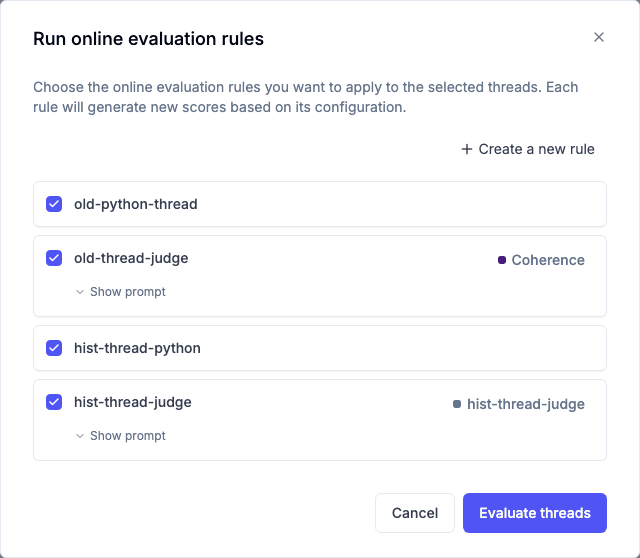
This runs even on disabled evaluators and ignores the sampling rate. To create an evaluator from here, click Create a new rule. The panel opens with the scope that matches your selection.
Evaluations run in the background. Results can take a moment to appear: check the evaluator logs, or refresh the traces or threads.
Review the scores
Scores are stored as feedback scores on each trace, thread or span. You can see them in the trace sidebar, see averages in the traces table, and track them over time in the project dashboard.
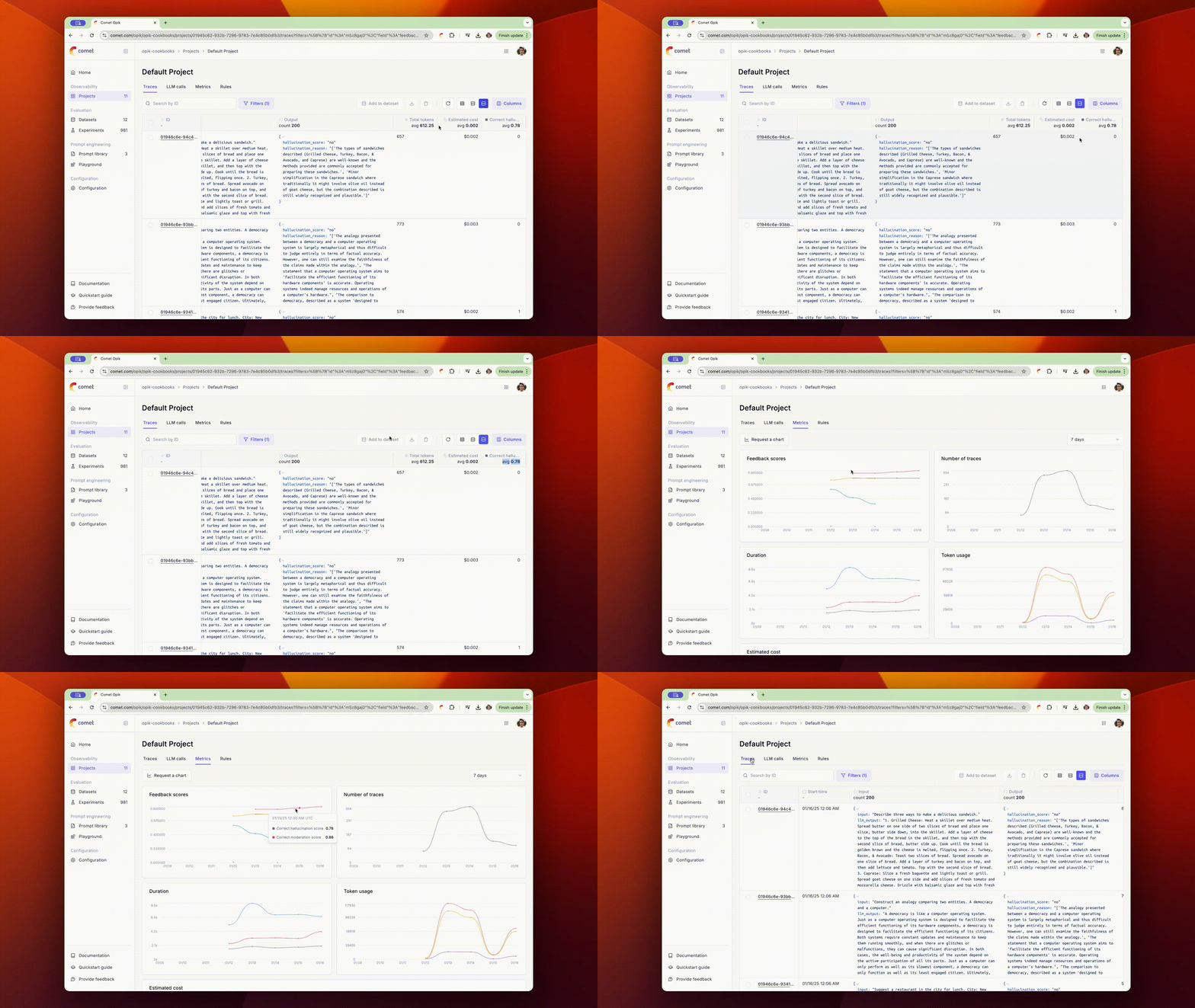
Because they are regular feedback scores, they can also trigger alerts to Slack, PagerDuty or a webhook when the average crosses a threshold.
Evaluators created before the new editor
Existing evaluators keep running unchanged. When you open one in the editor:
- Judges with several messages show a notice: LLM-as-a-Judge now uses a single prompt, and the messages are combined into one prompt when you save. Media in a system message is removed, because it was never sent to the model.
- Variable mappings appear inline as paths. A
{{question}}variable mapped toinput.messages[0].contentshows as{{input.messages[0].content}}. - Code evaluators with custom argument mappings show a notice with a Convert to standard parameters button. It rewrites
scoreto take the standard parameters and reads your fields from them. If the code can’t be converted, update thescoremethod by hand. - Jev rules open as decision model evaluators.
Next steps
- Set up alerts on your evaluator scores
- Build dashboards to track scores over time
- Write custom metrics to test them offline before running them in production