

Environments
An environment, such as production or staging, points to one version of a prompt. Your code fetches the prompt by environment, and you choose which version each environment serves from the Opik UI or the SDK. To roll out a new version or roll back to an old one, deploy it to the environment. You don’t need to change or redeploy your code.
How environments work
- Environments belong to the workspace. You create them once and use them for every prompt in every project. Traces, spans, and threads use the same list of environments.
- An environment points to one version per prompt. When you deploy a version to
production, the version that heldproductionbefore loses it. - A version can hold several environments. For example,
v4can serve bothstaginganddevelopment. - New versions don’t inherit environments. When you save
v5,productionstill points to the version you deployed last. Deployv5when it’s ready.
Managing environments
To see and edit the environments of your workspace, select Configuration in the workspace sidebar and open the Environments tab.
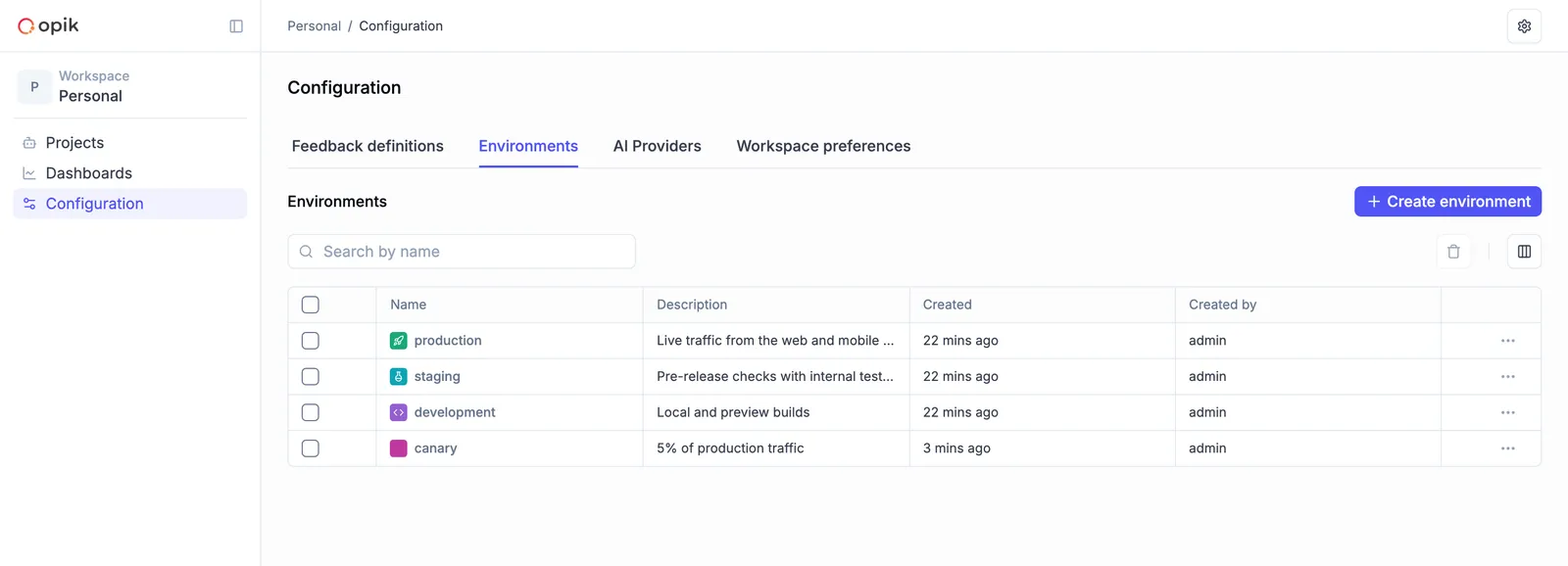
To create an environment:
- Click Create environment.
- Enter a Name with letters, numbers, dashes, or underscores. The name must be unique in the workspace.
- Optionally, add a Description and pick a color.
- Click Create environment.
Use the row menu to Edit, Clone, or Delete an environment. The production, staging, and development environments always use their default colors.
You can also manage environments from code:
Deploying a version
Opik UI
Python SDK
TypeScript SDK
- Open the prompt in the Prompt library.
- Select the version in Version history.
- Click Deploy to and select an environment.
The menu shows a check mark next to the environments the version already holds. For the other environments, it shows the version they point to now, for example Currently v3. Select an environment with a check mark to remove the version from it, or click Remove from all to remove the version from all of its environments.
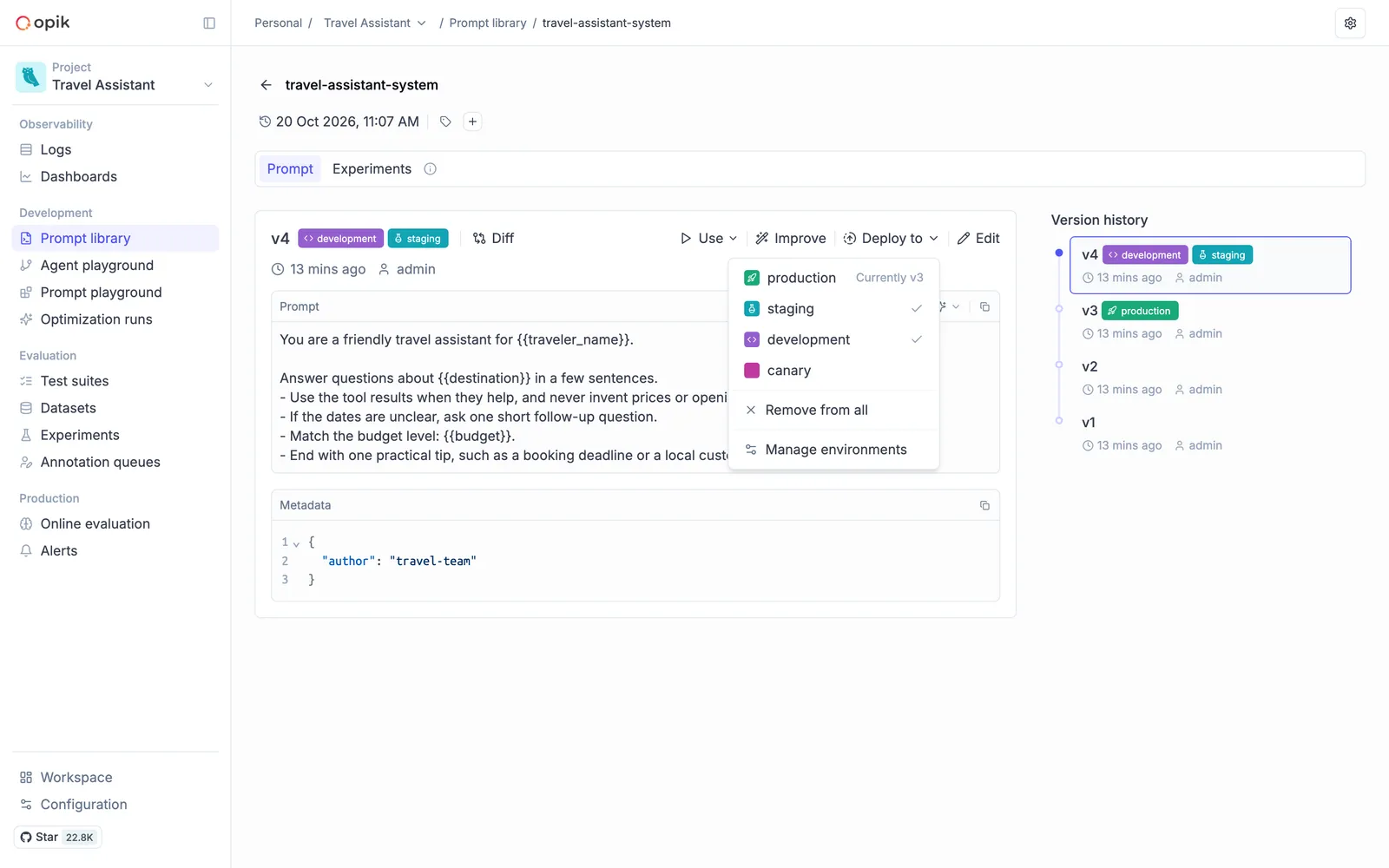
Environment badges show next to each version in Version history, so you can see at a glance which version each environment serves.
Fetching a prompt by environment
Pass environment to get the version that the environment points to:
get_chat_prompt and getChatPrompt accept environment too. You can’t combine environment with version. If no version of the prompt holds the environment, the SDK returns None in Python and null in TypeScript.
The SDKs cache fetched prompts for 300 seconds, so a running agent can take up to five minutes to pick up a new
deployment. Set OPIK_PROMPT_CACHE_TTL_SECONDS to change the cache duration, or pass no_cache=True to
get_prompt in Python to skip the cache.
Promoting a version
A typical rollout with environments:
- Save the new version, for example
v4, from the UI or the SDK. - Deploy
v4tostagingand test it there. You can also run an experiment on it to compare it with the version in production. - Deploy
v4toproduction. Agents that fetchproductionloadv4on their next fetch. - To roll back, deploy the previous version to
productionagain.
Next steps
- Version control: create and compare versions.
- Getting started: fetch prompts from your agent code.
- Log traces: log traces with an environment, using the same list of environments.