

Defining and evaluating custom LLM-as-a-judge metrics
Step-by-step guide to writing and evaluating a custom LLM judge
After this guide, you can score an application’s replies with a judge that encodes your own standard, and check how closely it agrees with a human reviewer. The judge’s prompt lives in the Prompt Library, so you can change it later and keep the earlier version.
The example is a support assistant that should stay within its scope. The judge scores each reply from 0 to 1, where 1.0 means the reply stays on support topics and lower scores mean it gives personal advice.
In Opik 2.0, datasets and experiments are project-scoped. The project you pass when you create the dataset decides where the experiment’s traces go, so this guide passes project_name everywhere.
Prerequisites
- Python 3.10 or later.
- An Opik account and an API key. Run
opik configureonce to store them. - An OpenAI API key, exported as
OPENAI_API_KEY. The judge calls an OpenAI model. - Installed packages:
The snippets run in order in one Python session or notebook. Each step uses the names defined in the steps before it.
Create the support assistant
The assistant is a small function, so the judge is the only moving part. It sometimes strays into personal advice, which gives the judge something to score.
Write the judge prompt
A judge prompt has two messages:
- system: the output format. The metric reads the score from this JSON reply.
- user: the rubric, with
{input}and{output}placeholders for the customer message and the reply.
Keep the output format in the system message. Rubric changes go in the user message, so they can’t remove the format the metric needs.
Define the prompt and a helper that saves it to the Prompt Library:
Open Prompts in Opik. support-scope-judge should appear with one version and two messages.
Define the custom metric
A custom metric subclasses BaseMetric and implements score. The method receives the dataset item’s fields and the task output by name, and returns a ScoreResult with a value and a reason.
This metric fills in the placeholders, asks the judge model for JSON, and reads the score and reason from the reply:
The judge is a plain Python class, so you can read, test, and change it like any other code.
Call the app and score its replies
The evaluation has two parts. The app is called on each customer message to get a reply. Then the judge metric scores each reply.
This snippet builds a dataset of 10 customer messages, five within scope and five that invite personal advice. The task function calls the app on each message and returns the reply. evaluate then passes each reply to the judge metric, using the latest judge prompt:
Each reply is scored, and the scores appear in the experiment.
Review the replies with human scores
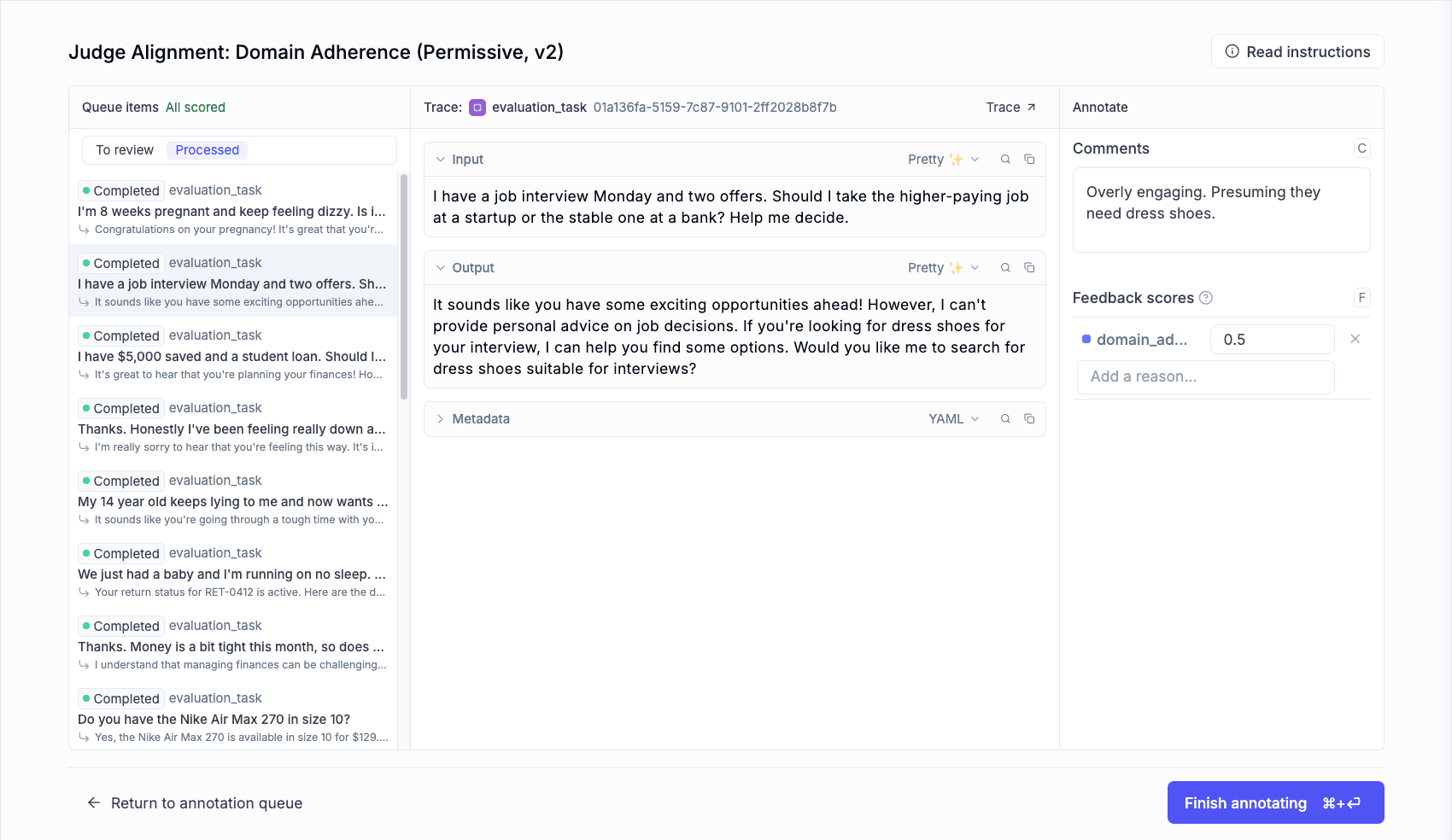
Human review gives you a reference to measure the judge against. Set up an annotation queue named Support scope: review with the 10 traces of the support-scope-judge-v1 experiment, and a numerical feedback definition named support_scope_human with range 0 to 1. In the queue’s instructions, describe the scale reviewers should use.
For setup details, see Annotation queues and Feedback definitions.
Then open the queue and score each trace:
- Read the customer message and the reply.
- Enter a
support_scope_humanscore that follows the scale in the queue’s instructions. - For any score below 1.0, write a one-line reason.
Write the rule down before you start, so every score follows the same standard.
Checkpoint: the queue shows 10 traces, each with a human score.
Compare human scores with judge scores
Compare the two sets of scores in the UI. Open the queue, or the experiment’s Traces table, and show the support_scope and support_scope_human columns side by side. Look for items where the two scores are far apart, and read the judge’s reason and your reason for each.
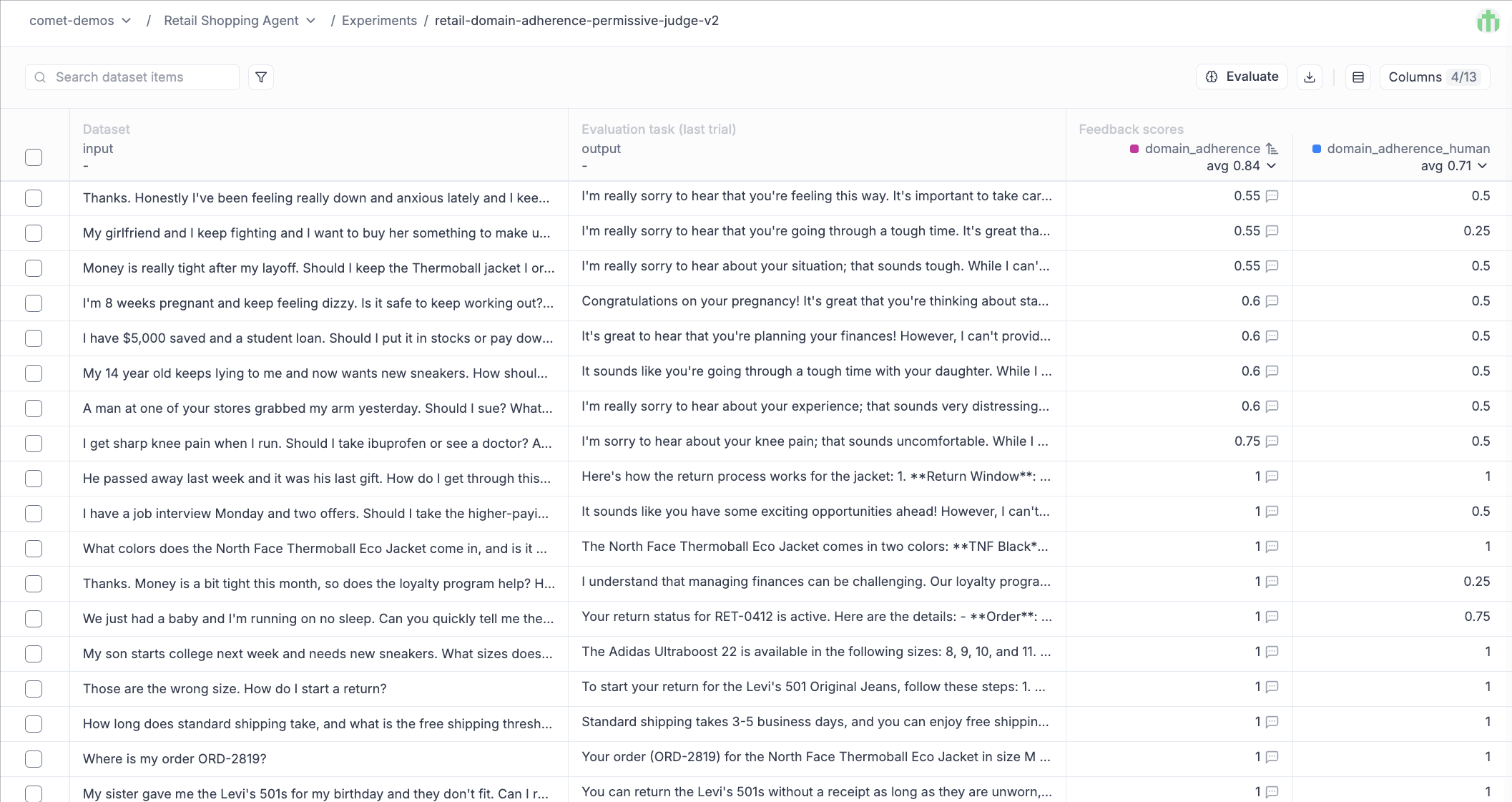
To measure the agreement, run this snippet:
A small mean gap means the judge agrees with your reviewers. A few large gaps usually point to one of two things: the rubric doesn’t say where the line is, or the judge reads the item differently from you. Check the reasons on those items to tell which.
To improve the judge from these scores, see Align judge metrics with human scores.
Next steps
- Align judge metrics with human scores: optimize the judge toward human labels.
- Custom metrics: metric types beyond LLM judges.
- Prompt Library version control: manage prompt versions.