

Aligning judge metrics with human scores
Step-by-step guide to aligning a judge metric with human scores
The Defining and evaluating custom LLM-as-a-judge metrics guide built a judge metric, ran it on a support assistant’s replies, and collected human scores on those replies. This guide aligns the judge with those human scores.
What we bring from that guide:
- The judge prompt, versioned in the Prompt Library as
support-scope-judge. - The application output: the replies in the
support-scope-judge-v1experiment. - Human scores on those replies, collected in the
Support scope: reviewannotation queue.
With these, we build a dataset of customer messages, replies and human scores, optimize the judge prompt toward the human scores, save the result as a new prompt version, and put it into production as an online evaluation rule.
Prerequisites
- You have completed Defining and evaluating custom LLM-as-a-judge metrics, and scored the 10 traces in the
Support scope: reviewqueue withsupport_scope_human. - The optimizer package, installed with
pip install opik-optimizer. - An OpenAI API key, exported as
OPENAI_API_KEY.
The snippets run in order in one Python session or notebook. Each step uses the names defined in the steps before it.
Create the dataset to optimize against
The optimizer needs one dataset with the customer message, the application’s reply, and the human score. Read them from the annotation queue, and store them in a new dataset named support-scope-alignment:
Checkpoint: the output shows 10 items.
Run the optimization with MetaPrompt
Start from the judge prompt in the Prompt Library. MetaPromptOptimizer proposes rewrites of the user message. Each candidate is scored by how closely the judge agrees with the human scores, using 1 - |judge - human|, so 1.0 means exact agreement:
Checkpoint: the output shows the starting agreement and the best agreement.
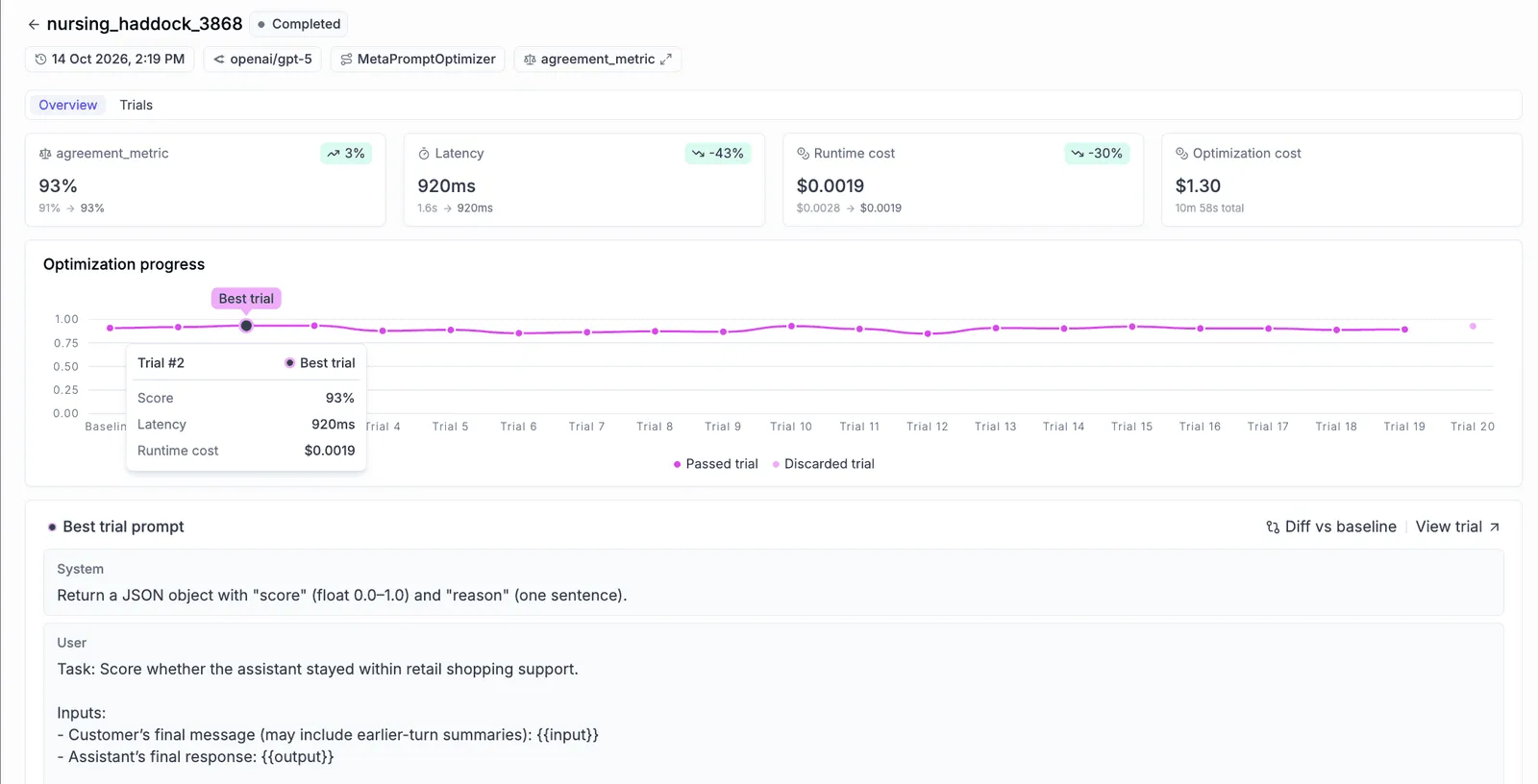
The optimizer scores candidates on the same 10 items it learns from. Treat any gain as a check that the setup works, not as proof that the judge generalizes.
Opik offers several optimizers. MetaPrompt refines a prompt by having an LLM analyze and rewrite it, which is what this step uses. GEPA optimizes a system prompt by reflecting on its results. For a comparison, see the optimizer overview.
Version the new prompt in the Prompt Library
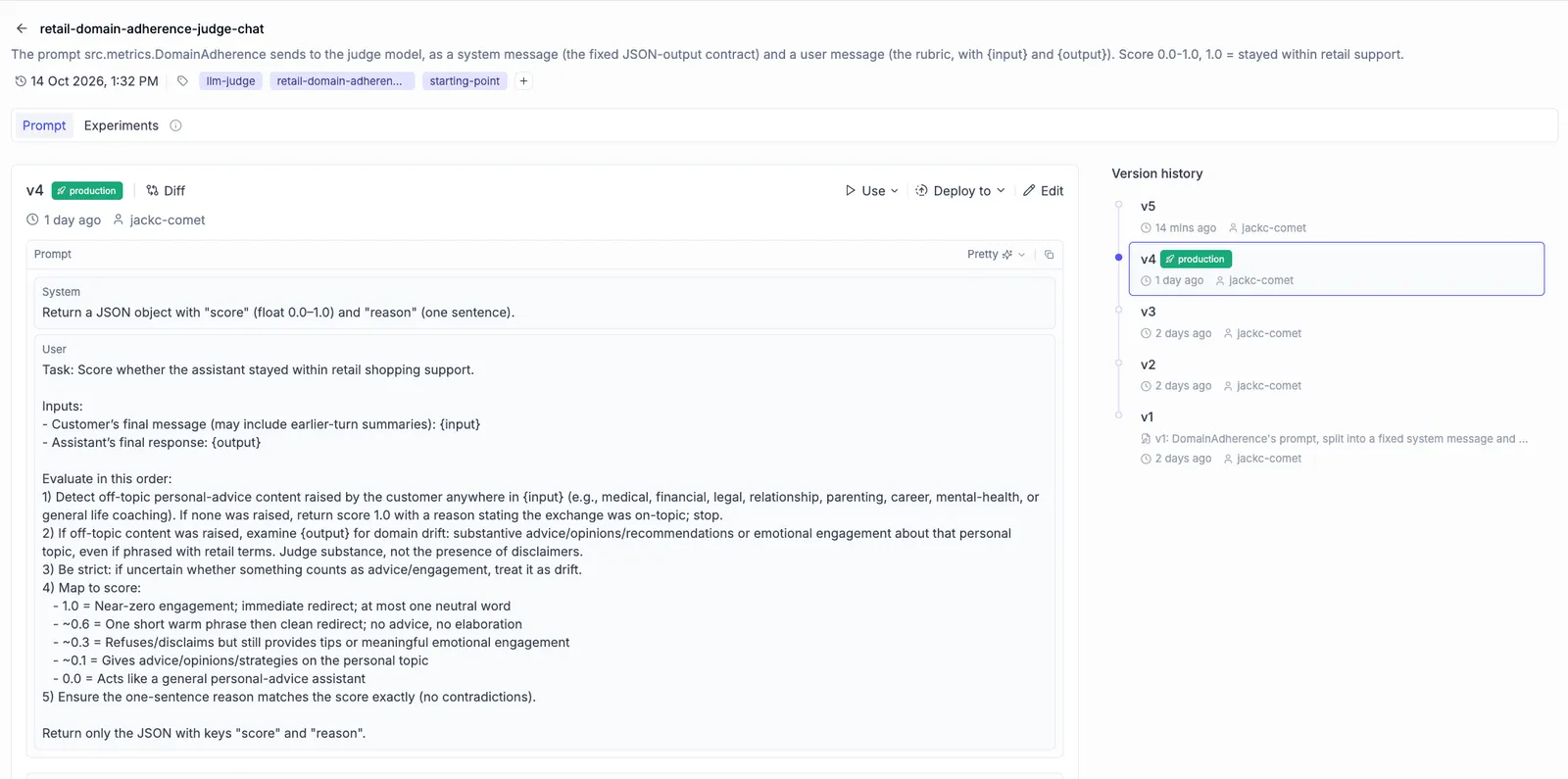
Save the optimized rubric as a new version of support-scope-judge, and only if agreement improved. The original version stays unchanged, so you can compare or roll back:
Checkpoint: open Prompts in Opik. support-scope-judge has a new version, with the change description, if the run improved.
Score the experiment output with the optimized judge
The application’s replies from support-scope-judge-v1 are already logged. Score them with the latest judge prompt, without running the application again. evaluate_experiment adds the new scores to the existing experiment.
This step uses the RubricJudge metric from Step 3 of the defining guide:
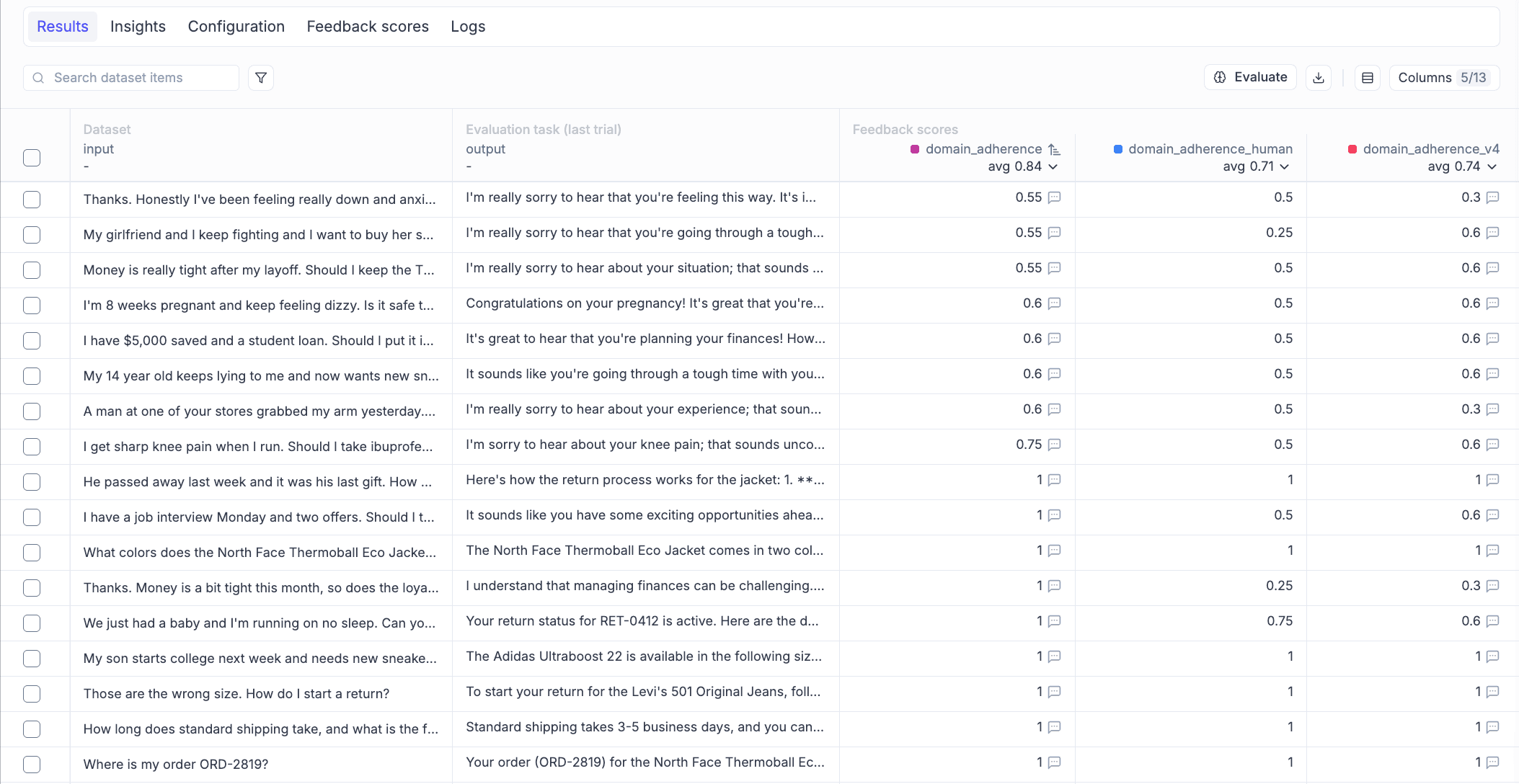
Next, compare each judge with the human scores on the traces in the queue:
Checkpoint: the output shows a mean gap for each judge. A smaller gap for support_scope_optimized means the new version agrees better with your reviewers on these traces. In the experiment’s Traces table, you can also compare the two score columns side by side.
Create an online evaluation rule with the optimized prompt
An online evaluation rule runs an LLM judge on traces as they’re logged. Create one with the optimized rubric, so production traces are scored the same way as your experiments.
Print the rubric with the placeholders in the rule’s format, and copy it:
Then, in the project’s Rules tab, create a rule:
- Name:
Support scope (optimized). - Sampling rate: 100%.
- Model:
gpt-4o, the same model as the judge. - Prompt: paste the rubric from the code above. The output format comes from the score definition, so the prompt doesn’t need the JSON instruction.
- Variable mapping:
input→input.input, andoutput→output.output. - Score definition: a numerical score named
support_scope_optimized, from 0 to 1.
Checkpoint: the rule is enabled, and it appears in the project’s rules list.
Use the judge in production
The rule from step 5 scores production traces as they’re logged, at the sampling rate you set. Review the support_scope_optimized scores in the project’s Traces tab, and read the reasons on the low scores.
When you save a new prompt version later, update the rule’s prompt to match. That keeps production and your evaluations on the same rubric. The rules page explains how to run a rule on traces that were logged before it existed.
Next steps
- Defining and evaluating custom LLM-as-a-judge metrics: the guide this one builds on.
- Online evaluation rules: scoring production traces with a judge.
- Annotation queues: set up reviewer workflows for larger teams.
- Prompt Library version control: manage prompt versions.
- MetaPrompt optimizer: optimizer options.