

Diagnostics
Skimming traces for recurring failures doesn’t scale once your agent is handling real traffic. Diagnostics scans your project’s traces on demand or every day, groups repeated failures into a single issue, and surfaces a root cause, a suggested fix, and the traces to prove it, so you catch problems before your users report them.
How it works
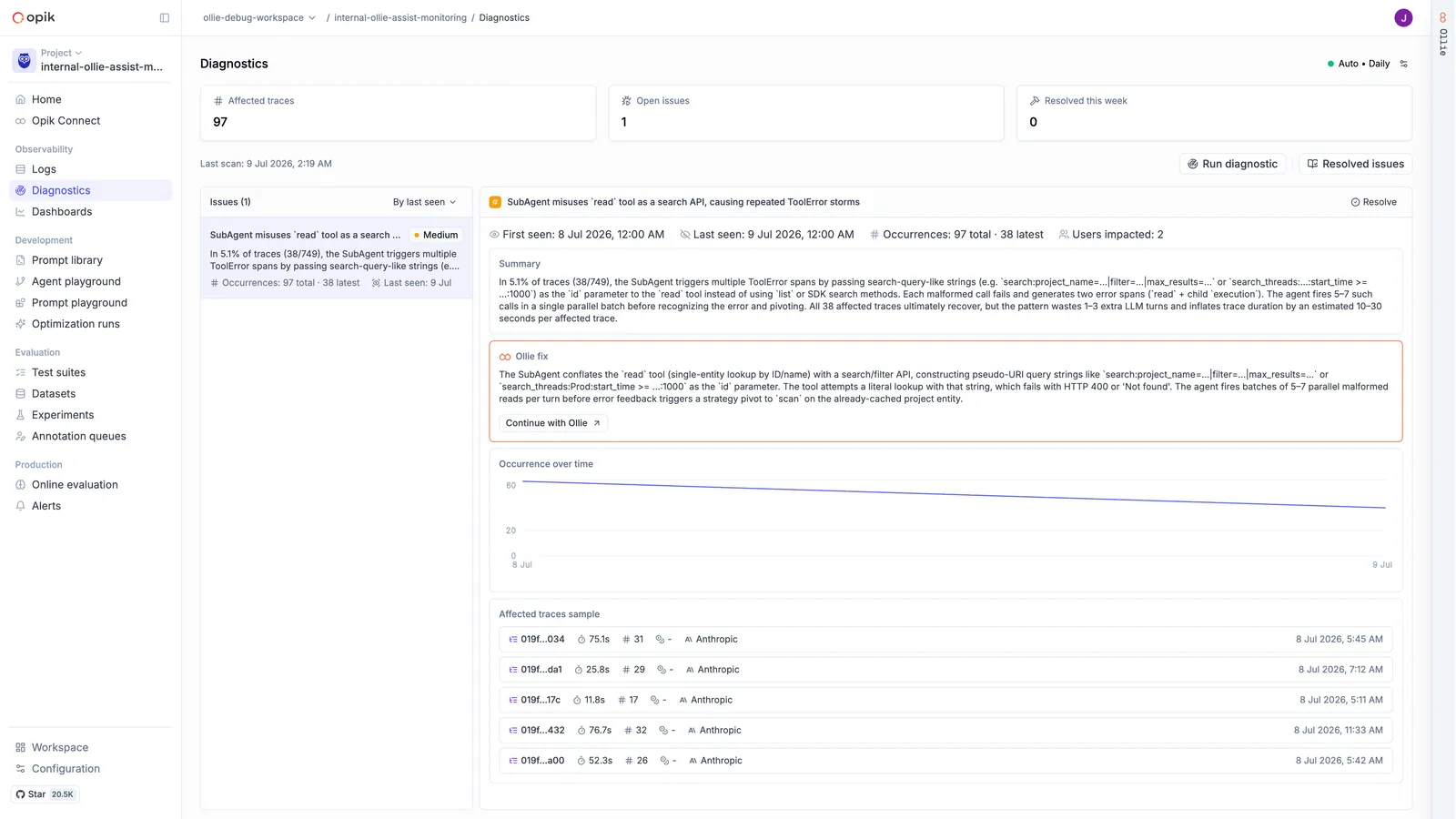
Diagnostics is powered by Ollie, so it doesn’t rely on fixed rules or thresholds. It reads full traces the same way you would, looking for patterns like tool-call loops, malformed API calls, hallucinated outputs, or latency regressions.
- On-demand scans: click Run diagnostic at any time to analyze the traces logged in the last 24 hours.
- Daily scans: when automatic daily diagnostics is on, Opik scans the previous day’s traces (midnight to midnight UTC) every day, at 00:05 UTC by default. Days with no new traces are skipped.
- One window per scan: each scan covers only its own window. A scan doesn’t pick up from the previous one, and days missed while daily scans were off aren’t scanned later.
- Deduplicated issues: matching failures across traces are grouped into a single issue rather than reported one by one, so a bug that shows up in 40 traces still only needs one fix. When a later scan finds a known issue again, it adds the new occurrences to that issue instead of opening a new one.
Diagnostics requires the Ollie AI assistant to be enabled for your workspace. Scans run on your organization’s Ollie credits, which are shared with Ollie’s other features. See Cost and credits.
Turning on diagnostics
The first time you open a project’s Diagnostics page, click Run your first diagnostic to scan the last 24 hours. This runs a single scan: it doesn’t turn on daily scans.
On Opik Cloud, some projects get their first scan automatically instead: the page then tells you that the first diagnostic runs for free once the project has logged 100 traces in the last 7 days. That first scan covers those 7 days and doesn’t use your credits.
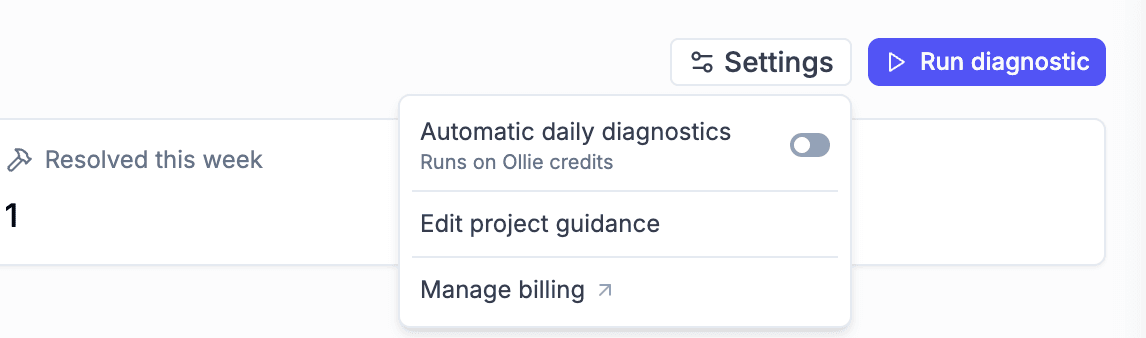
To scan the project every day, open Settings next to Run diagnostic and switch on Automatic daily diagnostics (see Settings).
Reviewing issues
Each issue in the list shows its severity (critical, high, medium, or low), how many times
it’s occurred, and when it was last seen, so you can sort and prioritize before opening any single
issue.
Opening an issue shows:
- First seen / last seen and occurrences (total and in the latest scan)
- Users impacted
- Summary: what Ollie found, in plain language
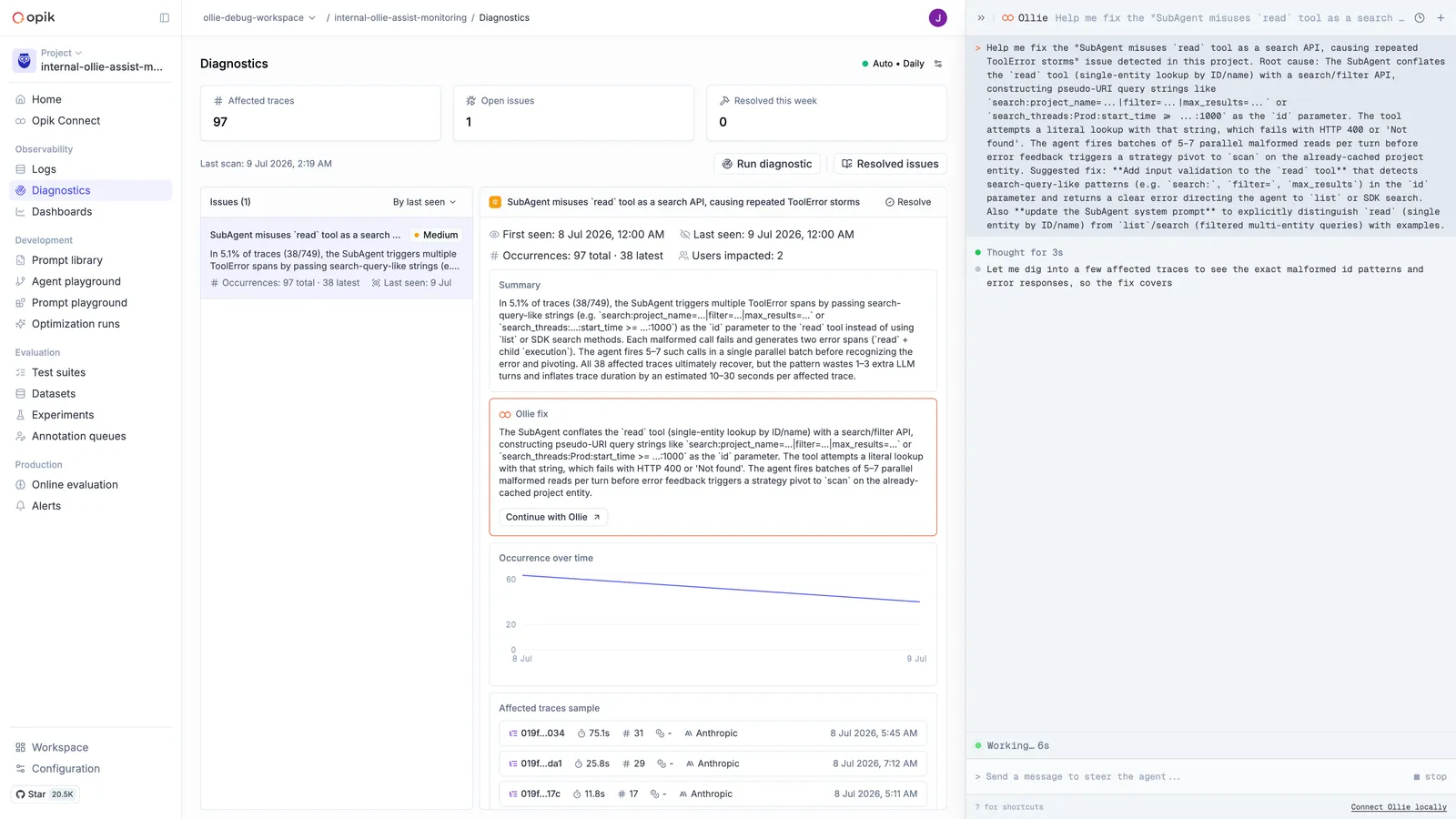
- Ollie fix: the likely root cause and a suggested fix, with a Continue with Ollie button that hands off to the Ollie chat sidebar to dig deeper or apply a code fix directly
- Occurrence over time: a chart of how often the issue has fired since it was first detected
- Affected traces sample: a handful of traces that show the issue, linking directly to the trace view
Closing issues
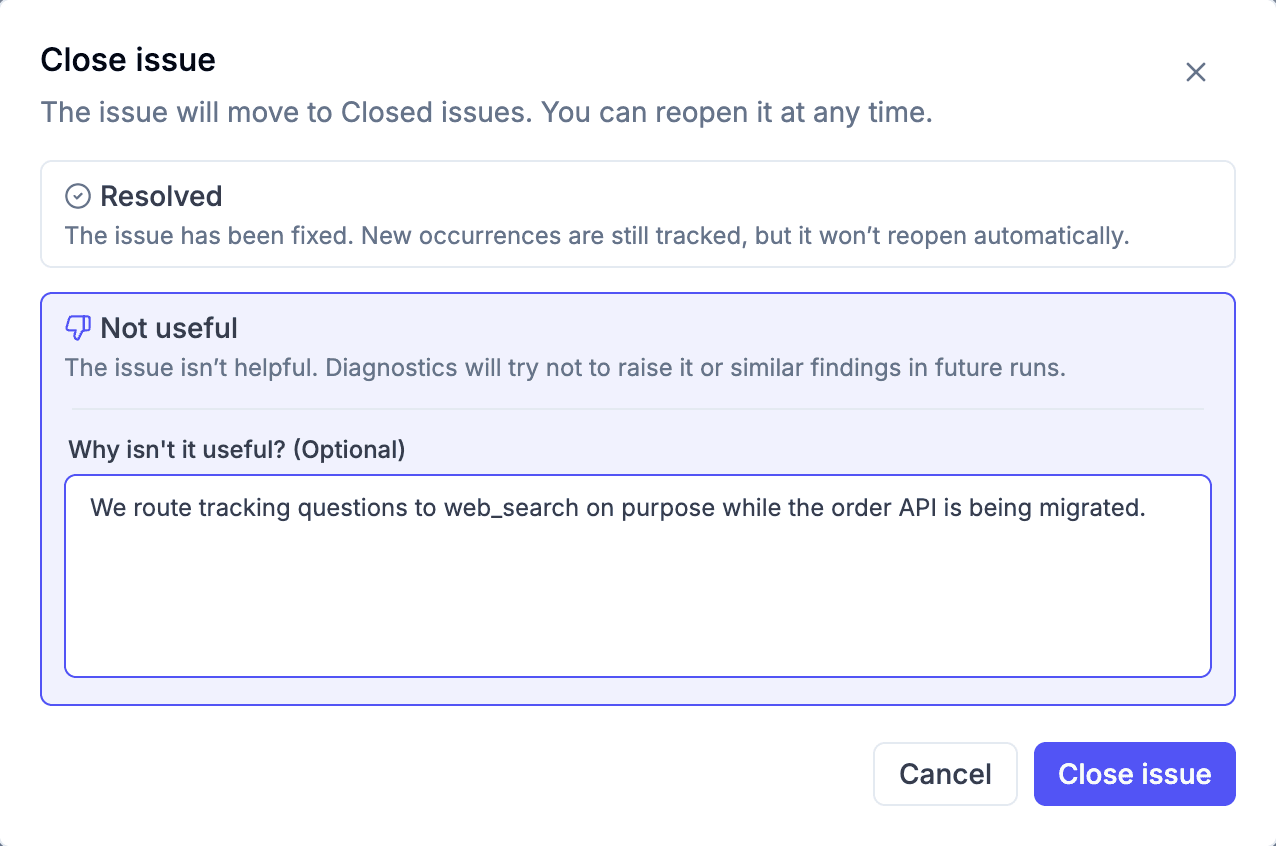
Click Close issue on an issue and pick why you’re closing it:
- Resolved: you fixed it. Later scans keep adding new occurrences to the issue, but it stays closed. If it keeps growing, the fix didn’t hold and you can reopen it.
- Not useful: the finding is wrong or describes behavior you intend. You can add a reason. Later scans read your Not useful issues and their reasons and try not to raise the same finding, or a similar one, again. This lowers the chance of a repeat without ruling it out.
Use Not useful only for findings you don’t want to see at all. A real bug you haven’t fixed yet should stay open: closing it as Not useful teaches later scans to skip that kind of problem for the whole project.
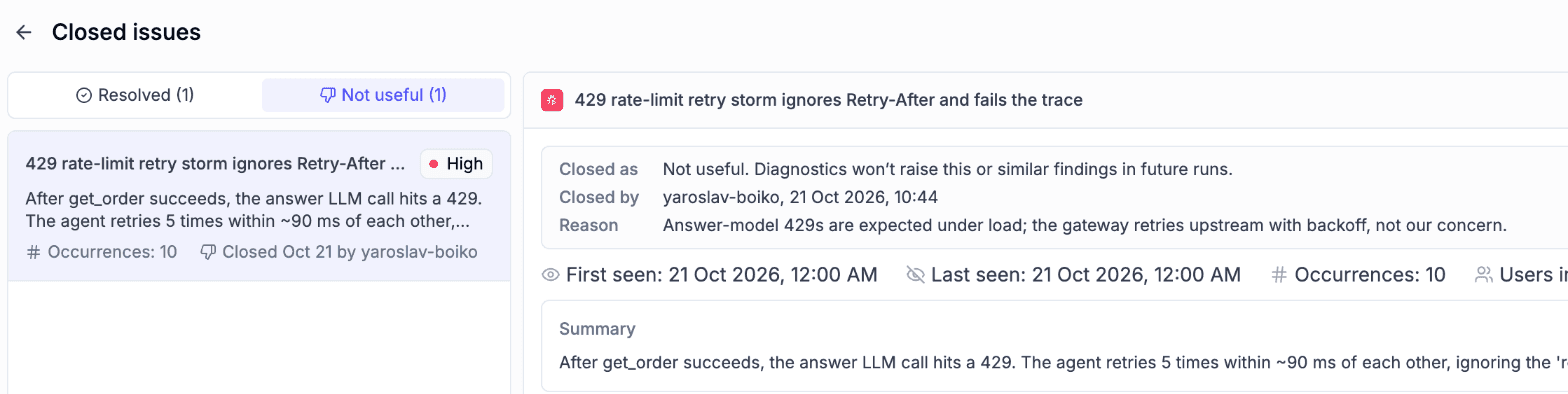
Closed issues move to the Closed issues page, which has a tab for each choice. Click Reopen to move an issue back to the open list. A reopened issue no longer counts as Not useful.
Project guidance
Diagnostics only sees your traces, so it doesn’t know what your agent is for or which behavior you chose on purpose. Project guidance is a note that tells it. Use it to describe:
- what the agent does and who uses it
- behavior that looks wrong but is intended
- known problems you’re already tracking elsewhere
- areas you want it to skip, or the only areas you care about
To edit it, open Settings next to Run diagnostic and choose Edit project guidance. Click Save and run diagnostic to save and start a scan right away, or open the menu on that button and choose Save guidance to save it for the next scan. Saving guidance doesn’t use credits; the scan does.
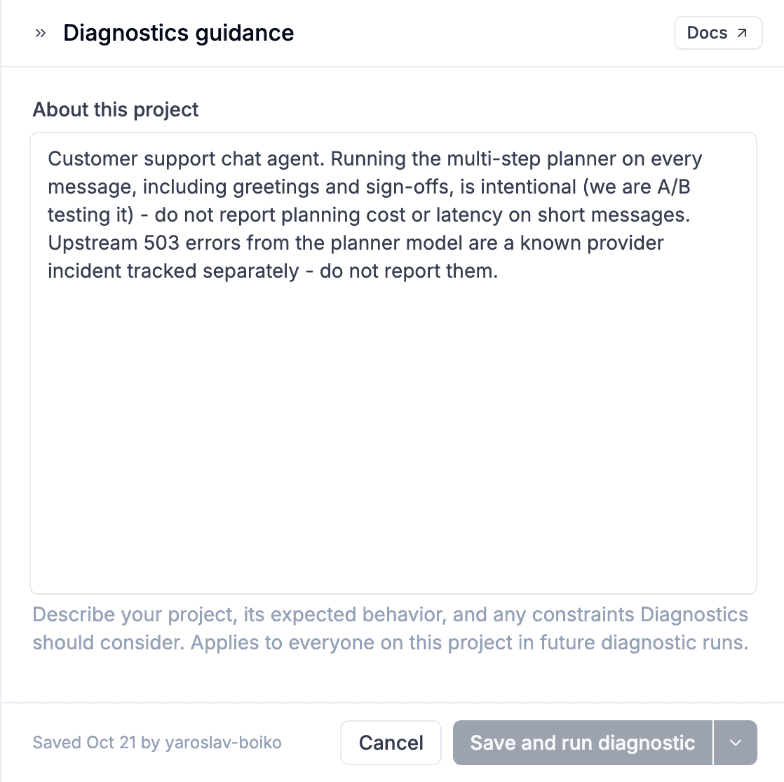
Guidance is shared by everyone on the project, and every later scan uses it, daily or on demand. If it changed after the last scan, the page shows Guidance changed since the last diagnostic run and results might be outdated until the next scan.
Guidance only affects what later scans raise and doesn’t touch issues that are already open. For a false alarm that’s already in the list, close it as Not useful and, if it’s a whole class of findings, describe it in the guidance too.
Phrase guidance as instructions. “Upstream 503 errors from the planner model are a known incident. Don’t report them.” works more reliably than “503 errors are expected”, which a scan may still report. Check the next scan’s results to confirm the guidance worked.
Settings
Open Settings next to Run diagnostic to:
- turn Automatic daily diagnostics on or off. This doesn’t affect on-demand scans: you can still click Run diagnostic while daily scans are off.
- edit the project guidance.
- open Manage billing to see your Ollie credits.
Cost and credits
Scans you start with Run diagnostic and daily scans use Ollie credits, so a project with automatic daily diagnostics turned on uses credits every day it logs traces. An automatic first scan is free. Turn the daily scan off for projects you don’t need watched, such as demo or test projects, and run a scan on demand when you want one.
If your organization runs out of Ollie credits, the scan doesn’t run and the page shows Out of Ollie credits. Automatic daily diagnostics is switched off for that project, so turn it back on once credits are added. Issues already found stay available.
Self-hosted deployments
On self-hosted Opik, Diagnostics is available when Ollie is enabled. To turn Diagnostics off for the
whole installation while keeping the Ollie chat, set TOGGLE_AGENT_INSIGHTS_ENABLED=false on
opik-backend. This stops the daily scans and hides the Diagnostics page. To run the daily scan at
a different time, set AGENT_INSIGHTS_REPORT_SCHEDULE to a Quartz cron expression (the default is
0 5 0 * * ?, 00:05 UTC).
Project guidance and closing issues as Not useful are off by default. To turn them on, set
TOGGLE_AGENT_INSIGHTS_GUIDANCE_ENABLED=true on opik-backend and restart it. While it’s off, scans
run without guidance, and the guidance controls and the Not useful option are hidden.
Next steps
- Ollie overview: what Ollie can do and how to set it up
- Debugging agents with Ollie: take a single failing trace from root cause to verified fix
- MCP server: give your AI coding assistant full visibility of your application, so it can pick up a detected issue, fix it in your editor, and verify with your test suite
- Alerts: get notified in Slack, PagerDuty, or a custom webhook for specific events