

Evaluate your agent
In Opik 2.0, Experiments and Evaluation Suites are project-scoped. Make sure to specify a project_name when creating datasets and running experiments.
Evaluating your LLM application allows you to have confidence in the performance of your LLM application. In this guide, we will walk through the process of evaluating complex applications like LLM chains or agents.
The evaluation is done in five steps:
- Add tracing to your LLM application
- Define the evaluation task
- Choose the
Datasetthat you would like to evaluate your application on - Choose the metrics that you would like to evaluate your application with
- Create and run the evaluation experiment
Running an offline evaluation
1. (Optional) Add tracking to your LLM application
While not required, we recommend adding tracking to your LLM application. This allows you to have
full visibility into each evaluation run. In the example below we will use a combination of the
track decorator and the track_openai function to trace the LLM application.
Here we have added the track decorator so that this trace and all its nested
steps are logged to the platform for further analysis.
2. Define the evaluation task
Once you have added instrumentation to your LLM application, we can define the evaluation task. The evaluation task takes in as an input a dataset item and needs to return a dictionary with keys that match the parameters expected by the metrics you are using. In this example we can define the evaluation task as follows:
If the dictionary returned does not match with the parameters expected by the metrics, you will get inconsistent evaluation results.
3. Choose the evaluation Dataset
In order to create an evaluation experiment, you will need to have a Dataset that includes all your test cases.
If you have already created a Dataset, you can use the get or create dataset methods to fetch it.
4. Choose evaluation metrics
Opik provides a set of built-in evaluation metrics that you can choose from. These are broken down into two main categories:
- Heuristic metrics: These metrics that are deterministic in nature, for example
equalsorcontains - LLM-as-a-judge: These metrics use an LLM to judge the quality of the output; typically these are used for detecting
hallucinationsorcontext relevance
In the same evaluation experiment, you can use multiple metrics to evaluate your application:
Each metric expects the data in a certain format. You will need to ensure that the task you have defined in step 2 returns the data in the correct format.
5. Run the evaluation
Now that we have the task we want to evaluate, the dataset to evaluate on, and the metrics we want to evaluate with, we can run the evaluation:
You can use the experiment_config parameter to store information about your
evaluation task. Typically we see teams store information about the prompt
template, the model used and model parameters used to evaluate the
application.
6. Analyze the evaluation results
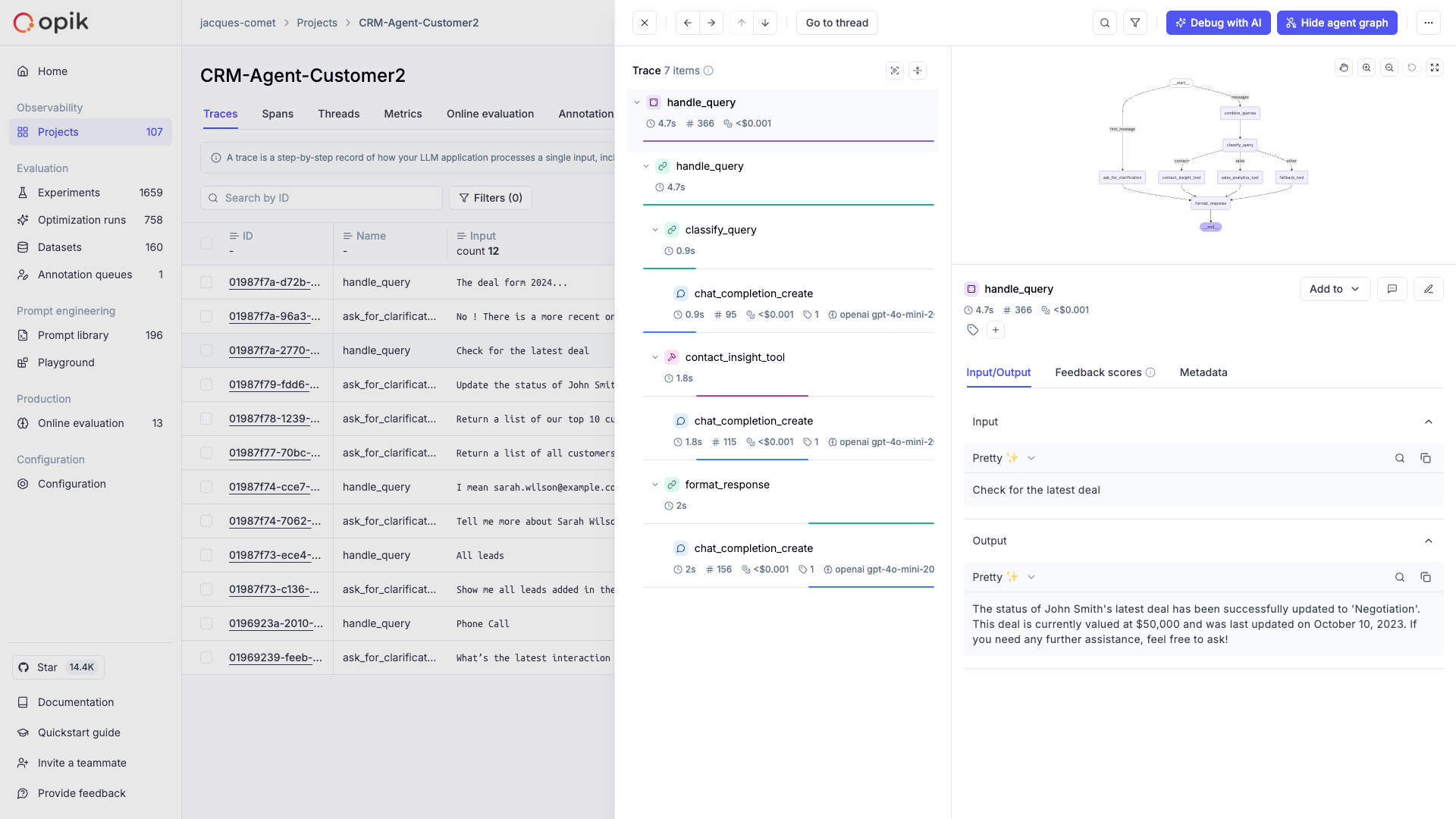
Once the evaluation is complete, you will get a link to the Opik UI where you can analyze the evaluation results. In addition to being able to deep dive into each test case, you will also be able to compare multiple experiments side by side.
Advanced usage
Missing arguments for scoring methods
When you face the opik.exceptions.ScoreMethodMissingArguments exception, it means that the dataset
item and task output dictionaries do not contain all the arguments expected by the scoring method.
The way the evaluate function works is by merging the dataset item and task output dictionaries and
then passing the result to the scoring method. For example, if the dataset item contains the keys
user_question and context while the evaluation task returns a dictionary with the key output,
the scoring method will be called as scoring_method.score(user_question='...', context= '...', output= '...').
This can be an issue if the scoring method expects a different set of arguments.
You can solve this by either updating the dataset item or evaluation task to return the missing
arguments or by using the scoring_key_mapping parameter of the evaluate function. In the example
above, if the scoring method expects input as an argument, you can map the user_question key to
the input key as follows:
Linking prompts to experiments
The Opik prompt library can be used to version your prompt templates.
When creating an Experiment, you can link the Experiment to a specific prompt version:
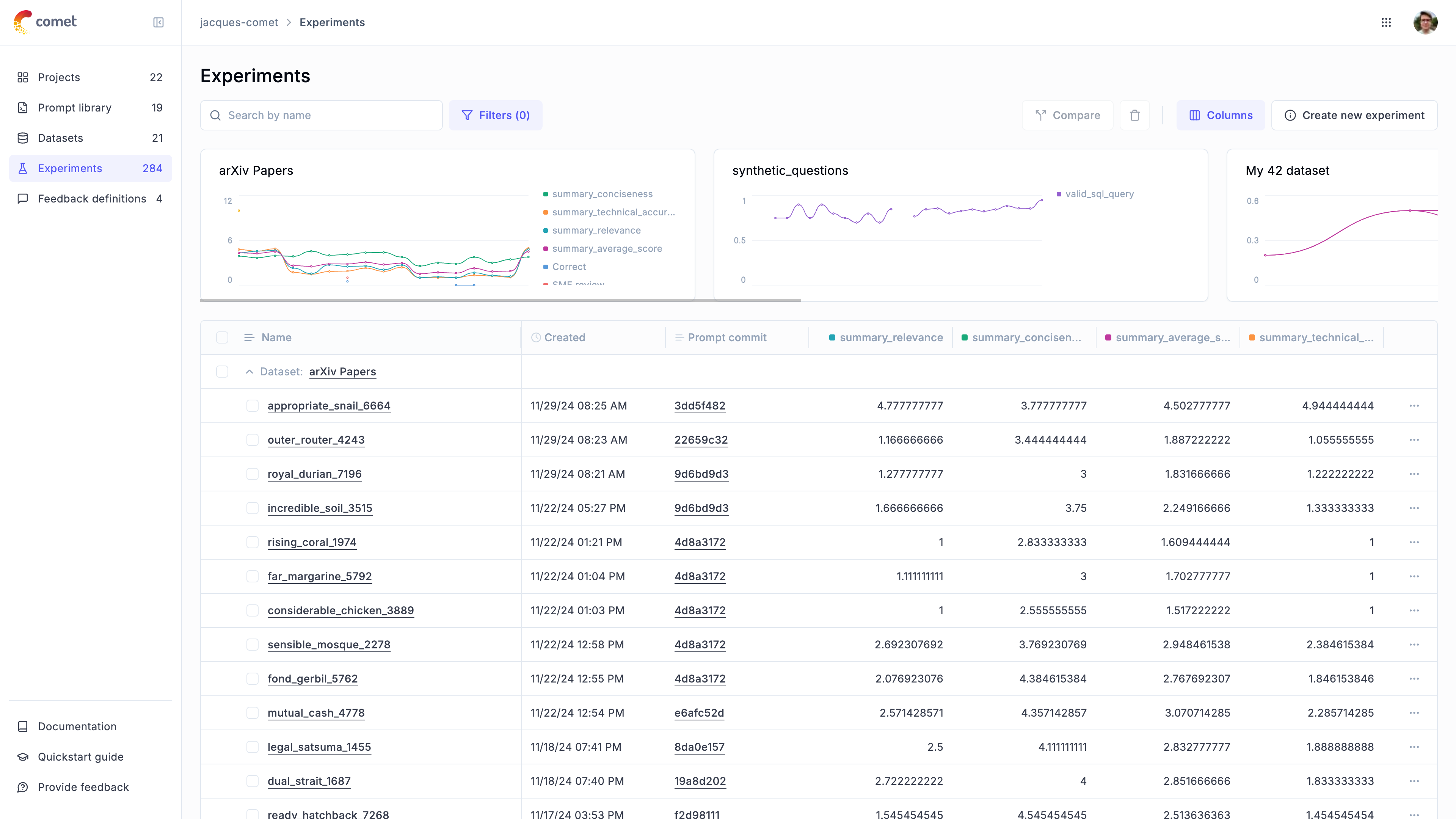
The experiment will now be linked to the prompt allowing you to view all experiments that use a specific prompt:
Logging traces to a specific project
You can use the project_name parameter of the evaluate function to log evaluation traces to a specific project:
Evaluating a subset of the dataset
You can use the nb_samples parameter to specify the number of samples to use for the evaluation. This is useful if you only want to evaluate a subset of the dataset.
Evaluating a filtered subset of the dataset
You can evaluate only a subset of your dataset items by using the dataset_filter_string parameter. This is useful when you want to run experiments on specific categories of data or test particular scenarios:
The filter uses Opik Query Language (OQL) syntax. For more details on filter syntax and supported columns, see Filtering syntax.
You can combine filtering with other parameters like nb_samples to evaluate a specific number of items from a filtered subset.
Sampling the dataset for evaluation
You can use the dataset_sampler parameter to specify the instance of dataset sampler to use for sampling the dataset.
This is useful if you want to sample the dataset differently than the default sampling strategy (accept all items).
For example, you can use the RandomDatasetSampler to sample the dataset randomly:
In the example above, the evaluation will sample 10 random items from the dataset.
Also, you can implement your own dataset sampler by extending the BaseDatasetSampler and overriding the sample method.
Implementing your own dataset sampler is useful if you want to implement a custom sampling strategy. For instance, you can implement a dataset sampler that samples the dataset using some filtering criteria as in the example above.
Analyzing the evaluation results
The evaluate function returns an EvaluationResult object that contains the evaluation results.
You can create aggregated statistics for each metric by calling its aggregate_evaluation_scores method:
Aggregated statistics can help analyze evaluation results and are useful for comparing the performance of different models or different versions of the same model, for example.
Computing experiment-level metrics
In addition to per-item metrics, you can compute experiment-level aggregate metrics that are calculated across all test results. These experiment scores are displayed in the Opik UI alongside feedback scores and can be used for sorting and filtering experiments.
Experiment scores are computed after all test results are collected. You define experiment score functions that take a list of TestResult objects and return a list of ScoreResult objects representing aggregate metrics.
Experiment scores are displayed in the Opik UI in the experiments table alongside feedback scores. They can be used for sorting and filtering experiments, making it easy to compare experiments based on aggregate metrics.
You can define multiple experiment score functions to compute different aggregate metrics:
Experiment score functions receive all test results after evaluation completes. Make sure your functions handle edge cases like empty test results or missing score values gracefully.
Python SDK
Using async evaluation tasks
The evaluate function does not support async evaluation tasks, if you pass
an async task you will get an error similar to:
As it might not always be possible to convert all your LLM logic to not rely on async logic,
we recommend using asyncio.run within the evaluation task:
This should solve the issue and allow you to run the evaluation.
If you are running in a Jupyter notebook, you will need to add the following line to the top of your notebook:
otherwise you might get the error RuntimeError: asyncio.run() cannot be called from a running event loop
The evaluate function uses multi-threading under the hood to speed up the evaluation run. Using both
asyncio and multi-threading can lead to unexpected behavior and hard to debug errors.
If you run into any issues, you can disable the multi-threading in the SDK by setting task_threads to 1:
Disabling threading
In order to evaluate datasets more efficiently, Opik uses multiple background threads to evaluate the dataset. If this is causing issues, you can disable these by setting task_threads and scoring_threads to 1 which will lead Opik to run all calculations in the main thread.
Passing additional arguments to evaluation_task
Sometimes your evaluation task needs extra context besides the dataset item (commonly referred to as x). For example, you may want to pass a model name, a system prompt, or a pre-initialized client.
Since evaluate calls the task as task(x) for each dataset item, the recommended pattern is to create a wrapper (or use functools.partial) that closes over any additional arguments.
Using a wrapper function:
Using Scoring Functions
In addition to using built-in metrics, Opik allows you to define custom scoring functions to evaluate your LLM applications. Scoring functions give you complete control over how your outputs are evaluated and can be tailored to your specific use cases.
There are two types of scoring functions you can use:
- Plain Scoring Functions: Use
dataset_itemandtask_outputsparameters - Task Span Scoring Functions: Use a
task_spanparameter for advanced evaluation
Using Plain Scoring Functions in Evaluation
Plain scoring functions receive dataset inputs and task outputs, making them ideal for evaluating the final results of your LLM application:
You can use your custom scoring functions alongside built-in metrics:
Task Span Scoring Functions
Task span scoring functions provide access to detailed execution information about your LLM tasks. These functions receive a task_span parameter containing structured data about the task execution, including input, output, metadata, and nested operations.
Task span functions are particularly useful for evaluating:
- The internal structure and behavior of your LLM applications
- Performance characteristics like execution patterns
- Quality of intermediate steps in complex workflows
- Cost and usage optimization opportunities
- Agent trajectory analysis
Creating Task Span Scoring Functions
Task span scoring functions accept a task_span parameter which is a SpanModel object:
Combined Scoring Functions
You can also create scoring functions that use both dataset inputs/outputs AND task span information:
Using Task Span Scoring Functions in Evaluation
Task span scoring functions work seamlessly with the evaluation framework:
When you use task span scoring functions, Opik automatically enables span collection and analysis. You don’t need to configure anything special - the system will detect functions with task_span parameters and handle them appropriately.
Task span scoring functions have access to detailed execution information including inputs, outputs, and metadata. Be mindful of sensitive data and ensure your functions handle this information appropriately.
Using task span evaluation metrics
Opik supports advanced evaluation metrics that can analyze the detailed execution information of your LLM tasks. These metrics receive a task_span parameter containing structured data about the task execution, including input, output, metadata, and nested operations.
Task span metrics are particularly useful for evaluating:
- The internal structure and behavior of your LLM applications
- Performance characteristics like execution patterns
- Quality of intermediate steps in complex workflows
- Cost and usage optimization opportunities
- Agent trajectory
Creating task span metrics
To create a task span evaluation metric, define a metric class that accepts a task_span parameter in its score method. The task_span parameter is a SpanModel object that contains detailed information about the task execution:
Using task span metrics in evaluation
Task span metrics work alongside regular evaluation metrics and are automatically detected by the evaluation engine:
When you use task span metrics, Opik automatically enables span collection and
analysis. You don’t need to configure anything special - the system will
detect metrics with task_span parameters and handle them appropriately.
Accessing span hierarchy
Task spans can contain nested spans representing sub-operations. You can analyze the complete execution hierarchy.
Here’s an example of a tracked function that produces nested spans:
When you call research_topic("artificial intelligence"), Opik will create a hierarchy of spans:
You can then analyze this complete execution hierarchy using task span metrics:
For the SpanModel’s hierarchy given above the HierarchyAnalysisMetric metric’s score will be:
Quickly testing task span metrics locally
You can validate a task span metric without running a full evaluation by recording spans locally. The SDK provides a context manager that captures all spans/traces created in the block and exposes them in-memory:
Local recording cannot be nested. If a recording block is already active, entering another will raise an error.
Best practices for task span metrics
- Focus on execution patterns: Use task span metrics to evaluate how your application executes, not just the final output
- Combine with regular metrics: Mix task span metrics with traditional output-based metrics for comprehensive evaluation
- Analyze performance: Leverage timing, cost, and usage information for optimization insights
- Handle missing data gracefully: Always check for None values in optional span attributes
Task span metrics have access to detailed execution information including inputs, outputs, and metadata. Be mindful of sensitive data and ensure your metrics handle this information appropriately.
Accessing logged experiments
You can access all the experiments logged to the platform from the SDK with the
get experiment by name methods: