

Text and chat prompts
The Prompt Library supports two prompt structures:
- Text prompts — Simple string templates with variable substitution. Good for one-shot generations.
- Chat prompts — Structured message lists in OpenAI format with system, user, and assistant roles. Good for multi-turn or system+user agents, and supports multimodal content (text, images, videos).
The prompt structure is fixed at creation time. A prompt created with create_prompt (text)
cannot later be turned into a chat prompt, and vice versa — attempting it raises
PromptTemplateStructureMismatch.
Text prompts
A text prompt is a single string template with {{variable}} substitution. They are ideal for
single-turn interactions or when you need to generate a single piece of text.
Creating a text prompt
Python
TypeScript
Using the UI
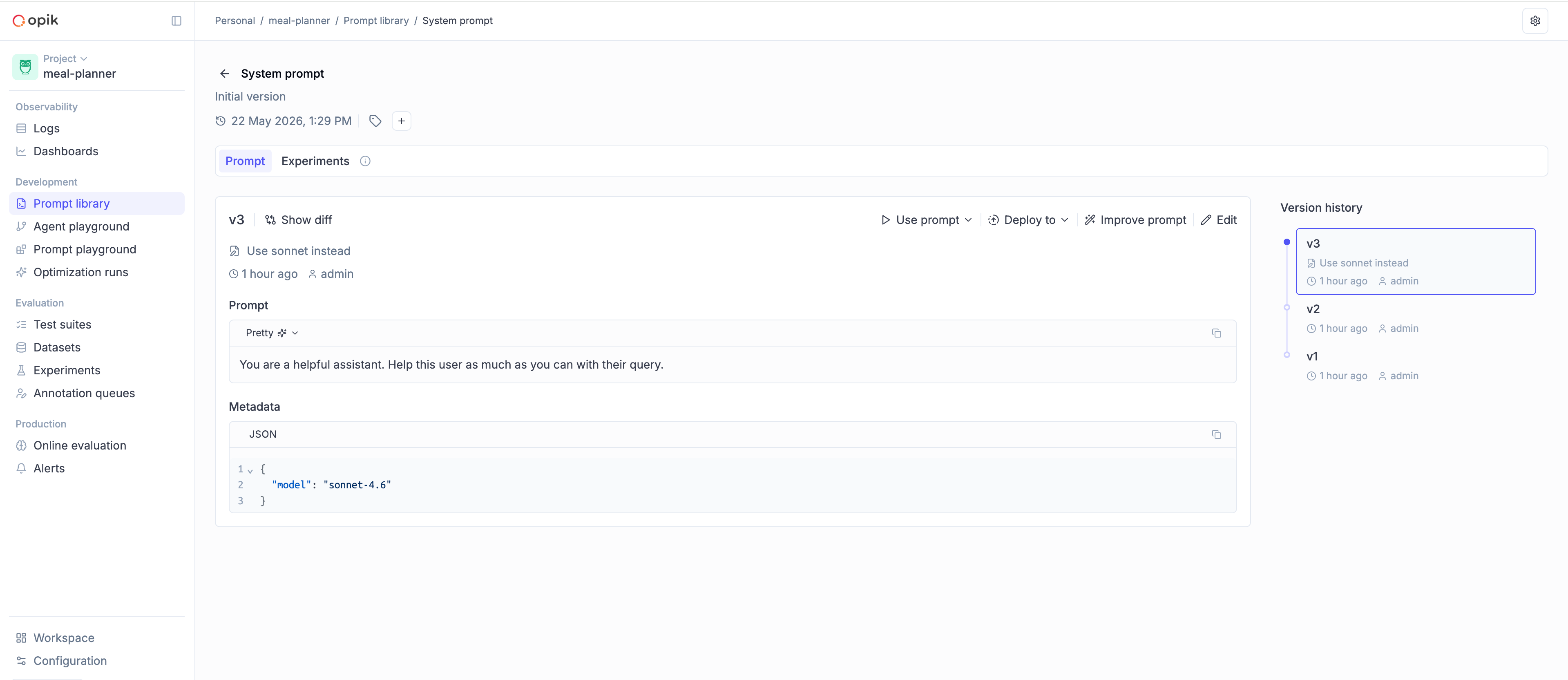
Each call with new content creates a new version, which is visible in the library:
Fetching a text prompt
Python
TypeScript
If you are not using the SDK, you can also fetch a prompt through the REST API.
Chat prompts
A chat prompt is a structured list of messages with roles (system, user, assistant), in
the same shape that OpenAI-compatible chat completion APIs accept. They are the right choice
when your agent has a multi-turn message structure.
Key features
- Structured messages — Organize prompts as a list of messages with roles (system, user, assistant)
- Multimodal support — Include images, videos, and text in the same prompt
- Variable substitution — Use Mustache (
{{variable}}) or Jinja2 syntax - Version control — Automatic versioning when messages change
Creating a chat prompt
Python
TypeScript
Using the UI
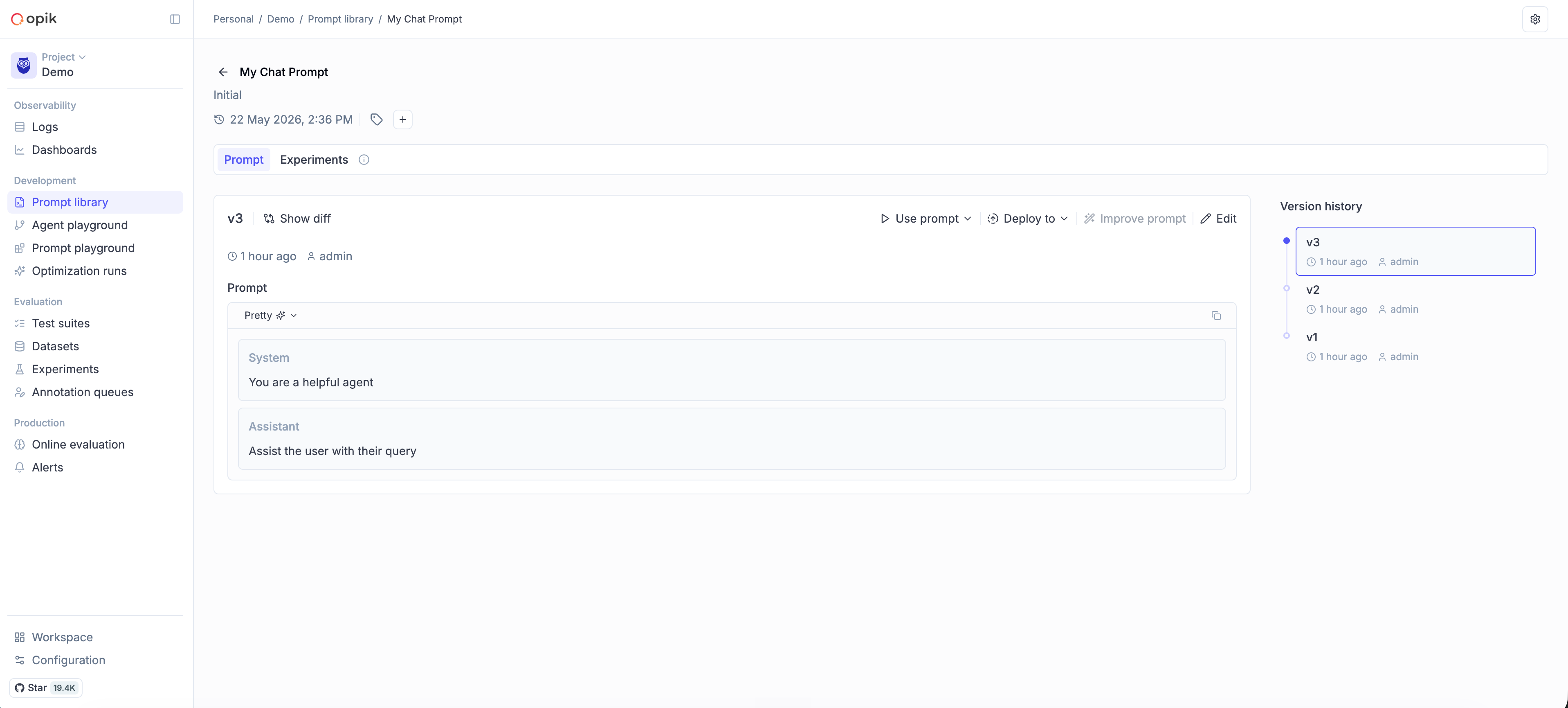
Once saved, a chat prompt has its own view in the Prompt Library:
Using chat prompts with the OpenAI API
The output of chat_prompt.format() is already in the shape the OpenAI chat completion API
expects:
Python
TypeScript
Multi-turn templates
Chat prompts can capture a multi-turn flow, with assistant turns inline and variables anywhere in the conversation:
Python
TypeScript
Multimodal content
Chat prompts can include images and videos alongside text — useful for vision-enabled models.
Image analysis
Python
TypeScript
Video analysis
Python
TypeScript
Mixed content
You can combine multiple content blocks in a single message — e.g. two images with text around them:
Python
TypeScript
When formatting multimodal prompts, you can specify supported_modalities to control how
content is rendered:
- If a modality is supported (e.g.
{"vision": True}), the structured content is preserved. - If a modality is not supported, it’s replaced with text placeholders (e.g.
<<<image>>><<</image>>>).
This lets you reuse the same template with different models that may or may not support certain modalities.
Template engines
Both text and chat prompts support two template engines for variable substitution:
Mustache (default)
Mustache is simple, portable, and covers the common case of substituting variables into a template.
Python
TypeScript
Jinja2
Jinja2 supports conditionals, loops, and filters, which makes it a better fit when your prompt needs to branch on input values.
Python
TypeScript
Jinja2 is more powerful for branching prompt logic; Mustache is simpler and more portable across other tools that consume the same template. Pick the one that fits your prompt.
Searching prompts
To discover prompts by name substring or filter expression, use search_prompts /
searchPrompts. Filters use Opik Query Language (OQL), the same syntax used elsewhere in Opik:
Python
TypeScript
search_prompts returns the latest version for each matching prompt. To explore the full
version history of a single prompt, see Version control.
Filter syntax
The filter_string parameter takes one or more <column> <operator> <value> clauses joined
with AND:
Examples:
tags contains "production"— Filter by tagname contains "summary"— Filter by name substringcreated_by = "user@example.com"— Filter by creatortags contains "alpha" AND tags contains "beta"— Multiple tag filtering (AND)template_structure = "text"— Only text promptstemplate_structure = "chat"— Only chat prompts