

Log traces
If you are just getting started with Opik, we recommend first checking out the Quickstart guide that will walk you through the process of logging your first LLM call.
LLM applications are complex systems that do more than just call an LLM API, they will often involve retrieval, pre-processing and post-processing steps. Tracing is a tool that helps you understand the flow of your application and identify specific points in your application that may be causing issues.
Opik’s tracing functionality allows you to track not just all the LLM calls made by your application but also any of the other steps involved.
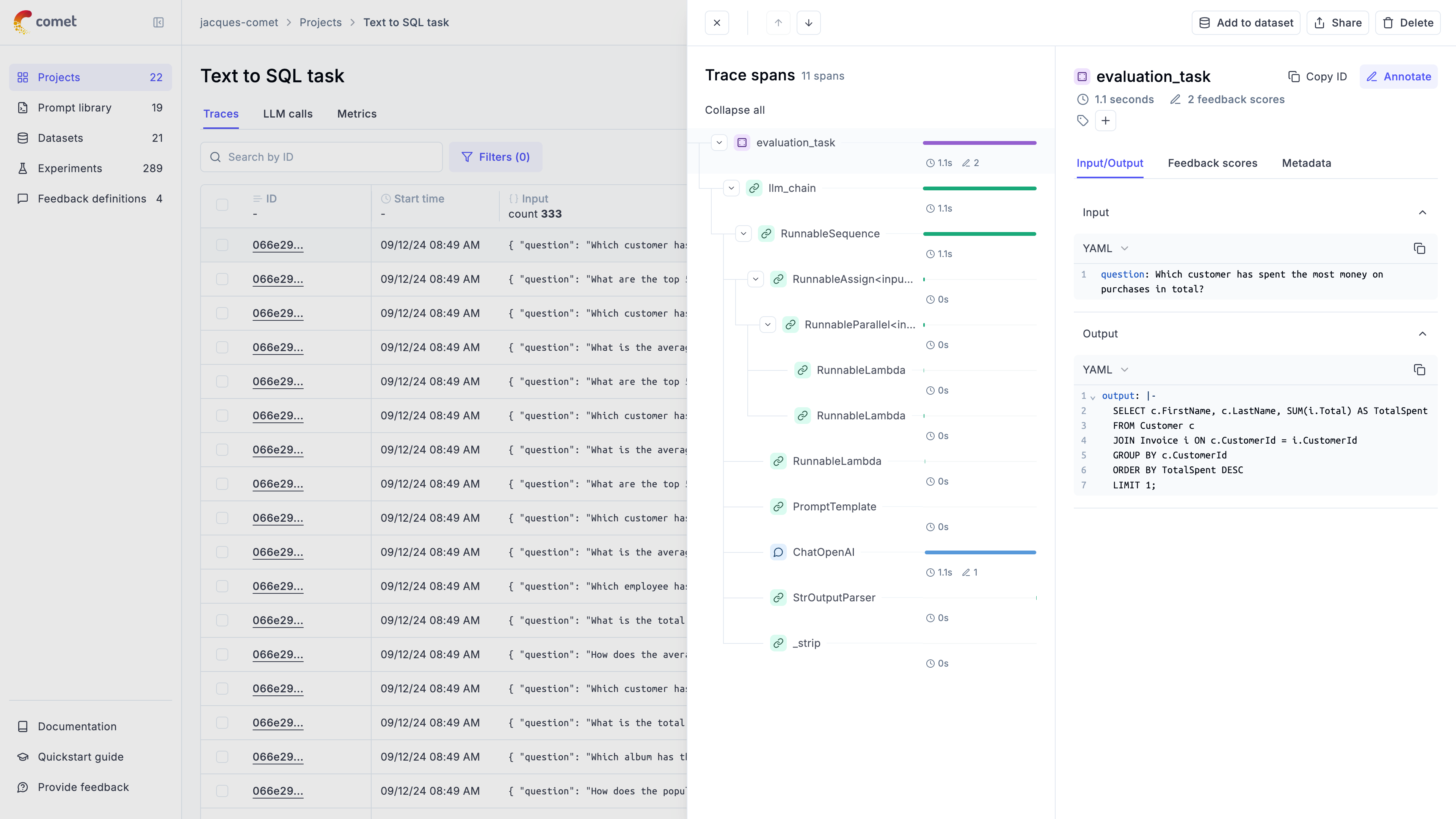
Opik supports agent observability using our Typescript SDK, Python SDK, first class OpenTelemetry support and our REST API.
We recommend starting with one of our integrations to get started quickly, you can find a full list of our integrations in the integrations overview page.
We won’t be covering how to track chat conversations in this guide, you can learn more about this in the Logging conversations guide.
Enable agent observability
1. Installing the SDK
Before adding observability to your application, you will first need to install and configure the Opik SDK.
Typescript SDK
Python SDK
OpenTelemetry
You can then set the Opik environment variables in your .env file:
Opik is open-source and can be hosted locally using Docker, please refer to the self-hosting guide to get started. Alternatively, you can use our hosted platform by creating an account on Comet.
2. Using an integration
Once you have installed and configured the Opik SDK, you can start using it to track your agent calls:
OpenAI (TS)
OpenAI (Python)
AI Vercel SDK
ADK
LangGraph
Function Decorators
AI Wizard
Other
Opik has more than 40 integrations with the majority of the popular frameworks and libraries. You can find a full list of integrations in the integrations overview page.
If you would like more control over the logging process, you can use the low-level SDKs to log your traces and spans.
3. Analyzing your agents
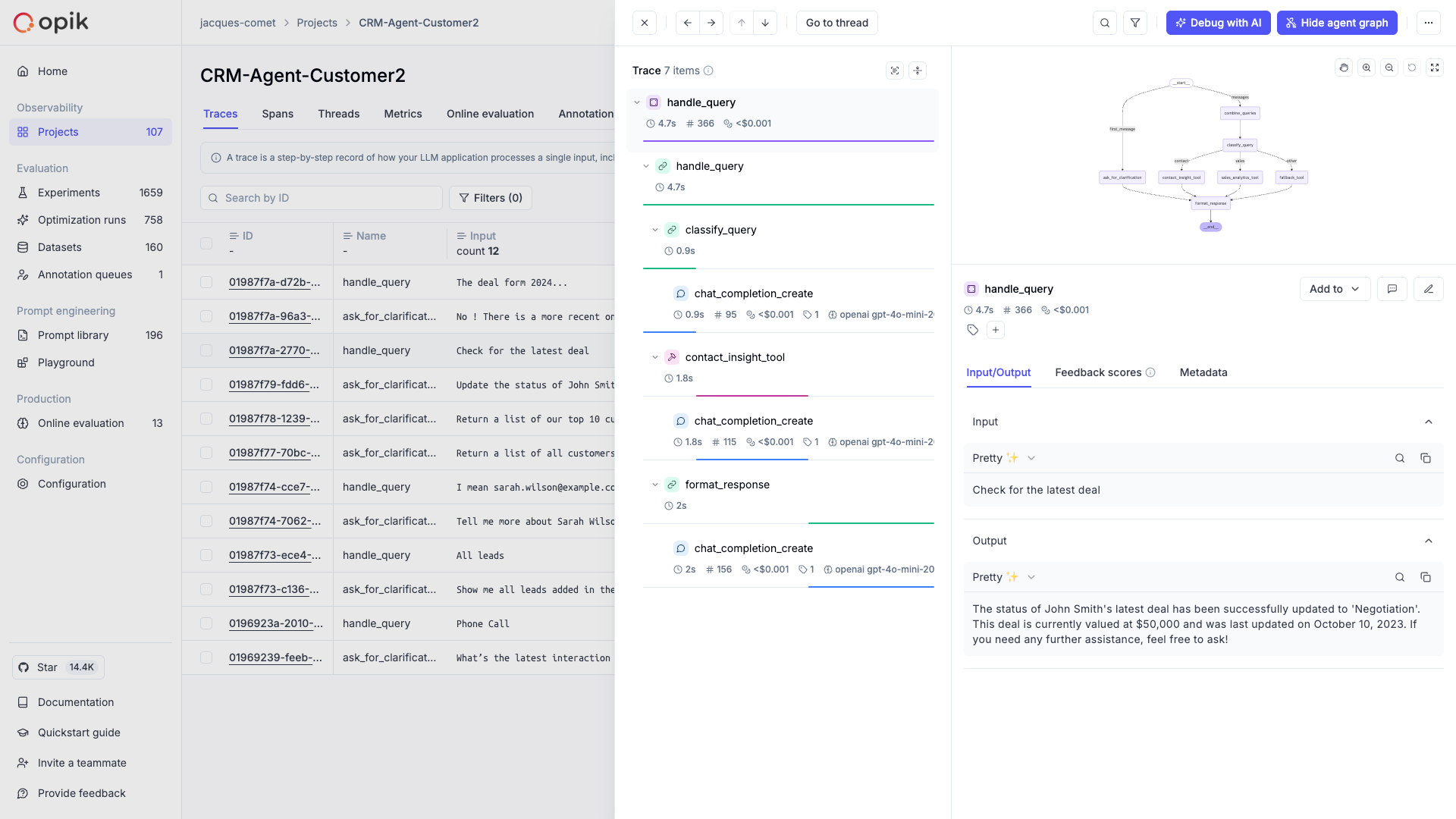
Now that you have observability enabled for your agents, you can start to review and analyze the agent calls in Opik. In the Opik UI, you can review each agent call, see the agent graph and review all the tool calls made by the agent.
Advanced usage
Using function decorators
Function decorators are a great way to add Opik logging to your existing application. When you add
the @track decorator to a function, Opik will create a span for that function call and log the
input parameters and function output for that function. If we detect that a decorated function
is being called within another decorated function, we will create a nested span for the inner
function.
While decorators are most popular in Python, we also support them in our Typescript SDK:
Typescript
Python
TypeScript started supporting decorators from version 5 but it’s use is still not widespread. The Opik typescript SDK also supports decorators but it’s currently considered experimental.
You can also specify custom tags, metadata, and/or a thread_id for each trace and/or
span logged for the decorated function. For more information, see
Logging additional data using the opik_args parameter
Using the low-level SDKs
If you need full control over the logging process, you can use the low-level SDKs to log your traces and spans:
Typescript
Python
Logging traces/spans using context managers
If you are using the low-level SDKs, you can use the context managers to log traces and spans. Context managers provide a clean and Pythonic way to manage the lifecycle of traces and spans, ensuring proper cleanup and error handling.
Python
Opik provides two main context managers for logging:
opik.start_as_current_trace()
Use this context manager to create and manage a trace. A trace represents the overall execution flow of your application.
For detailed API reference, see opik.start_as_current_trace.
Parameters:
name(str): The name of the traceinput(Dict[str, Any], optional): Input data for the traceoutput(Dict[str, Any], optional): Output data for the tracetags(List[str], optional): Tags to categorize the tracemetadata(Dict[str, Any], optional): Additional metadataproject_name(str, optional): Project name (falls back to active project context, then client configuration)thread_id(str, optional): Thread identifier for multi-threaded applicationsflush(bool, optional): Whether to flush data immediately (default: False)
opik.start_as_current_span()
Use this context manager to create and manage a span within a trace. Spans represent individual operations or function calls.
For detailed API reference, see opik.start_as_current_span.
Parameters:
name(str): The name of the spantype(SpanType, optional): Type of span (“general”, “tool”, “llm”, “guardrail”, etc.)input(Dict[str, Any], optional): Input data for the spanoutput(Dict[str, Any], optional): Output data for the spantags(List[str], optional): Tags to categorize the spanmetadata(Dict[str, Any], optional): Additional metadataproject_name(str, optional): Project namemodel(str, optional): Model name for LLM spansprovider(str, optional): Provider name for LLM spansflush(bool, optional): Whether to flush data immediately
Nested Context Managers
You can nest spans within traces to create hierarchical structures:
Error Handling
Context managers automatically handle errors and ensure proper cleanup:
Dynamic Parameter Updates
You can modify trace and span parameters both inside and outside the context manager:
Flush Control
Control when data is sent to Opik:
Best Practices
-
Use descriptive names: Choose clear, descriptive names for your traces and spans that explain what they represent.
-
Set appropriate types: Use the correct span types (“llm”, “retrieval”, “general”, etc.) to help with filtering and analysis.
-
Include relevant metadata: Add metadata that will be useful for debugging and analysis, such as model names, parameters, and custom metrics.
-
Handle errors gracefully: Let the context manager handle cleanup, but ensure your application logic handles errors appropriately.
-
Use project organization: Organize your traces by project to keep your Opik dashboard clean and organized.
-
Consider performance: Use
flush=Trueonly when immediate data availability is required, as it can slow down your application by triggering a synchronous, immediate data upload.
Logging to a specific project
By default, traces are logged to the Default Project project. You can change the project you want
the trace to be logged to in a couple of ways:
Typescript
Python
You can use the OPIK_PROJECT_NAME environment variable to set the project you want the trace
to be logged or pass a parameter to the Opik client.
Project name resolution (Python SDK)
The project name is determined differently depending on whether an active project context already exists.
When no project context is active
This applies to the top-level @track-decorated function call, the Opik() client, or a native integration (e.g., track_openai, OpikTracer) used outside any traced context. The project name is resolved in this order:
- Explicit
project_nameargument — passed directly to@track(project_name="..."),Opik(project_name="..."),OpikTracer(project_name="..."), or a client method likeclient.trace(project_name="...") - Client configuration — from the
OPIK_PROJECT_NAMEenvironment variable or~/.opik.configfile - Default — falls back to
"Default Project"(a warning is logged once to remind you to configure a project name)
The first @track(project_name="...") or opik.project_context("...") call that runs establishes the active project context for all nested operations.
When a project context is active
Once a project context is established (by a parent @track(project_name="...") or opik.project_context("...")), all nested operations use the context project name. This includes:
- Nested
@track-decorated functions — even if they pass a differentproject_name, the outer context wins (a warning is logged) - Native integrations (e.g.,
OpikTracer,track_openai) — if initialized inside an active context, the context project overrides the integration’sproject_nameargument (a warning is logged) Opik()client methods — if a method likeclient.trace(project_name="...")is called with an explicitproject_name, the explicit argument wins; ifproject_nameis omitted, the context project is used
This ensures that all traces and spans within a single execution flow are logged to the same project.
@track context propagation
When @track(project_name="...") is used on the top-level function, it sets the project context for the entire call tree:
If a nested function specifies a different project_name, it is ignored and the outer project is preserved:
opik.project_context()
The opik.project_context() context manager sets the project name for all Opik operations within a block — @track-decorated functions, native integrations, and Opik() client calls (when project_name is not passed explicitly):
Nesting rules are the same: the first project_context or @track(project_name=...) to run owns the context. Inner calls with a different project name are ignored (a warning is logged).
When a script combines @track tracing with other Opik API calls — such as evaluate(), get_or_create_dataset(), or Prompt() — traces and API objects can land in different projects if the project name is not set consistently. Make sure the value passed to opik.configure(project_name=...) (which controls where @track traces go) matches the project_name argument passed explicitly to each API call:
Logging to a specific environment
Environments let you tag traces with a lifecycle stage — for example development, staging, or production — so you can segment and filter your observability data in the Opik UI.
Typescript
Python
Setting the environment
The environment is resolved in this order:
- Explicit argument — passed directly to
client.trace(environment: ...) OPIK_ENVIRONMENTenvironment variable
Using the low-level SDK:
Managing environments
You can manage the set of named environments in your workspace programmatically:
Typescript
Python
Filtering by environment
Once traces are tagged, you can filter them programmatically using the environment field in filter_string. It supports =, !=, in, and not_in:
Flushing traces and spans
This process is optional and is only needed if you are running a short-lived script or if you are debugging why traces and spans are not being logged to Opik.
Typescript
Python
As the Typescript SDK has been designed to be used in production environments, we batch traces and spans and send them to Opik in the background.
If you are running a short-lived script, you can flush the traces to Opik by using the
flush method of the Opik client.
Disabling the logging process
Typescript
Python
You can disable the logging process globally using the OPIK_TRACK_DISABLE environment variable
(you can also set track_disable in the configuration file, or pass trackDisable: true to the
Opik client constructor).
If you are looking for more control, you can also use the setTracingActive function to
dynamically disable the logging process.
When tracing is disabled, all tracing is turned off — the track decorator, the integrations,
and manual client.trace() calls stop sending data to Opik.
Next steps
Once you have the observability set up for your agent, you can go one step further and: