

Log conversations
You can log chat conversations to the Opik platform and track the full conversations your users are having with your chatbot. Threads allow you to group related traces together, creating a conversational flow that makes it easy to review multi-turn interactions and track user sessions.
Understanding Threads
Threads in Opik are collections of traces that are grouped together using a unique thread_id. This is particularly useful for:
- Multi-turn conversations: Track complete chat sessions between users and AI assistants
- User sessions: Group all interactions from a single user session
- Conversational agents: Follow the flow of agent interactions and tool usage
- Workflow tracking: Monitor complex workflows that span multiple function calls
The thread_id is a user-defined identifier that must be unique per project. All traces with the same thread_id will be grouped together and displayed as a single conversation thread in the Opik UI.
Logging conversations
You can log chat conversations by specifying the thread_id parameter when using either the low level SDK, Python decorators, or integration libraries:
The input to each trace will be displayed as the user message while the output will be displayed as the AI assistant response.
Thread ID Best Practices
Generating Thread IDs
Choose a thread ID strategy that fits your application:
Integration-Specific Threading
Different integrations handle thread IDs in various ways:
Reviewing conversations
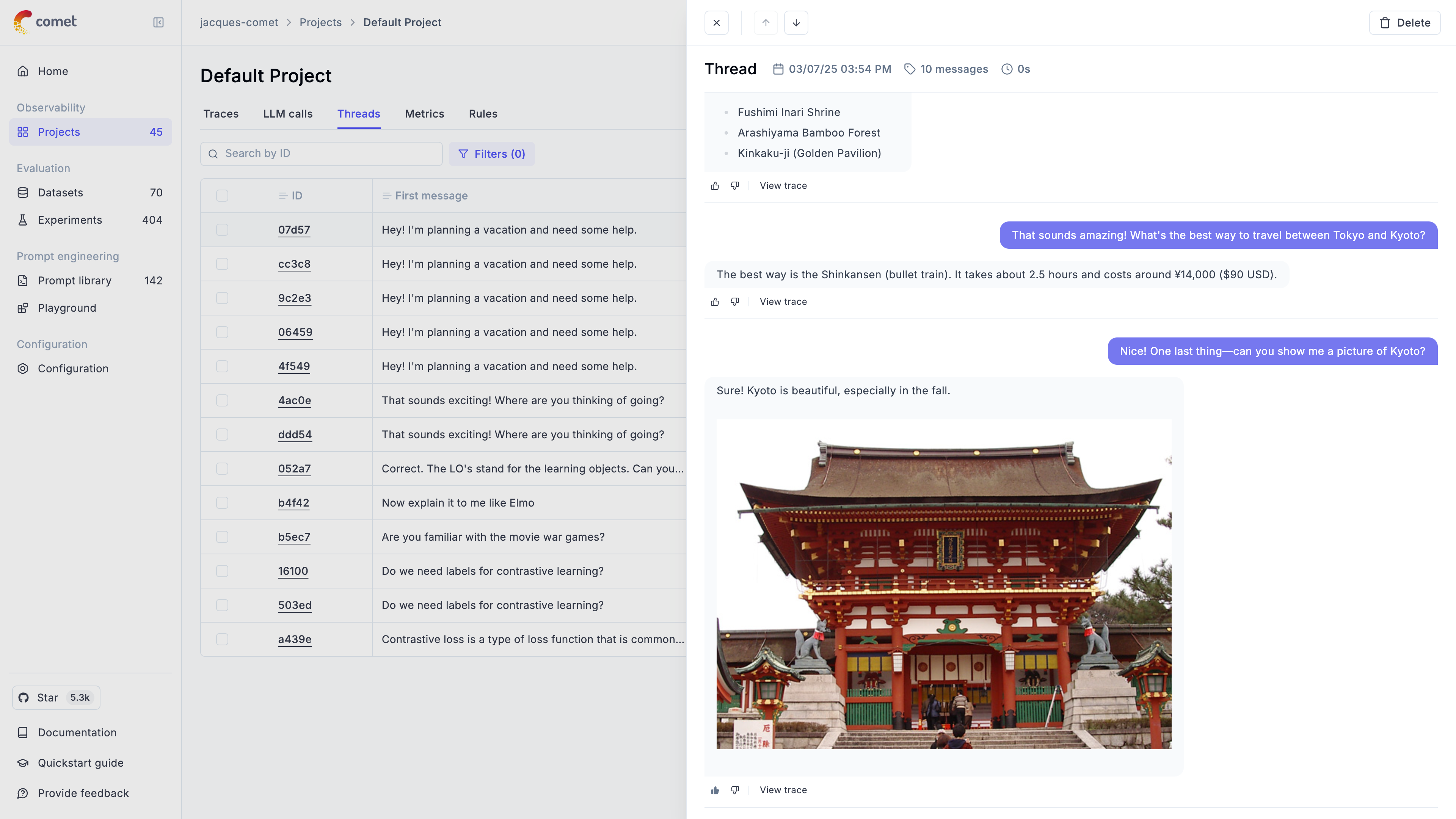
Conversations can be viewed at a project level in the threads tab. All conversations are tracked and by clicking on the thread ID you will be able to
view the full conversation.
The thread view supports markdown making it easier for you to review the content that was returned to the user. If you would like to dig in deeper, you
can click on the View trace button to deepdive into how the AI assistant response was generated.
By clicking on the thumbs up or thumbs down icons, you can quickly rate the AI assistant response. This feedback score will be logged and associated to the relevant trace. By switching to the trace view, you can review the full trace as well as add additional feedback scores through the annotation functionality.

Scoring conversations
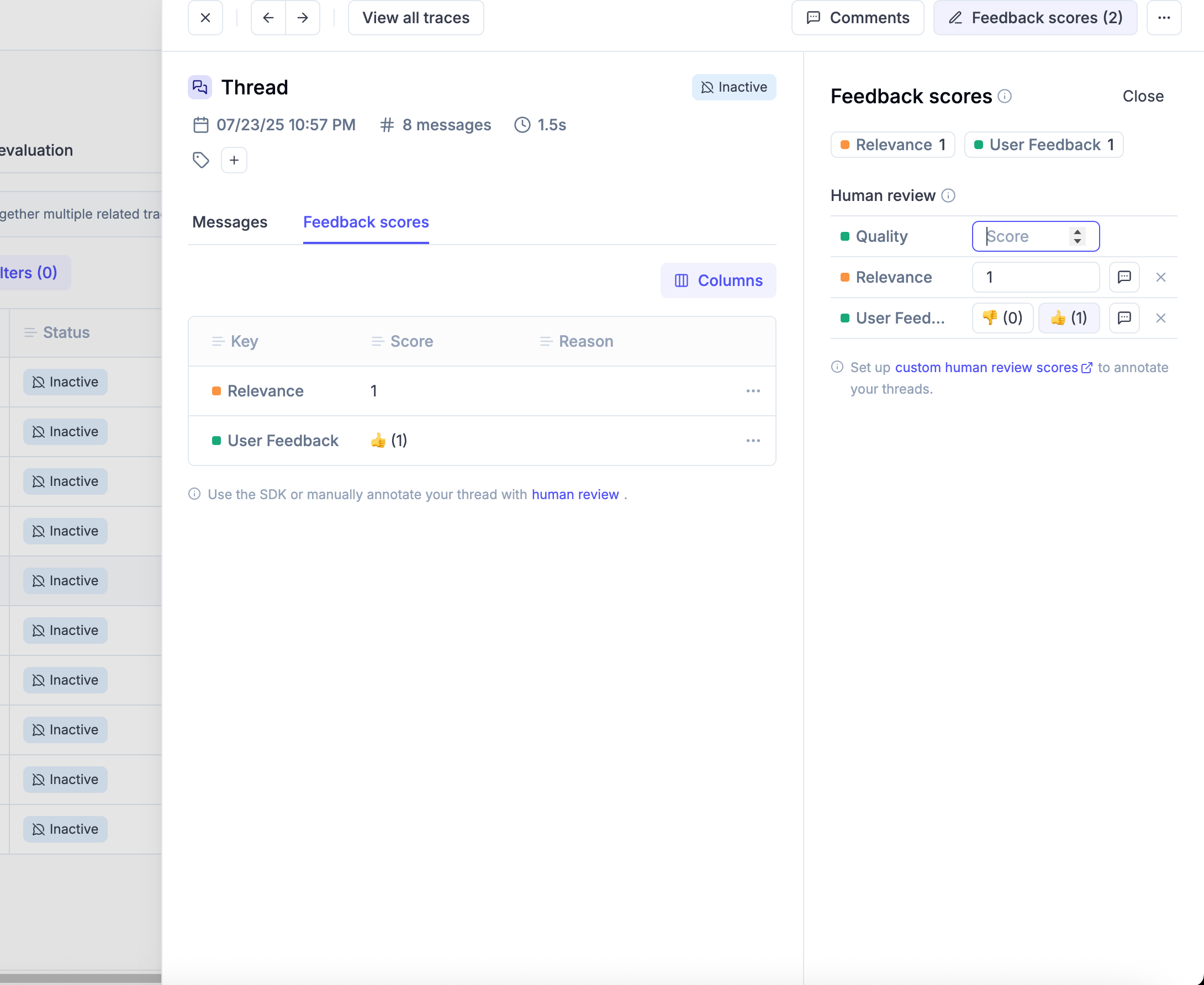
You can assign conversation-level feedback scores to threads at any time. Threads are aggregated traces
that are created when tracking agents or simply traces interconnected by a thread_id.
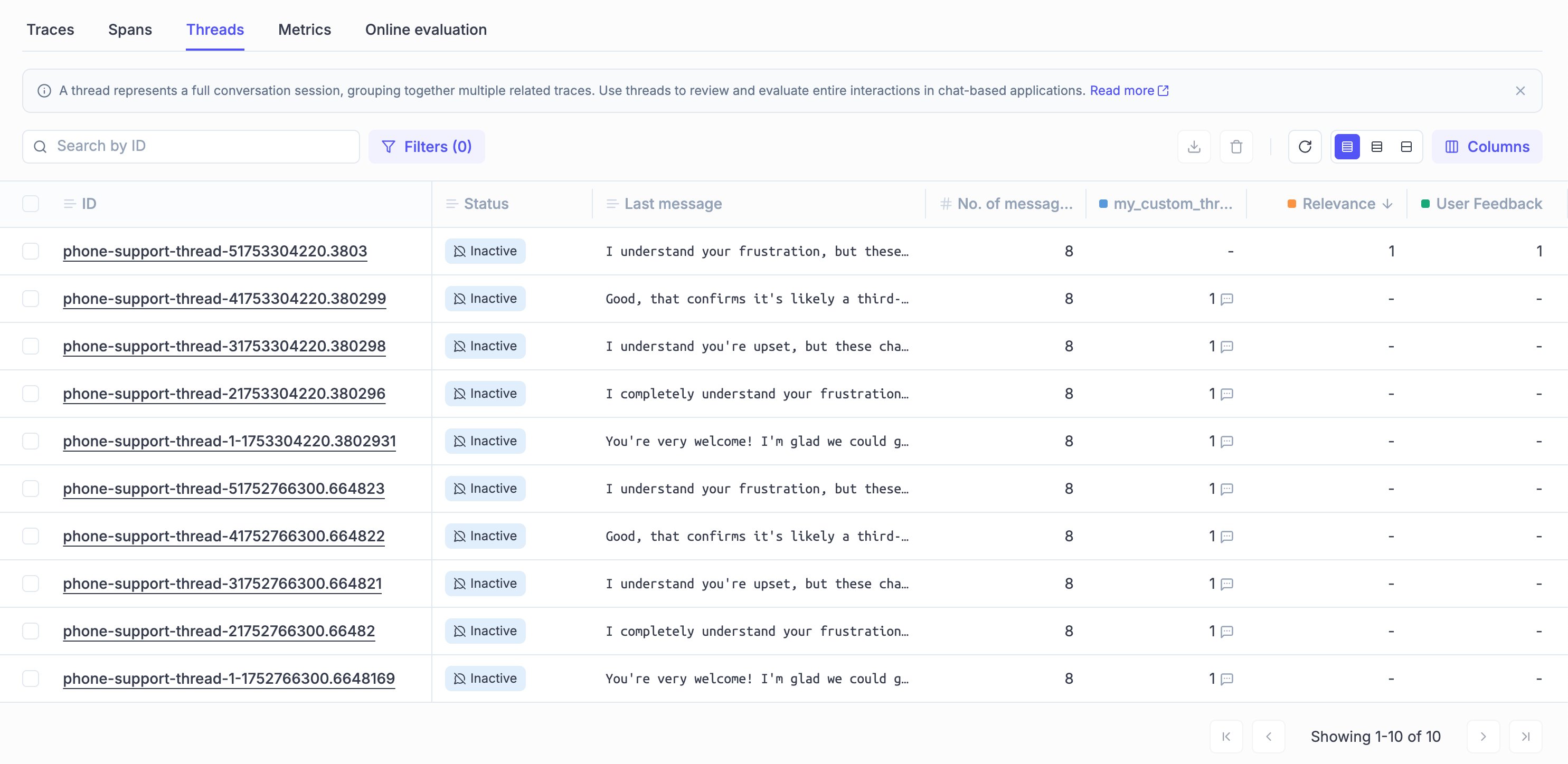
In the conversation list, you can see the feedback scores associated to each thread.
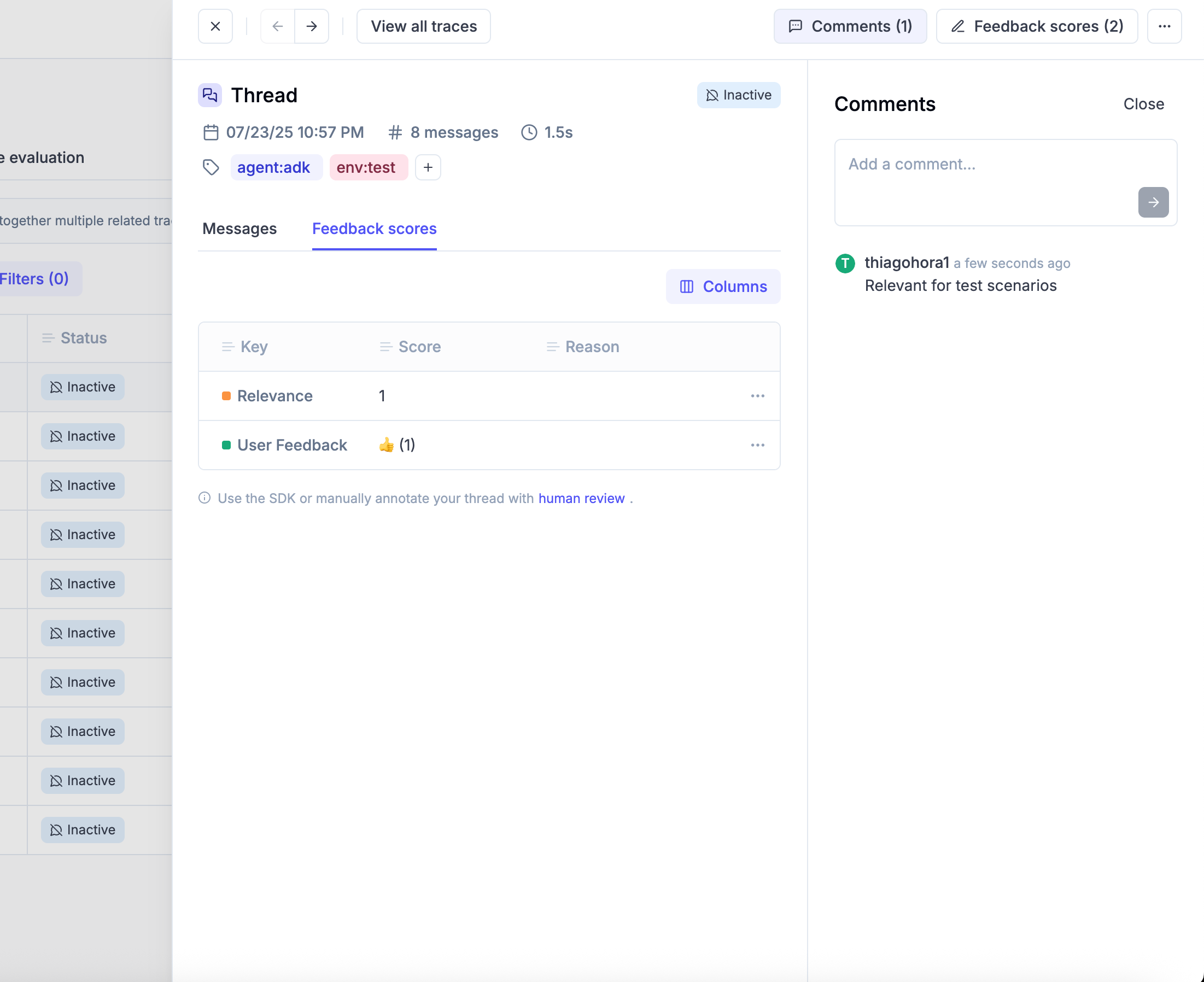
You can also tag a thread and add comments to it. This is useful to add additional context during the review process or investigate a specific conversation.
Thread Online Scoring Rule Cooldown Period
For thread-level online evaluation rules (automatic scoring), Opik waits for a “cooldown period” after the last activity in a thread before running the rules. This gives conversations time to settle before automatic evaluation.
By default, the cooldown period is 15 minutes. You can change this value by setting the
OPIK_TRACE_THREAD_TIMEOUT_TO_MARK_AS_INACTIVE environment variable (if you are using the Opik self-hosted version).
On cloud, you can change this setting at workspace level under “Thread online scoring rule cooldown period”.
Behavior When Adding Traces to Existing Threads
When a new trace is added to an existing thread, the following happens:
- Existing feedback scores are preserved: Any manual feedback scores or online evaluation scores you have added remain intact.
- The cooldown timer restarts: The timer resets from the moment the new trace is added, ensuring online evaluation waits for the full cooldown period before scoring the updated thread.
- Online evaluation re-runs: Once the cooldown period expires, thread-level online scoring rules will automatically evaluate the complete conversation again. If a new score is logged with the same name as an existing score, the existing score is updated.
Advanced Thread Features
Filtering and Searching Threads
You can filter threads using the thread_id field in various Opik features:
In Data Export
When exporting data, you can filter by thread_id using these operators:
=(equals),!=(not equals)contains,not_containsstarts_with,ends_with>,<(lexicographic comparison)
In Thread Evaluation
You can evaluate entire conversation threads using the thread evaluation features. This is particularly useful for:
- Conversation quality assessment
- Multi-turn coherence evaluation
- User satisfaction scoring across complete interactions
Thread Management
Threads can have traces added to them at any time, and you can add feedback scores, comments, and tags to threads regardless of whether new traces are still being added.
Programmatic Thread Management
You can also manage threads programmatically using the Opik SDK:
Next steps
Once you have added observability to your multi-turn agent, why not:
- Run offline multi-turn conversation evaluation
- Create online evaluation rules to score your multi-turn conversations in production