

Dashboards
Dashboards allow you to create customizable views for monitoring your LLM applications. You can track project metrics like trace volume, cost, latency, and feedback scores, as well as compare experiment results across different runs.
Opik provides two ways to visualize data:
- Insights — built-in and custom views embedded directly in project and experiment pages for quick, in-context monitoring
- Workspace dashboards — standalone dashboards accessible from the sidebar for cross-project analysis
If you have any feedback or feature requests for dashboards, please open an issue on GitHub.
Dashboard types
Every dashboard has a type that determines what kind of data it works with and which widgets are available:
Accessing dashboards
Dashboards page
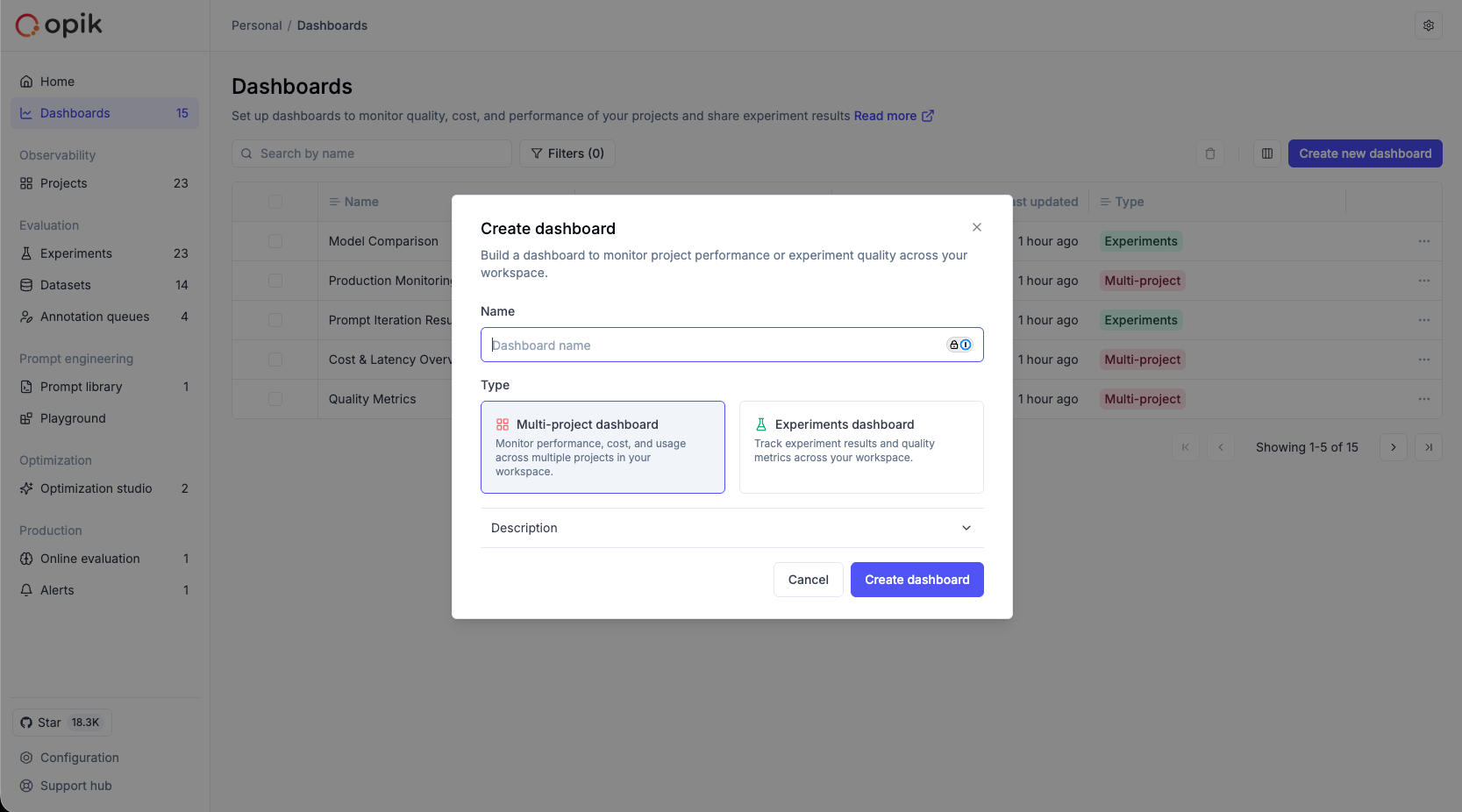
Access the standalone Dashboards page from the sidebar navigation to create and manage workspace-level dashboards. The dashboards list includes a Type column showing whether each dashboard is Multi-project or Experiments.
Project page — Insights tab
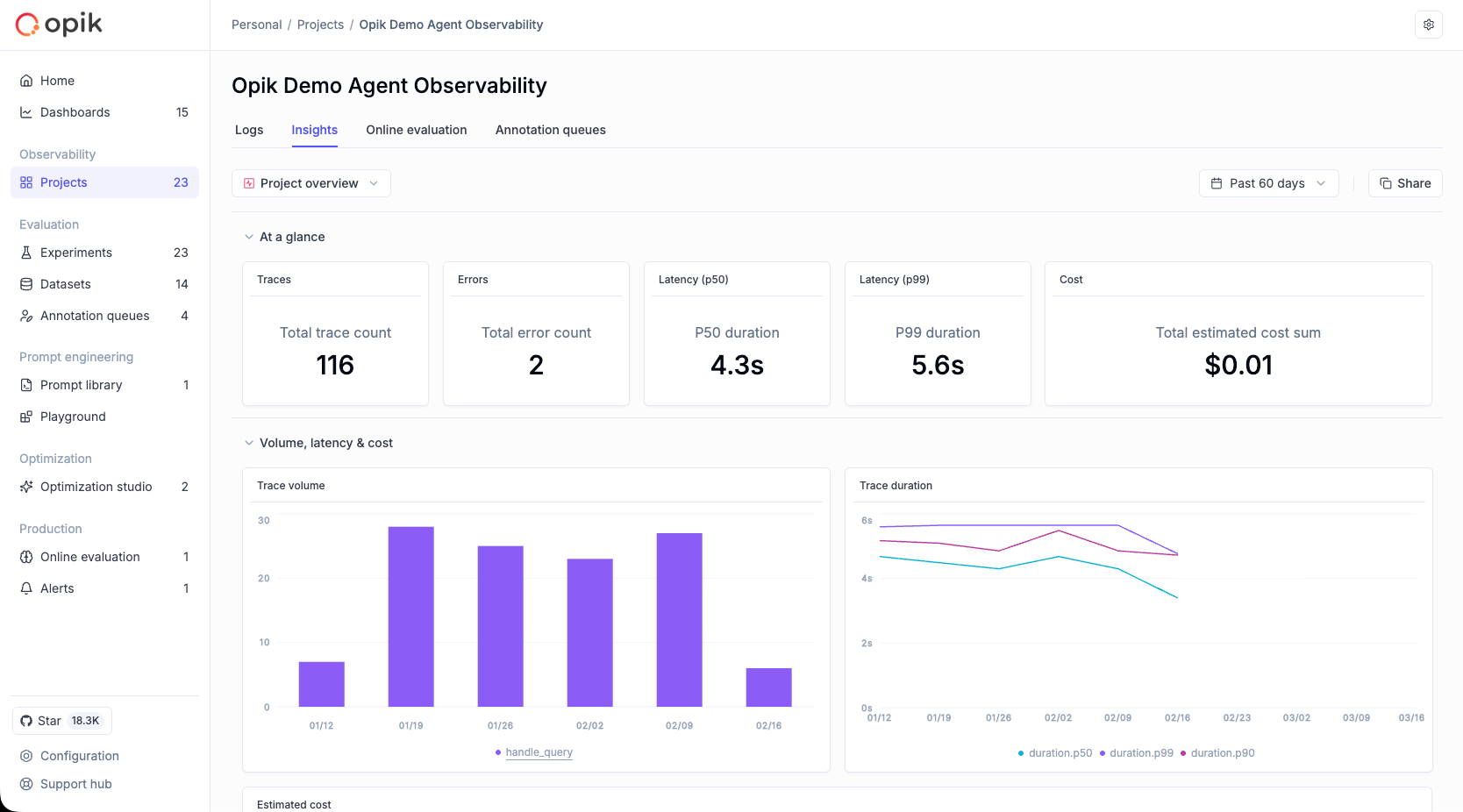
Within any project, the Insights tab provides built-in and custom views for monitoring that project’s traces, threads, and quality metrics.
Compare Experiments — Insights tab
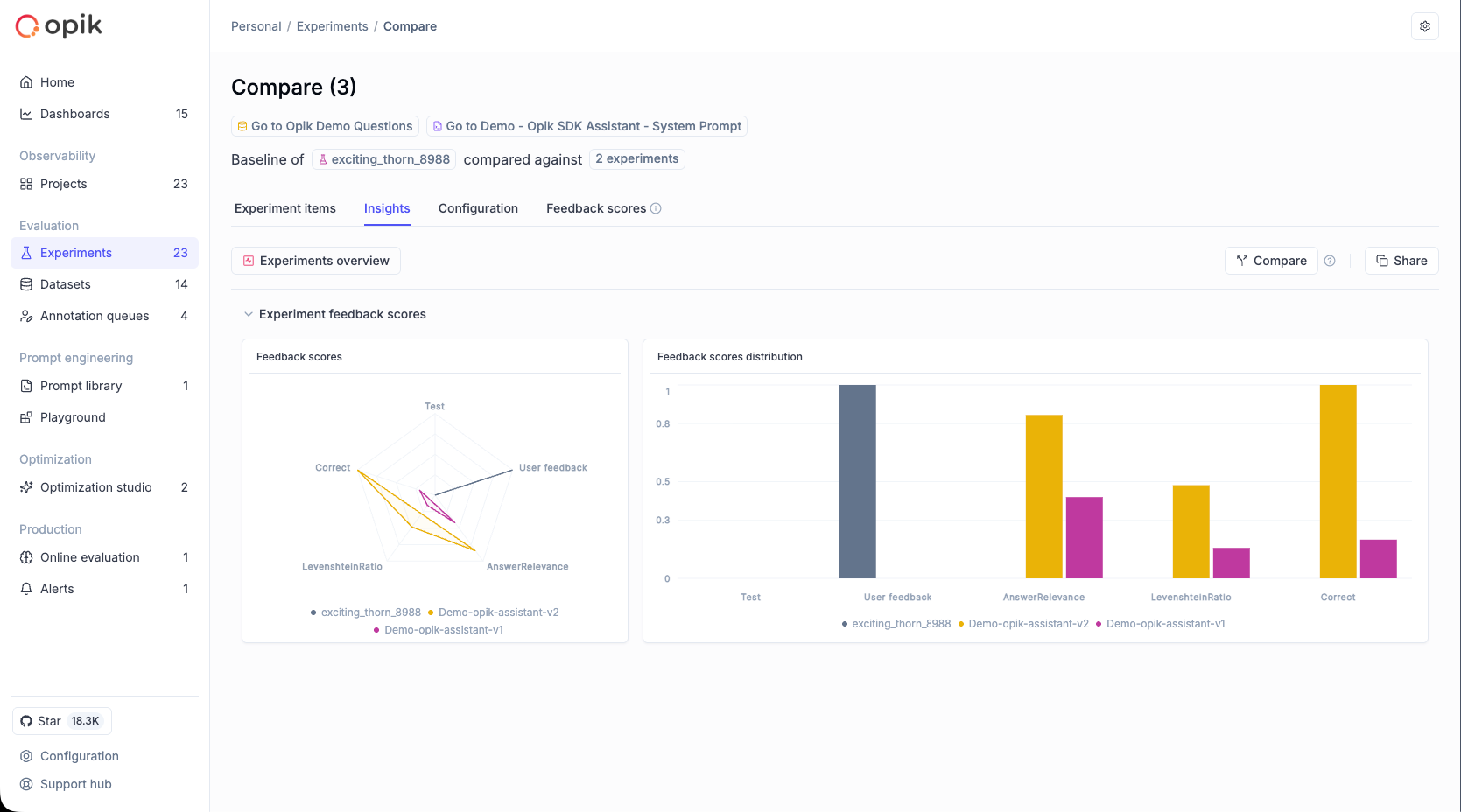
When comparing experiments, the Insights tab shows a built-in read-only view with experiment comparison charts.
Insights tab
The Insights tab provides curated, in-context monitoring views directly within project and experiment pages.
Project Insights
When you open a project’s Insights tab, you land on the built-in Project Overview view — a read-only dashboard covering key health metrics: trace volume, errors, latency, cost, feedback scores, and thread activity.
Custom views
Beyond the built-in view, you can create custom Insight views for your project:
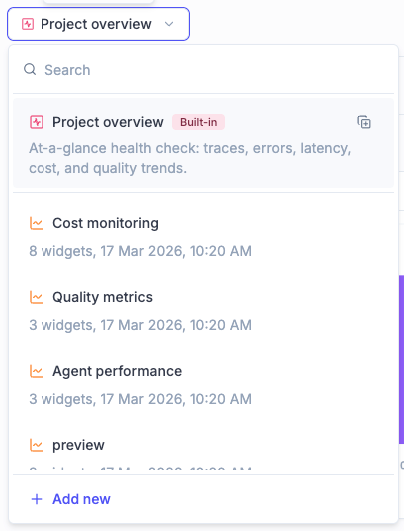
- Open the views selector dropdown in the Insights tab
- Click Add new at the bottom
- Enter a name for your view
Custom views are fully editable — you can add sections, configure widgets, and rearrange the layout. The current project is automatically set as the data source for all widgets.
Views selector dropdown:
- Search box at the top for filtering views
- Built-in “Project Overview” is always listed first with a “Built-in” tag
- Custom views appear below with their widget count and last modified date
- Add new button at the bottom
View actions (available on hover for custom views):
- Edit name — rename the view
- Duplicate — create a copy of the view
- Delete — remove the view (this action cannot be undone)
You can also duplicate the built-in view to create an editable copy as a custom view.
The Insights tab has its own time range selector, separate from the Logs tab. Each tab remembers its own time range across sessions.
Experiment Insights
When comparing experiments, the Insights tab shows a single built-in read-only view displaying experiment comparison charts for the currently selected experiments. There is no view selector — only the built-in view is available.
Widget types
Dashboards support several widget types. The available types depend on the dashboard type (Multi-project or Experiments).
Time series widget (Multi-project)
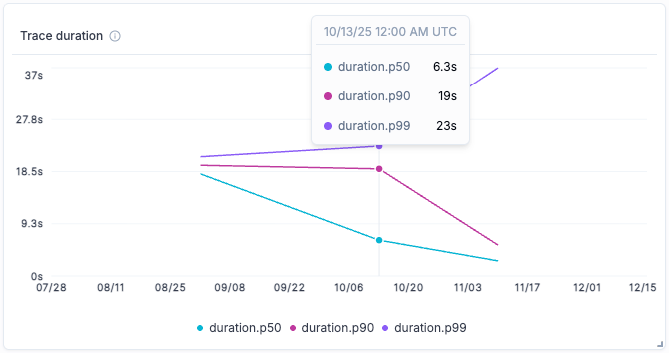
Displays time-series charts for project metrics over time. Supports both line and bar chart visualizations.
Available metrics:
- Trace feedback scores - Quality metrics for traces over time
- Number of traces - Trace volume trends
- Trace duration - Trace performance trends
- Token usage - Token consumption over time
- Estimated cost - Spending trends
- Failed guardrails - Guardrail violations over time
- Number of threads - Thread volume trends
- Thread duration - Thread performance trends
- Thread feedback scores - Quality metrics for threads over time
Configuration options:
-
Project: Select the project to pull data from
-
Metric type: Choose from any of the metrics listed above
-
Chart type: Line chart (best for trends) or Bar chart (good for volume/period comparisons)
-
Breakdown: Optionally group data by a field to see per-group patterns. Available fields depend on the data source:
- Trace metrics: Tags, Name, Has error, Error type, Metadata key
- Span metrics: Tags, Name, Has error, Error type, Metadata key, Model, Provider, Span type
- Thread metrics: Tags
When a breakdown is active, use the aggregation toggle to control how data is bucketed: Total shows one value per group for the entire date range, while Time-based shows values in time buckets (hourly, daily, or weekly). Click a label in the chart legend to navigate directly to the traces list filtered to that group.
-
Filters: Apply trace or thread filters to focus on specific data based on tags, metadata, or other attributes
-
Feedback scores: When using feedback score metrics, optionally select specific scores to display (leave empty to show all)
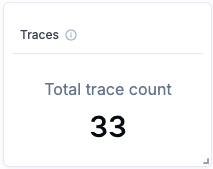
Single metric widget (Multi-project)
Shows a single metric value with a compact card display. Ideal for summary dashboards and key performance indicators.
Data sources: Traces or Spans
Trace-specific metrics:
- Total trace count
- Total thread count
- Average LLM span count
- Average span count
- Average estimated cost per trace
- Total guardrails failed count
Span-specific metrics:
- Total span count
- Average estimated cost per span
Shared metrics (available for both traces and spans):
- P50 duration - Median duration
- P90 duration - 90th percentile duration
- P99 duration - 99th percentile duration
- Total input count
- Total output count
- Total metadata count
- Average number of tags
- Total estimated cost sum
- Output tokens (avg.)
- Input tokens (avg.)
- Total tokens (avg.)
- Total error count
- Average feedback scores - Any feedback score defined in your project
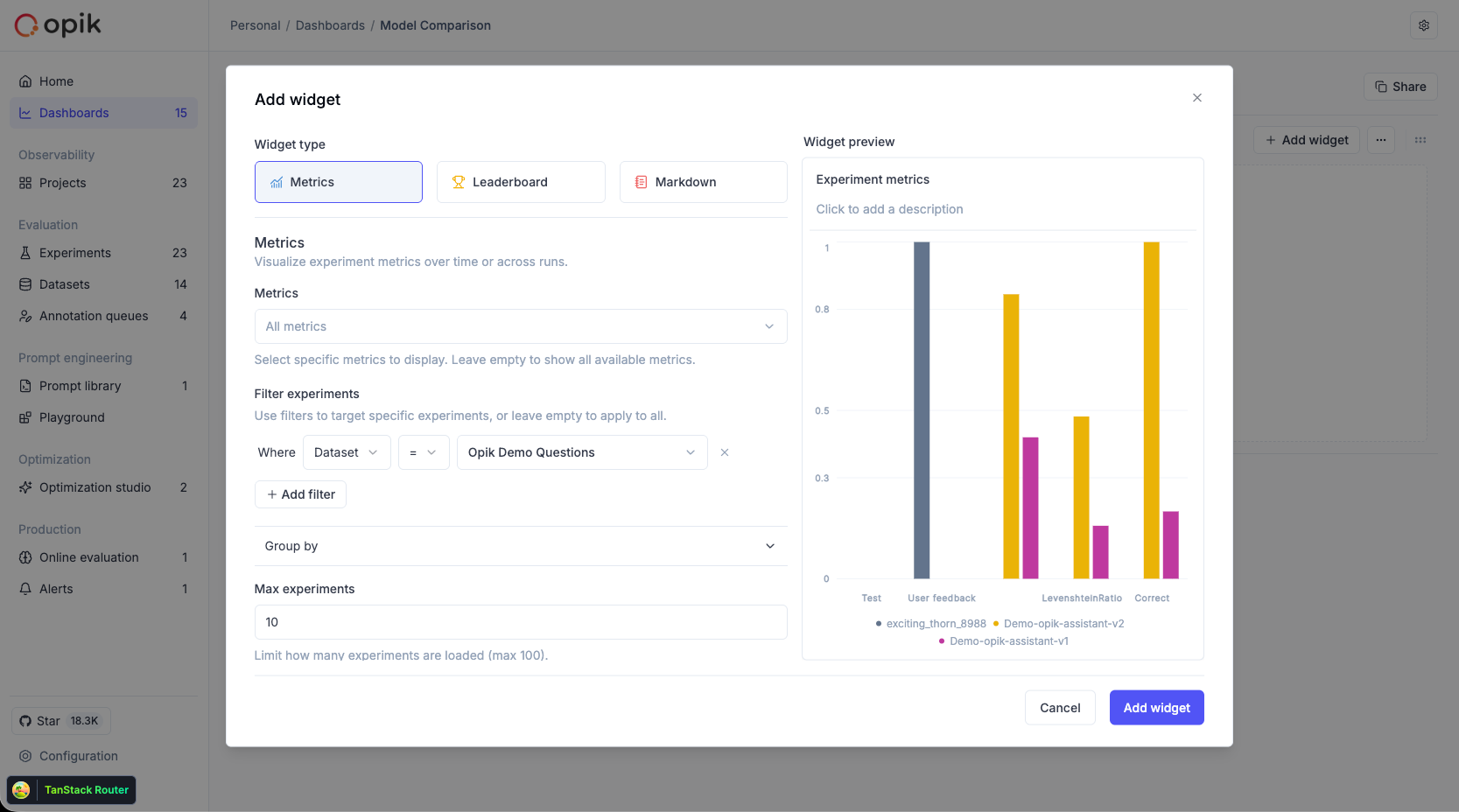
Metrics widget (Experiments)
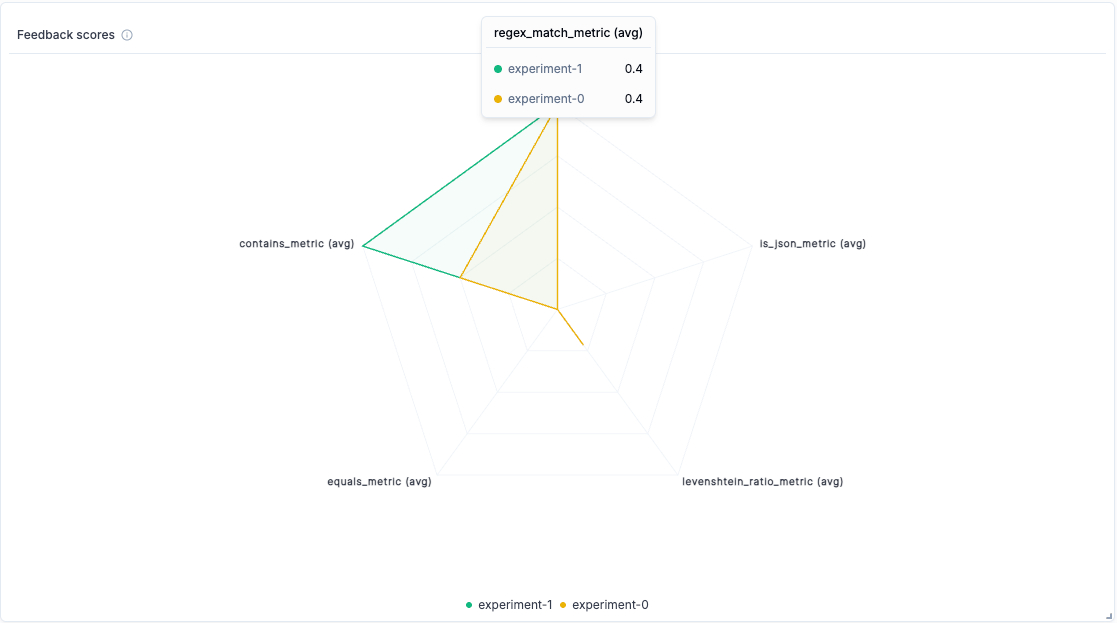
Compares feedback scores across multiple experiments. Ideal for visualizing A/B test results and prompt iteration outcomes.
Chart types:
- Line chart - Show trends across experiments (default)
- Bar chart - View detailed score distributions side by side
- Radar chart - Compare multiple feedback scores across experiments in a radial view
Configuration options:
- Filters: Filter experiments by:
- Dataset — show only experiments from a specific dataset
- Configuration — filter by metadata keys and values (e.g., model=“gpt-4”)
- Experiment IDs — include specific experiments by ID
- Groups (collapsible, collapsed by default): Group aggregated results by:
- Dataset — compare results across different datasets
- Configuration — group by metadata keys to aggregate feedback scores (e.g., group by model type)
- Supports up to 5 grouping levels for hierarchical comparisons
- Max experiments: Limit the number of experiments displayed
- Chart type: Choose line, bar, or radar chart visualization
- Metrics: Optionally display only specific feedback scores (leave empty to show all)
Leaderboard widget (Experiments)
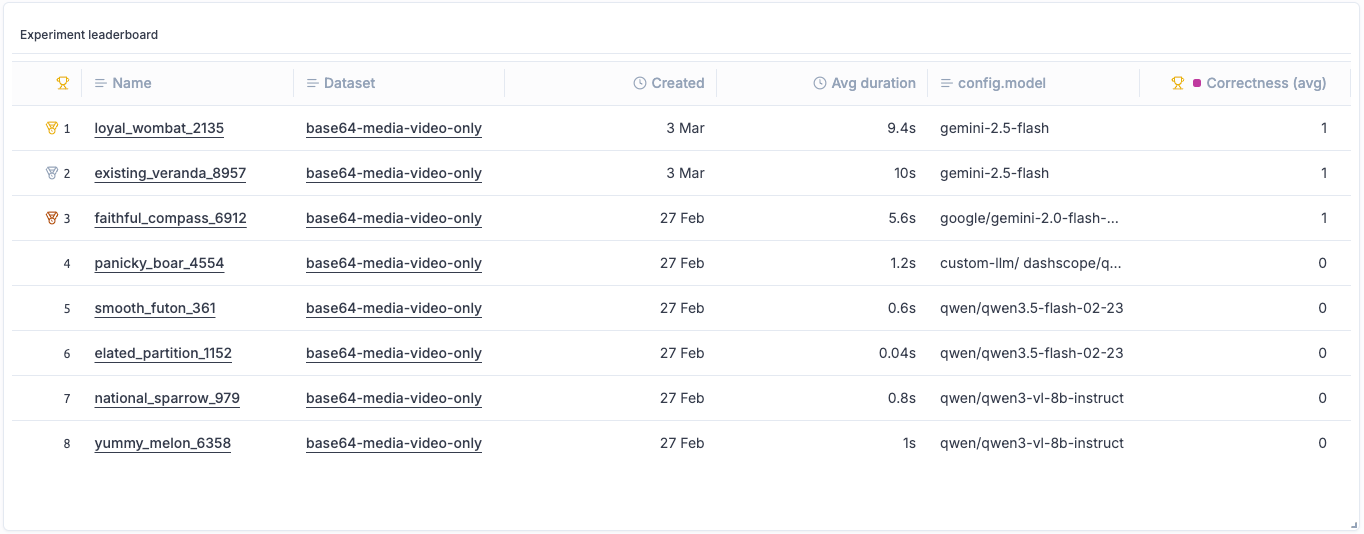
Displays a table comparing experiments with configurable columns. Useful for ranking experiments by specific metrics and comparing results at a glance.
Configuration options:
- Filters: Same filtering options as the Metrics widget (dataset, configuration, experiment IDs)
- Groups: Same grouping options as the Metrics widget
- Max experiments: Limit the number of experiments displayed
- Columns: Select and reorder which columns to display. The columns menu shows all available columns with a “N of N selected” indicator and drag handles for reordering
- Ranking: Rank experiments by a specific metric. Options are “No ranking” (default) and any available feedback score metric. When “No ranking” is selected, the ranking order option is disabled
Markdown text widget
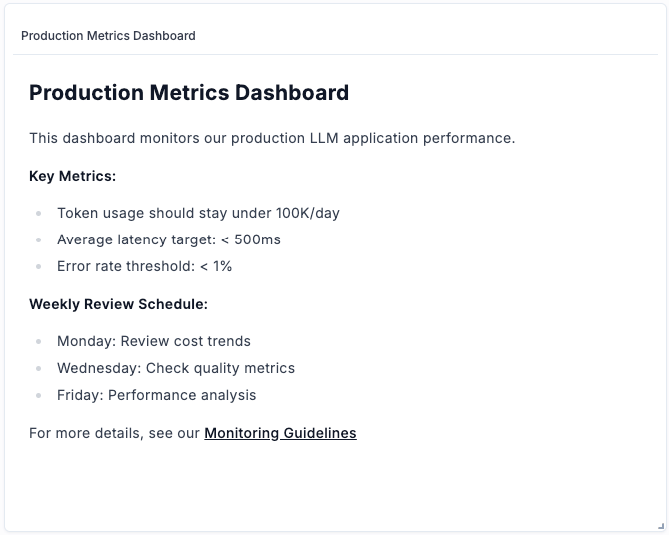
Available for both Multi-project and Experiments dashboards. Add custom notes, descriptions, or documentation using markdown formatting. Use this widget to:
- Add section headers and explanations
- Document dashboard purpose and context
- Include links to related resources
- Add team notes or guidelines
Creating a workspace dashboard
- Navigate to the Dashboards page from the sidebar
- Click Create new dashboard
- Select the dashboard type: Multi-project or Experiments
- Enter a name (description is optional)
- Click Create
Adding and configuring widgets
When you click the + button within a section, a unified widget configuration modal opens:
- Select a widget type from the clickable cards at the top. The available types depend on the dashboard type:
- Multi-project: Time series, Single metric, Markdown
- Experiments: Metrics, Leaderboard, Markdown
- Configure the widget settings below. The configuration area updates based on the selected widget type.
- Each widget has its own project or experiment selector — there are no global dashboard defaults. For Insight views, the current project is automatically set.
- For chart widgets, select the visualization type (line, bar, or radar) using clickable cards.
- Click Save to add the widget.
Customizing dashboards
Adding sections
Dashboards are organized into sections, each containing one or more widgets:
- Click Add section at the bottom of the dashboard
- Give the section a title
- Add widgets to the section
Editing widgets
- Click the menu icon on any widget
- Select Edit to modify the widget configuration
- Make your changes and save
Rearranging widgets
- Drag and drop: Use the drag handle on widgets to reorder them within a section
- Resize: Drag the edges of widgets to adjust their size
Collapsing sections
Click on a section title to collapse or expand it. The collapsed state is preserved across sessions.
Date range filtering
Use the date picker in the toolbar to filter data by time range. Select a preset range (Last 24 hours, Last 7 days, etc.) or choose custom dates.
Widgets that use date range filtering:
- Time series widget - filters time-series data to the selected range
- Single metric widget - calculates statistics within the selected range
Widgets not affected by date range:
- Experiments metrics widget - displays experiment results regardless of date
- Leaderboard widget - displays experiment results regardless of date
- Markdown text widget - static content
Saving changes
All dashboard changes are saved automatically. Built-in Insight views are read-only — duplicate them to create an editable copy.
Sharing dashboards
To share your current dashboard view:
- Click the Share button in the toolbar
- The URL is copied to your clipboard
- Share this URL with team members who have access to the workspace
The shared URL includes the dashboard ID, active date range, and any active filters, so recipients see the same view.
Next steps
- Set up Online Evaluation Rules to automatically generate feedback scores for your dashboards
- Configure Alerts to get notified when metrics exceed thresholds
- Learn about Production Monitoring best practices