

Observability for Langflow with Opik
Langflow is an open-source, low-code platform for building AI applications using a visual flow-based interface. It enables developers and non-developers alike to create complex LLM applications through drag-and-drop components, making it easier to prototype, test, and deploy AI workflows.
Opik integrates seamlessly with Langflow to provide comprehensive tracing and monitoring of your flow executions. The integration automatically captures all LLM calls, component interactions, and data flows within your Langflow applications.
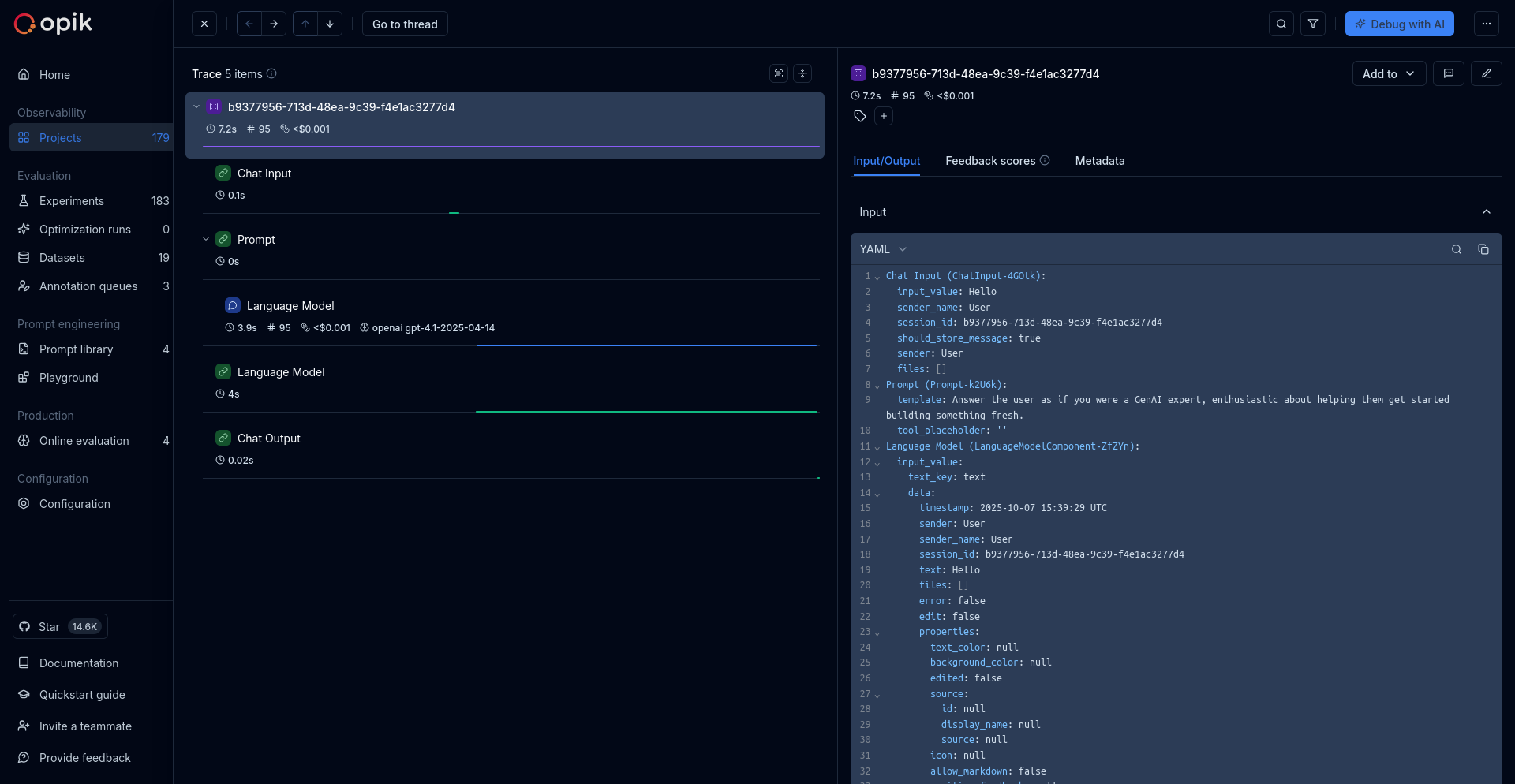
Results viewing
Once you’ve configured the integration, you can view your Langflow traces in the Opik dashboard. Each flow execution creates a detailed trace showing the complete execution path through your flow components.
Getting started
Prerequisites
Before integrating Opik with Langflow, ensure you have:
- A running Langflow server
- An Opik Cloud account or self-hosted Opik instance
- Access to the terminal/environment where Langflow runs
Installation
Install both Langflow and Opik in the same environment:
For more Langflow installation options and details, see the Langflow documentation.
Configuring Opik
Configure Opik to connect to your Opik instance. Run the following command in the same terminal/environment where you’ll run Langflow:
Opik Cloud
Enterprise deployment
Self-hosted instance
You’ll be prompted to enter your Opik API key. You can create an API key in your Opik account settings.
The configuration will be saved to ~/.opik.config and used automatically by Langflow’s Opik integration.
Using Opik with Langflow
Once Opik is configured, start Langflow in the same terminal or environment:
Langflow will automatically detect the Opik configuration and start sending traces to your Opik instance.
Running a flow
- Open Langflow in your browser (typically at
http://localhost:7860) - Create or open a flow
- Run your flow by clicking the “Run” button or triggering it via the API
- Navigate to your Opik dashboard to view the collected traces
Understanding Langflow traces
When you run a flow in Langflow, Opik automatically captures:
- Flow execution: The overall flow execution as a trace
- Component execution: Each component in your flow as individual spans
- LLM calls: All LLM API calls with input/output data
- Data transformations: Data passing between components
- Metadata: Flow configuration and execution context
Each trace includes:
- Flow name and ID
- Execution duration
- Input and output data
- Component-level timing
- Any errors or exceptions
Advanced usage
Custom project names
By default, Langflow traces are logged to the “Default Project” in Opik. You can specify a custom project name by setting the OPIK_PROJECT_NAME environment variable before starting Langflow:
Session tracking
Langflow automatically tracks sessions using thread IDs. Each conversation or flow execution thread is tracked as a separate session in Opik, making it easy to analyze multi-turn conversations and related executions.
Disabling the integration
To disable the Opik integration, you can:
- Remove the
~/.opik.configfile - Or unset the Opik environment variables:
Then restart Langflow.
Troubleshooting
Traces not appearing in Opik
If your traces aren’t appearing in Opik:
-
Verify Opik configuration:
Ensure the API key and URL are correct.
-
Check Langflow logs: Look for any Opik-related errors in the Langflow console output.
-
Test Opik connection: Run a simple Python script to verify your Opik configuration:
-
Verify Opik SDK installation: Ensure the Opik SDK is installed in the same environment as Langflow:
Configuration not detected
If Langflow isn’t detecting your Opik configuration:
- Ensure you ran
opik configurein the same terminal/environment where you start Langflow - Check that the
~/.opik.configfile exists and contains valid configuration - Try setting environment variables explicitly:
Authentication errors
If you’re seeing authentication errors:
- Verify your API key is valid in your Opik account settings
- For self-hosted instances, ensure the URL is correct and the instance is running
- Check that you have access to the specified workspace
Further improvements
If you encounter any issues or have suggestions for improving the Langflow integration, please let us know by creating an issue in the Opik GitHub repository.