Agent sandbox
The Agent Sandbox lets you run agents on your local machine while connected to Opik. Every agent execution is fully traced — you get LLM calls, latencies, token usage, and the complete execution graph, all visible in the Opik UI.
Beyond running your agent, the sandbox lets you tweak prompts and parameters from Agent Configuration without changing your code. Once you’re happy with the results, save the new configuration and your agent picks it up automatically.
Getting started
Mark your agent as an entrypoint
Mark your agent’s main function as an entrypoint. Opik automatically detects the function signature and registers it as a runnable agent.
Parameter types are displayed as input fields in the UI. In Python they are inferred from
type hints; in TypeScript, provide them explicitly via the params option.
Start the sandbox
The CLI validates that an entrypoint exists, opens a browser-based pairing flow, registers your agents, and begins polling for jobs.
The opik CLI is distributed as a Python package. Install it with pip install opik —
this is required even if your agent is written in TypeScript.
Talk to your agent
Once connected, the UI shows your runner and its registered agents. Select an agent, fill in the input parameters, and click Run. The agent executes locally on your machine, and the results — along with the full trace — appear in the UI.
Iterate on prompts and parameters
Switch to the Configuration tab in the Agent Sandbox page to adjust prompts, model parameters, or tool definitions — without leaving the sandbox and without changing your code.
Your changes aren’t saved yet. Run your agent again and the sandbox uses the unsaved configuration, so you can see the impact immediately. Try different prompts, compare results across runs, and only save the configuration once you’re satisfied. Your agent picks up the new settings automatically.
What happens in the sandbox
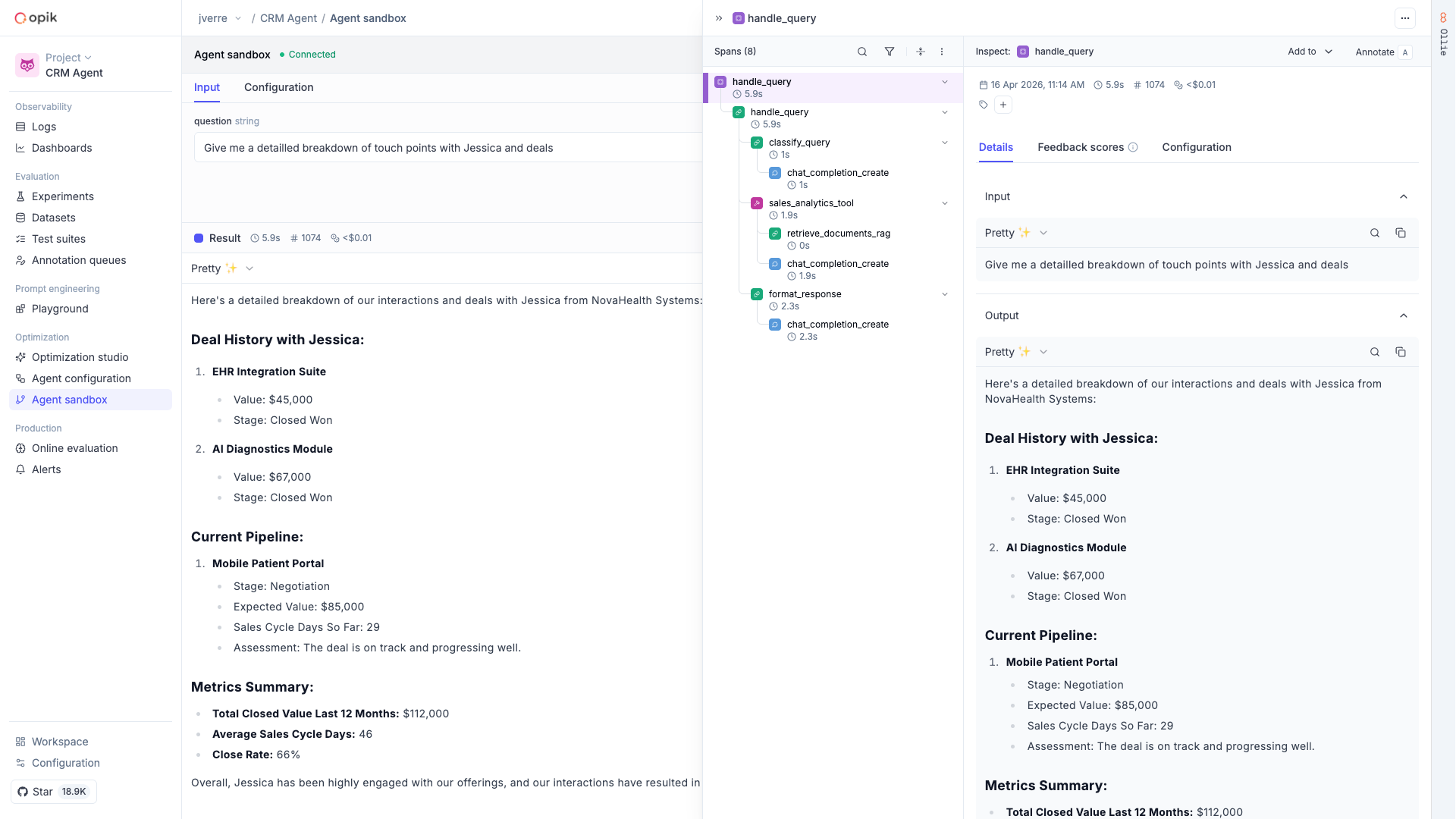
Every run in the sandbox produces a full trace — every LLM call, tool invocation, and sub-step is captured as spans with inputs, outputs, latencies, and token costs. Logs from your running agent stream to the UI in real time, so you can watch execution as it happens.
The sandbox monitors your runner with a heartbeat and updates its status automatically if it
disconnects. When --watch is enabled, file changes are detected and your agents are
re-registered without restarting the process. For CI or programmatic setups, use --headless to
skip the browser pairing flow entirely.
Troubleshooting
“No entrypoint found” error
Make sure at least one function is decorated with @opik.track(entrypoint=True) in Python or
track({ entrypoint: true }, fn) in TypeScript. The entrypoint must be discoverable from the
current working directory.
Pairing times out
The browser pairing session expires after 5 minutes. Re-run the command to generate a new session. Make sure your Opik environment variables are set correctly — see Getting started with Observability for configuration details.
Runner disconnects
Opik uses heartbeat monitoring to detect disconnects. If your runner shows as disconnected in the UI, check that the process is still running locally and that your network connection is stable.
FAQ
What is the difference between opik connect and opik endpoint?
They serve different purposes:
-
opik connectstarts a lightweight bridge daemon that gives Ollie remote access to your repository. Ollie can then read your source files, propose code changes, and rerun your agent — all from the Opik UI. It does not run your agent process itself. -
opik endpointruns your agent process and connects it to the Agent Sandbox. You can submit inputs from the UI, see results with full traces, and iterate on your Agent Configuration without changing code.
You can use both at the same time: opik endpoint to run and test your agent in the sandbox,
and opik connect to let Ollie inspect and edit your code.
Next steps
- Ollie — Use Ollie with
opik connectto debug and improve your agent’s code - Debugging agents with Ollie — The debug-fix-verify workflow
- Getting started with Observability — Configure your Opik environment